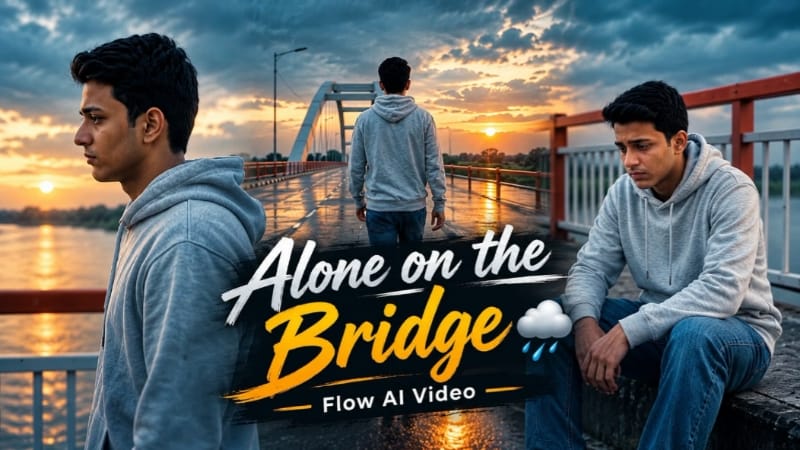
Bridge Sunset Cinematic AI Video is a creative photo-to-video concept designed for anyone who wants to turn a reference photo into an emotional cinematic walking film. The scene takes place on a concrete river bridge during golden hour, with warm amber sunlight, orange-and-white railings, a white bridge arch and a dramatic evening sky.
This AI video concept uses six different camera shots to create a connected visual story. The character wears a light grey zip hoodie, relaxed blue jeans and casual sneakers throughout the sequence. The main focus is on natural walking movements, thoughtful poses, cinematic camera tracking and consistent character appearance.
What Is Bridge Sunset Cinematic AI Video Editing?
Bridge Sunset Cinematic AI Video Editing uses a detailed text prompt and an uploaded reference photo to generate cinematic video scenes. Instead of presenting a single static pose, the concept includes different camera angles and movements that help create a short-film appearance.
The six-scene sequence starts with a low-angle tracking shot focusing on the character's hand and waist while walking along the bridge pavement. The next shot follows the character from behind as they walk toward the bridge arch railing against the vibrant sunset.
The third scene shows the character sitting alone on the bridge curb beside the orange-and-white railings, gazing downward thoughtfully. The fourth scene captures a side-profile walking shot with the character's head slightly bowed. In the fifth scene, the character pulls the hood of the grey hoodie over their head while continuing forward. The final scene follows the character from behind toward the white bridge arch, ending with a bright cinematic lens flare.
Outfit and Character Styling
The outfit is kept simple to support the emotional cinematic atmosphere. The character wears a light grey zip-up hoodie, relaxed blue jeans and casual sneakers.
The same outfit should remain consistent across all six scenes. This helps the generated video feel like one continuous film rather than six unrelated clips.
The uploaded reference photo is used to guide the character's facial appearance, eyes, jawline and natural skin tone. A clear reference image can help the AI produce a closer visual match, although exact identity preservation is not guaranteed in every generated frame.
Concrete Bridge and Sunset Background
The main location is a concrete river bridge with orange-and-white railings and a distinctive white bridge arch. The bridge pavement provides a natural setting for the walking shots, while the railing creates visual structure in the background.
The golden sunset adds warmth to the scene. Amber highlights fall across the bridge, while the deep twilight sky creates a cinematic contrast. The final lens flare adds a dramatic visual ending as the character approaches the white bridge arch.
Keeping the bridge architecture, railings, sky and lighting consistent between scenes can help make the sequence look more connected.
Six Cinematic Scenes
The first scene uses a low-angle tracking composition focused on the character's hand and waist. The second scene switches to a rear tracking view, showing the character moving toward the bridge arch.
The third scene changes the pace with a medium shot of the character sitting on the bridge curb. The fourth scene returns to movement with a side-profile tracking shot. The fifth scene adds a styling detail as the character pulls the hoodie hood over their head. Finally, the sixth scene uses a medium back-view tracking shot toward the white bridge arch.
Each shot has a different purpose: introducing movement, showing the location, creating a reflective pause and finishing with a strong cinematic composition.
Identity Preservation and Realistic Movement
For a more consistent result, the prompt asks the AI to use the uploaded photo as the character's identity reference. Facial features, skin tone, hairstyle and body proportions should remain as close as possible to the reference throughout the video.
The walking animation should look natural, with realistic arm movement, balanced posture and appropriate contact between the feet and bridge pavement. The hoodie and jeans should also move naturally as the character walks.
AI-generated video can sometimes introduce facial changes, unusual hand positions or inconsistent clothing. Review each scene carefully and regenerate or edit any frames that do not look right.
Color Grading and Photography Style
The requested visual style uses warm amber golden-hour lighting, a deep twilight sky and DSLR-style depth of field. The goal is a realistic live-action appearance with natural skin texture, detailed clothing and cinematic background separation.
The video uses a 16:9 widescreen aspect ratio, making it suitable for landscape video content and cinematic presentations. The subtle NoorEditing07 watermark should stay in one bottom corner without covering the character or important background details.
Final Result
The final concept combines a concrete river bridge, a golden sunset, a light grey hoodie and six distinct walking and sitting scenes. Together, these elements create an emotional cinematic video with a consistent outfit and a warm evening colour palette.
Use this Bridge Sunset Cinematic AI Video prompt to experiment with AI filmmaking from your own reference photo. For the best result, check the character consistency, camera movement, background details and final lens-flare scene before saving the video.
Sabse Pehle Character Sheet Photo Banaai ChatGPT Se
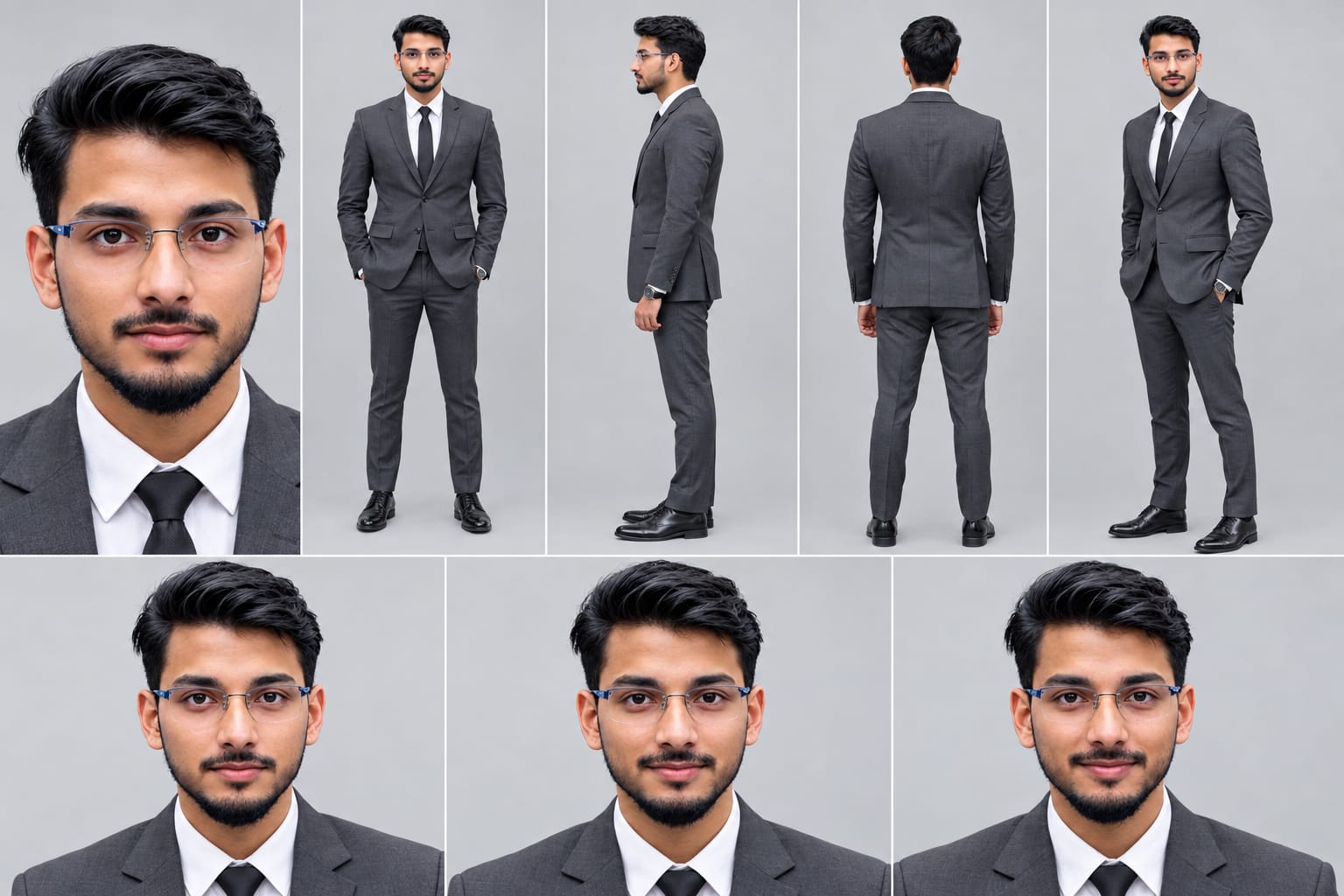
Create a professional character reference sheet of the person in the uploaded photo, on a plain light-grey studio background. IDENTITY LOCK (most important): Use the EXACT face from the uploaded photo. Same facial features, same skin tone, same hairstyle, same beard or no beard, same age, same body build and height. Do not beautify, change or replace the face. The face must be identical and clearly recognizable in every view. Layout: one wide image with 5 views of the same person, standing in a neutral relaxed pose, evenly spaced and the same size: 1. Close-up face portrait, looking straight at the camera 2. Front view, full body 3. Left side view, full body 4. Back view, full body 5. Three-quarter angle view, full body
Create a professional character reference sheet of the person in the uploaded photo, on a plain light-grey studio background.
IDENTITY LOCK (most important): Use the EXACT face from the uploaded photo. Same facial features, same skin tone, same hairstyle, same beard or no beard, same age, same body build and height. Do not beautify, change or replace the face. The face must be identical and clearly recognizable in every view.
Layout: one wide image with 5 views of the same person, standing in a neutral relaxed pose, evenly spaced and the same size:
1. Close-up face portrait, looking straight at the camera
2. Front view, full body
3. Left side view, full body
4. Back view, full body
5. Three-quarter angle view, full body
Outfit (same in every view): fitted charcoal-grey suit, white shirt, black tie, black dress shoes, wristwatch.
Extra row at the bottom: three face close-ups showing neutral, calm and slight-smile expressions.
Style: realistic photograph, soft even studio lighting, sharp detail, natural skin texture, 4K quality.
Negative: no face change, no different person, no cartoon or illustration style, no text, no labels, no logo, no watermark, no extra people, no distorted hands.
✓
Prompt copied to clipboard!
AI Character Reference Sheet Prompt Card
✦AI PHOTO PROMPT
Create a professional character reference sheet of the person in the uploaded photo, on a plain light-grey studio background. IDENTITY LOCK (most important): Use the EXACT face from the uploaded photo. Same facial features, same skin tone, same hairstyle, same beard or no beard, same age, same body build and height. Do not beautify, change or replace the face. The face must be identical and clearly recognizable in every view. Layout: one wide image with 5 views of the same person, standing in a neutral relaxed pose, evenly spaced and the same size: 1. Close-up face portrait, looking straight at the camera 2. Front view, full body 3. Left side view, full body 4. Back view, full body 5. Three-quarter angle view, full body
Create a professional character reference sheet of the person in the uploaded photo, on a plain light-grey studio background.
IDENTITY LOCK (most important): Use the EXACT face from the uploaded photo. Same facial features, same skin tone, same hairstyle, same beard or no beard, same age, same body build and height. Do not beautify, change or replace the face. The face must be identical and clearly recognizable in every view.
Layout: one wide image with 5 views of the same person, standing in a neutral relaxed pose, evenly spaced and the same size:
1. Close-up face portrait, looking straight at the camera
2. Front view, full body
3. Left side view, full body
4. Back view, full body
5. Three-quarter angle view, full body
Outfit (same in every view): fitted charcoal-grey suit, white shirt, black tie, black dress shoes, wristwatch.
Extra row at the bottom: three face close-ups showing neutral, calm and slight-smile expressions.
Style: realistic photograph, soft even studio lighting, sharp detail, natural skin texture, 4K quality.
Negative: no face change, no different person, no cartoon or illustration style, no text, no labels, no logo, no watermark, no extra people, no distorted hands.
Cinematic 16:9 8K realistic emotional video on a river bridge during cloudy twilight sunset. [FACE & IDENTITY LOCK] Strictly lock 100% exact facial structure, eyes, beard, and natural skin tone from reference photo. Smooth, blemish-free DSLR skin texture with zero face distortion across all scenes. [OUTFIT & LOOK] Light grey pullover hoodie, relaxed blue jeans, casual sneakers. [6 EXACT SCENES] - Scene 1: Low-angle close tracking shot of hand swinging while walking on the bridge road. - Scene 2: Back-view tracking walk toward the bridge railing; river and greenery visible under evening sky. - Scene 3: Medium shot sitting sadly on the footpath curb beside orange-white railings, head slightly bowed.
Cinematic 16:9 8K realistic emotional video on a river bridge during cloudy twilight sunset.
[FACE & IDENTITY LOCK]
Strictly lock 100% exact facial structure, eyes, beard, and natural skin tone from reference photo. Smooth, blemish-free DSLR skin texture with zero face distortion across all scenes.
[OUTFIT & LOOK]
Light grey pullover hoodie, relaxed blue jeans, casual sneakers.
[6 EXACT SCENES]
- Scene 1: Low-angle close tracking shot of hand swinging while walking on the bridge road.
- Scene 2: Back-view tracking walk toward the bridge railing; river and greenery visible under evening sky.
- Scene 3: Medium shot sitting sadly on the footpath curb beside orange-white railings, head slightly bowed.
- Scene 4: Side profile tracking shot walking slowly along railing with a gloomy look.
- Scene 5: Back shot pulling the hoodie cap over head while walking forward continuously.
- Scene 6: Back tracking walk toward the white bridge arch; soft white flare transition at the end.
[LIGHTING & SPECS]
Soft balanced evening twilight, moody sunset clouds, no harsh sunlight, calibrated DSLR colors, 16:9 ratio. Static watermark 'NoorEditing07' in the bottom corner.
✓
Prompt copied to clipboard!
AI Video Prompt Card
✦AI VIDEO PROMPT
Cinematic 16:9 8K realistic emotional video on a river bridge during cloudy twilight sunset. [FACE & IDENTITY LOCK] Strictly lock 100% exact facial structure, eyes, beard, and natural skin tone from reference photo. Smooth, blemish-free DSLR skin texture with zero face distortion across all scenes. [OUTFIT & LOOK] Light grey pullover hoodie, relaxed blue jeans, casual sneakers. [6 EXACT SCENES] - Scene 1: Low-angle close tracking shot of hand swinging while walking on the bridge road. - Scene 2: Back-view tracking walk toward the bridge railing; river and greenery visible under evening sky. - Scene 3: Medium shot sitting sadly on the footpath curb beside orange-white railings, head slightly bowed.
Cinematic 16:9 8K realistic emotional video on a river bridge during cloudy twilight sunset.
[FACE & IDENTITY LOCK]
Strictly lock 100% exact facial structure, eyes, beard, and natural skin tone from reference photo. Smooth, blemish-free DSLR skin texture with zero face distortion across all scenes.
[OUTFIT & LOOK]
Light grey pullover hoodie, relaxed blue jeans, casual sneakers.
[6 EXACT SCENES]
- Scene 1: Low-angle close tracking shot of hand swinging while walking on the bridge road.
- Scene 2: Back-view tracking walk toward the bridge railing; river and greenery visible under evening sky.
- Scene 3: Medium shot sitting sadly on the footpath curb beside orange-white railings, head slightly bowed.
- Scene 4: Side profile tracking shot walking slowly along railing with a gloomy look.
- Scene 5: Back shot pulling the hoodie cap over head while walking forward continuously.
- Scene 6: Back tracking walk toward the white bridge arch; soft white flare transition at the end.
[LIGHTING & SPECS]
Soft balanced evening twilight, moody sunset clouds, no harsh sunlight, calibrated DSLR colors, 16:9 ratio. Static watermark 'NoorEditing07' in the bottom corner.
Agar aap apni photo se Bridge Sunset Cinematic AI Video banana chahte hain, to neeche diye gaye steps follow karein.
Step 1: Apni Clear Photo Select Karein
Sabse pehle apni ek clear reference photo select karein. Photo mein face clearly visible hona chahiye, taaki AI ko aapki appearance samajhne mein madad mil sake.
Step 2: Flow AI Open Karein
Apne browser mein Flow AI open karein aur available video-generation feature select karein. Interface aur options account ke according alag ho sakte hain.
Step 3: Reference Photo Upload Karein
Apni selected photo upload karein. Prompt mein mention karein ki photo character ki identity reference ke liye use honi chahiye aur poore video mein face, skin tone aur overall appearance consistent rehni chahiye.
Step 4: Master Prompt Copy Karein
Is article mein diya gaya Bridge Sunset Cinematic AI Video prompt copy karein. Ismein concrete bridge, orange-and-white railings, white bridge arch, light grey hoodie, blue jeans aur golden sunset lighting ki details shamil hain.
Step 5: Prompt Paste Karein
Copied prompt ko Flow AI ke prompt box mein paste karein. Generate karne se pehle check karein ki six-scene sequence aur 16:9 widescreen format ki instructions included hain.
Step 6: Video Generate Karein
Available settings mein 16:9 landscape aspect ratio select karein. Uske baad Generate par click karein aur video processing complete hone ka wait karein.
Agar tool ek hi generation mein sabhi six scenes ko sahi tarah create nahi karta, to har scene ko alag generate karke baad mein combine kar sakte hain.
Step 7: Six Scenes Check Karein
Generated video mein ye six scenes verify karein:
1. Low-angle shot mein hand aur waist ke saath bridge par walking.
2. Back-view shot mein bridge arch railing ki taraf walking.
3. Orange-and-white railing ke paas bridge curb par sitting.
4. Head bowed ke saath side-profile walking shot.
5. Walking ke dauran hoodie ka hood head par pull karna.
6. White bridge arch ki taraf back-view tracking shot aur final lens flare.
Step 8: Face, Outfit Aur Movement Review Karein
Check karein ki face reference photo ke close ho aur light grey hoodie, blue jeans aur sneakers har scene mein consistent rahen. Walking, arm movement aur sitting pose natural dikhne chahiye.
Agar kisi scene mein face distortion, clothing change ya unnatural movement ho, to prompt ko refine karke us scene ko dobara generate karein.
Step 9: Final Editing Karein
Agar aapne scenes separately generate kiye hain, to unhe video editor mein correct sequence mein arrange karein. Transitions smooth rakhein aur golden-hour lighting ka look consistent banayein.
Step 10: Watermark Aur Export
Bottom corner mein subtle NoorEditing07 watermark add karein, agar AI ne use accurately generate nahi kiya ho. Final video ko 16:9 format mein export karein aur save karne se pehle complete video preview karein.
In steps ko follow karke aap apni reference photo se ek cinematic bridge sunset AI video create kar sakte hain.
Bridge Sunset AI VideoBridge Walking CinematicFlow AI PromptAI Video EditingGolden Hour VideoEmotional Walking VideoGrey Hoodie LookBlue Jeans AI VideoConcrete Bridge CinematicSunset Cinematic EditAI Photo To VideoSame Face Video Prompt16:9 AI VideoLens Flare CinematicNoorEditing07
Bridge Sunset AI VideoBridge Walking CinematicFlow AI PromptAI Video EditingGolden Hour VideoEmotional Walking VideoGrey Hoodie LookBlue Jeans AI VideoConcrete Bridge CinematicSunset Cinematic EditAI Photo To VideoSame Face Video Prompt16:9 AI VideoLens Flare CinematicNoorEditing07
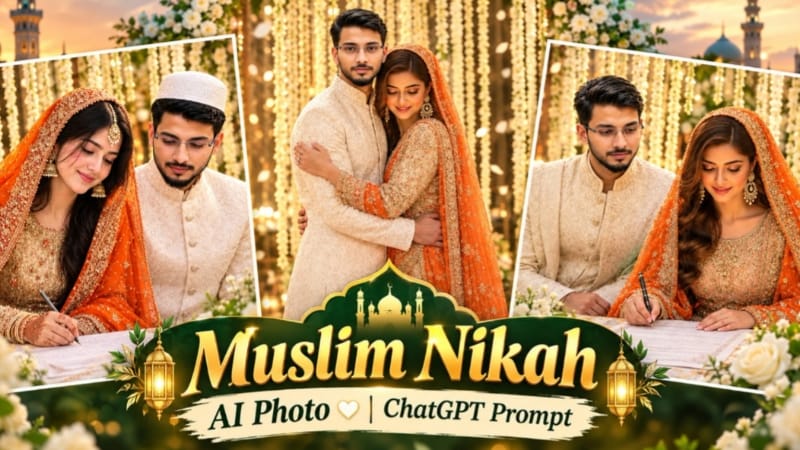
1. Muslim Nikah AI Photo Editing | Bride Groom ChatGPT Prompt
Muslim Nikah AI Photo Editing Prompt ki help se aap bride aur groom ki alag-alag reference photos ko traditional Nikah ceremony portrait mein transform kar sakte hain. Is design mein floral wedding stage, elegant outfits aur Nikah Nama signing scene ka use hota hai.
Step 1: Bride aur groom ki clear photos select karein, jisme dono ke faces clearly visible hon.
Step 11: Final image mein subtle NoorEditing07 watermark bottom corner par add karein.
Image save karke wedding-themed social media posts aur AI photo editing projects mein use karein.
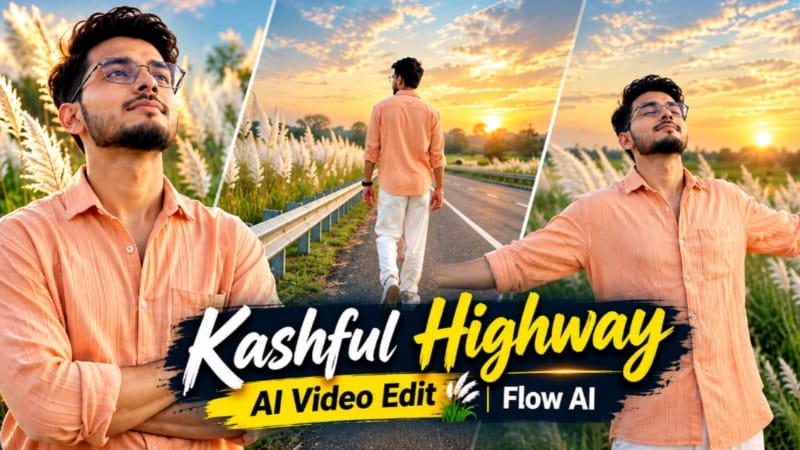
2. Kashful Highway Cinematic AI Video | Flow AI Prompt
Kashful Highway Cinematic AI Video Prompt se aap apni reference photo ko white Kashful grass aur sunset background ke saath cinematic video mein transform kar sakte hain.
Step 1: Apni clear reference photo select karein.
Step 2: Flow AI open karein aur reference photo upload karein.
Step 3: Kashful Highway Cinematic AI Video Prompt copy karke paste karein.
Step 4: Video format 16:9 landscape select karein.
Step 5: Outfit mein peach-orange button-down shirt, loose white trousers aur white casual sneakers maintain karein.
Step 6: Scene 1 mein character ko roadside railing ke paas back-view walking shot mein dikhayein.
Step 7: Scene 2 mein metal barrier ke against arms crossed karke khada hua character dikhayein.
Step 8: Scene 3 mein highway railing ke paas wide side-profile shot create karein.
Step 9: Scene 4 mein road ki white line par arms spread karke walking shot rakhein.
Step 10: Scene 5 mein character ko eyes closed karke sky ki taraf dekhte hue dikhayein.
Step 11: Final scene mein character ko distant horizon ki taraf running back-view shot mein rakhein.
Step 12: Soft indigo-amber sunset lighting, face consistency aur NoorEditing07 watermark check karke video export karein.
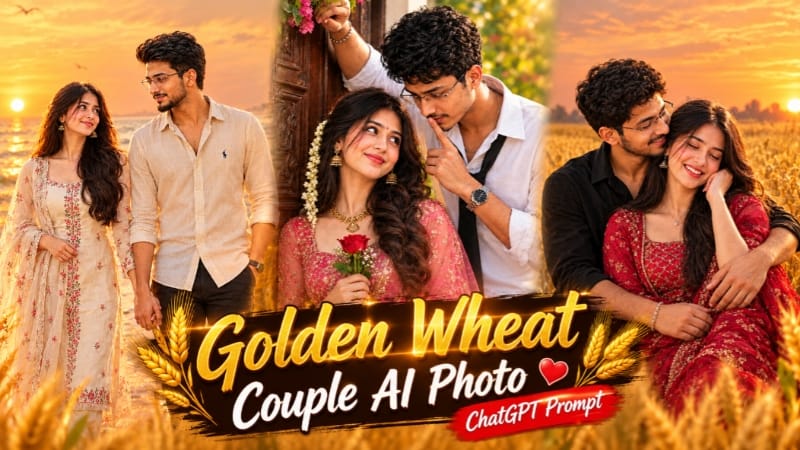
3. Golden Wheat Field Couple AI Photo | Romantic Sunset Portrait
Golden Wheat Field Couple AI Photo Prompt ki help se aap do reference photos ko use karke romantic sunset portrait create kar sakte hain. Is design mein golden wheat field, traditional clothing aur warm cinematic lighting ka combination hai.
Step 1: Teen images ready karein: pose aur background ke liye ek, woman ke face ke liye doosri aur man ke face ke liye teesri.
Step 2: ChatGPT open karke images upload karein.
Step 3: Golden Wheat Field Couple AI Photo Prompt copy karke paste karein.
Step 4: Aspect ratio 4:5 select karein.
Step 5: Couple ko wheat field mein seated pose mein rakhein, man left side aur woman right side par ho.
Step 6: Man ke black shirt aur beige trousers ko prompt ke according maintain karein.
Step 7: Woman ke maroon-crimson traditional outfit, embroidered dupatta aur silver jewellery ki details preserve karein.
Step 8: Man ko woman ko gently side aur back se hug karte hue dikhayein.
Step 9: Background mein golden wheat stalks, distant trees aur glowing sunset rakhein.
Step 11: Dono ke faces, hands aur body proportions carefully check karein.
Step 12: Final image mein subtle NoorEditing07 watermark top-left corner par rakhein aur portrait save karein.
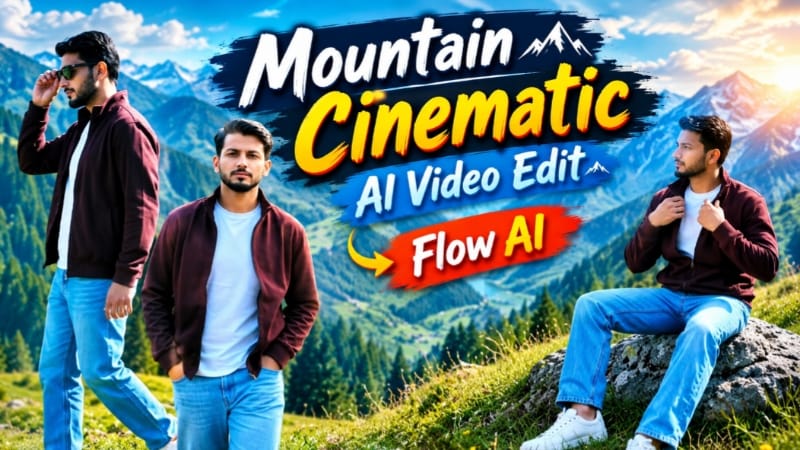
4. Alpine Meadow AI Video | Cinematic Mountain Flow AI Prompt
Alpine Meadow AI Video Prompt se aap ek reference photo ko green mountain landscape mein cinematic video ke roop mein create kar sakte hain. Is concept mein seven scenes aur smooth camera movements ka use hota hai.
Step 1: Apni clear reference photo select karein aur Flow AI open karein.
Step 2: Reference photo upload karke Alpine Meadow AI Video Prompt paste karein.
Step 3: Video ke liye vertical 9:16 format select karein.
Step 4: Outfit mein deep maroon jacket, white T-shirt, light-blue jeans, white sneakers aur dark sunglasses maintain karein.
Step 5: Scene 1 mein grass hill par walking shot create karein.
Step 6: Scene 2 mein mountain ridge par side-walking shot rakhein.
Step 7: Scene 3 mein grey rock par sitting pose aur scene 4 mein pine forest ke paas walking shot create karein.
Step 8: Scene 5 mein sunglasses adjust karne wala movement dikhayein.
Step 10: Final scene mein character ko high rock par khada karke scenic valley ki taraf dekhte hue dikhayein.
Step 11: Face, hairstyle, outfit aur camera movement ki consistency check karein.
Step 12: NoorEditing07 watermark verify karke final video export karein.
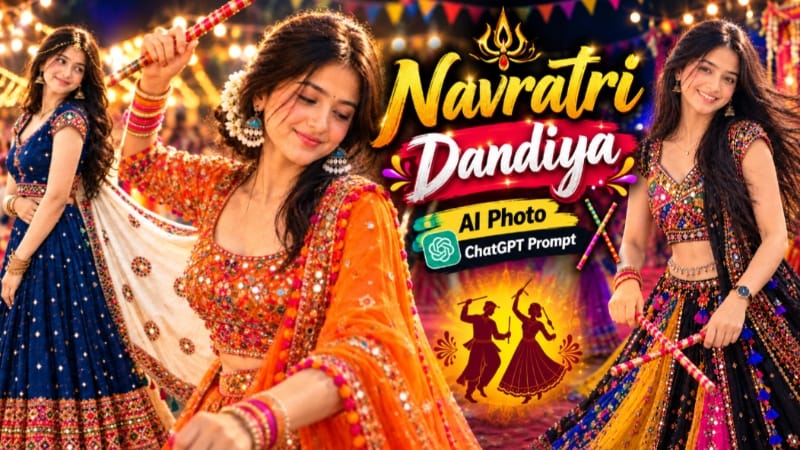
5. Navratri Dandiya AI Photo | Traditional Garba Look | ChatGPT Prompt
Navratri Dandiya AI Photo Prompt se aap traditional Garba styling ke saath colorful festive portrait create kar sakte hain. Is concept mein embroidered chaniya choli, traditional jewellery aur golden dandiya stick ka use hota hai.