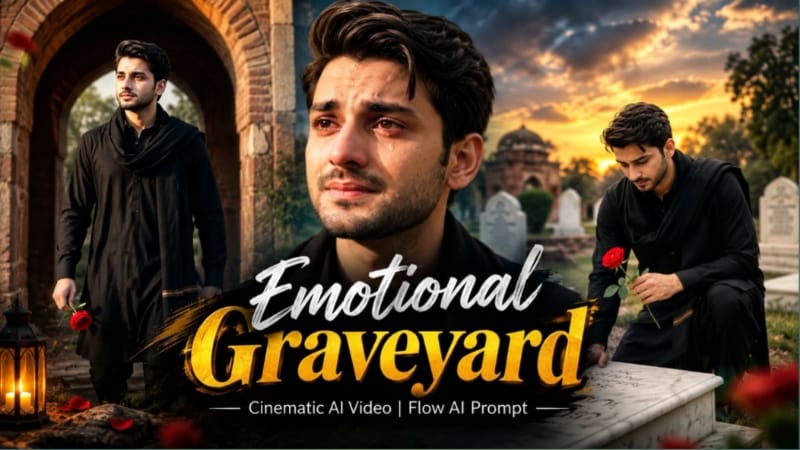
Emotional Graveyard Cinematic AI Video ek atmospheric aur emotional AI video concept hai jisme realistic environment, dramatic lighting aur cinematic camera movement ka use karke ek powerful visual scene create kiya ja sakta hai. Is type ke AI video mein graveyard environment ko cinematic style mein present kiya jata hai, jisse overall video mein emotional aur mysterious atmosphere create hota hai.
Flow AI ki help se aap apni reference photo ko use karke ek cinematic video generate kar sakte hain. Reference image ka main purpose character ki appearance ko consistent rakhna hota hai. Agar aap apne character ko video mein maintain karna chahte hain, to clear aur high-quality reference photo use karna important hai.
Is concept mein graveyard location ko realistic cinematic environment ke saath create kiya ja sakta hai. Background mein old gravestones, trees, cloudy sky, soft fog aur atmospheric lighting jaise visual elements scene ko more cinematic look de sakte hain. Lighting aur environment ko prompt ke through control karke video ka overall mood set kiya ja sakta hai.
Emotional cinematic videos mein camera movement bhi important role play karta hai. Slow camera movement, gentle tracking shots aur controlled zoom jaise effects scene ko more immersive bana sakte hain. Flow AI prompt mein camera direction ko clearly mention karne se generated video ka visual structure better control kiya ja sakta hai.
Aap is concept ko different storytelling ideas ke saath customize kar sakte hain. Character graveyard mein slowly walk kar sakta hai, kisi particular location par ruk sakta hai ya background ko cinematic way mein reveal kiya ja sakta hai. Scene ko simple rakhne se AI ko subject aur environment ko properly understand karne mein help mil sakti hai.
AI-generated video mein realistic appearance maintain karne ke liye reference photo clear honi chahiye. Face clearly visible ho aur image mein unnecessary blur ya heavy filters na hon. Agar aap character ke outfit ko specific rakhna chahte hain, to prompt mein clothing details ko clearly describe kar sakte hain.
Graveyard cinematic concept ke liye weather aur lighting bhi important visual elements hain. Overcast sky, subtle fog, soft ambient light aur evening atmosphere scene ko dramatic cinematic appearance de sakte hain. Aap apne creative requirement ke according daytime, sunset ya night-inspired environment bhi design kar sakte hain.
Flow AI mein prompt likhte waqt environment, character, camera movement, lighting, visual style aur video format ko clearly define karna useful hota hai. Detailed prompt AI ko desired scene samajhne mein help karta hai. Saath hi, prompt mein unnecessary conflicting instructions avoid karna chahiye.
Agar aap Instagram Reels ya YouTube Shorts ke liye video bana rahe hain, to vertical 9:16 format useful rahega. YouTube ya cinematic presentation ke liye 16:9 format choose kiya ja sakta hai. Final format platform aur content requirement ke according select karein.
Generated video ko export karne se pehle face consistency, character movement, background details, lighting aur camera motion ko check karein. Kabhi-kabhi AI-generated video mein small visual changes aa sakte hain. Aise case mein prompt ko thoda refine karke video ko regenerate kiya ja sakta hai.
Emotional Graveyard Cinematic AI Video ka main focus atmosphere aur storytelling par hota hai. Is concept ko dramatic visual storytelling, cinematic reels, emotional edits aur creative AI video projects ke liye use kiya ja sakta hai.
NoorEditing07 par aapko Flow AI prompts, AI photo prompts, cinematic video tutorials, VN QR templates aur trending editing ideas mil sakte hain. Is Flow AI concept ki help se aap ek realistic graveyard environment ke saath cinematic AI video create karke apne social media content ko creative visual style de sakte hain.
Sabse Pehle Character Sheet Photo Banaai ChatGPT Se
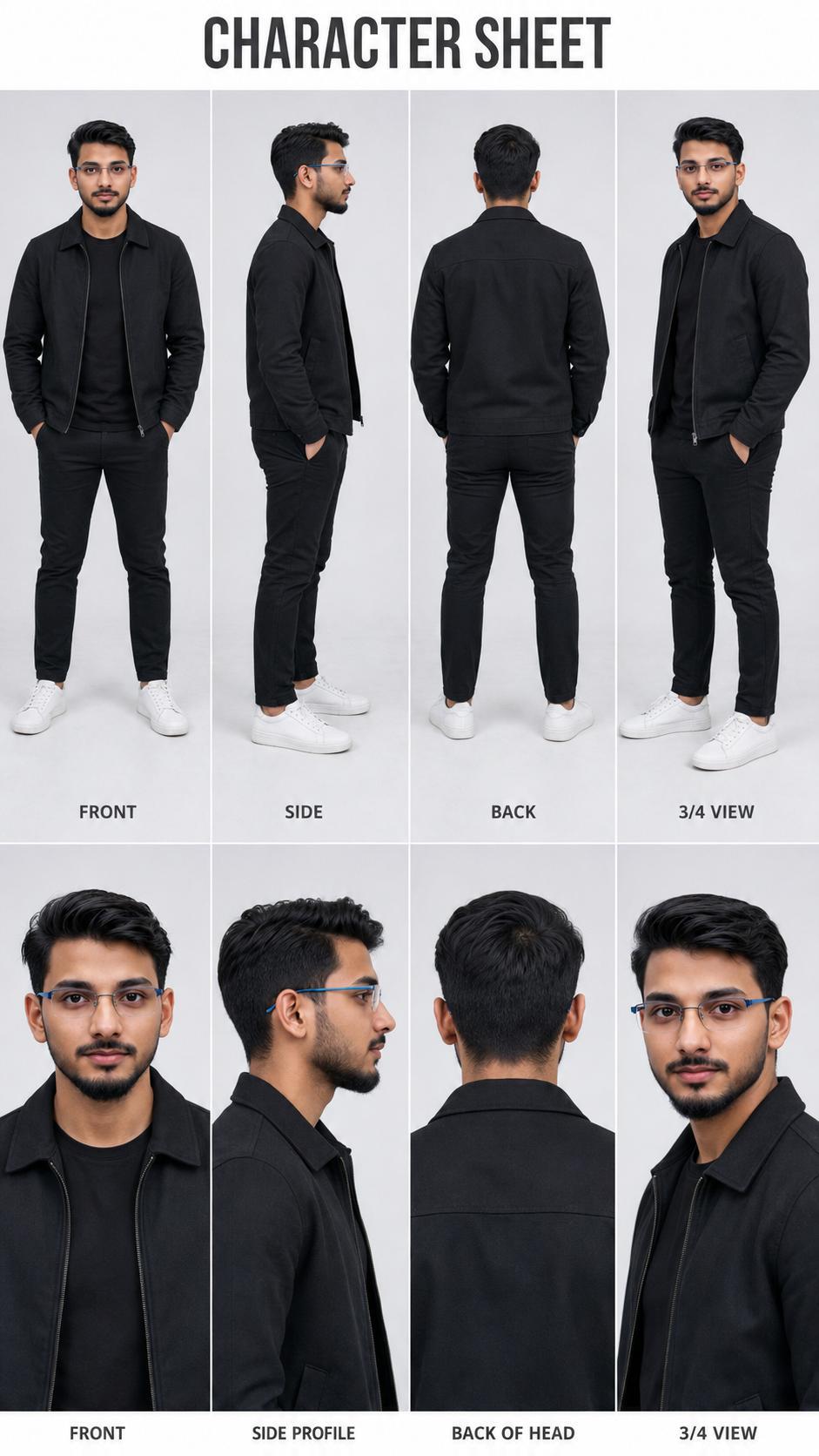
Use the uploaded image as the exact identity and face reference and generate a professional character sheet of the same person in a 9:16 ratio. Critical Identity Rules ( Strict ):The face must be 100% identical, preserving exact facial structure, skin tone, hairstyle, and proportions, with no stylization, cartoon, illustration, or CGI ; the output must look like a real photoshoot. Character Sheet Layout : Create a clean, minimal studio-style sheet with a top section showing full body views ( front relaxed pose, side left profile, back, and 3/4 angle ) and a bottom section with close-ups ( front neutral, side profile, back of head, and 3/4 ).
Use the uploaded image as the exact face reference and generate a professional character sheet of the same person in a 9:16 ratio.
Critical Identity Rules (Strict):
The face must be 100% identical, preserving exact facial structure, skin tone, hairstyle, and proportions, with no stylization, cartoon, illustration, or CGI; the output must look like a real photoshoot.
Character Sheet Layout:
Create a clean, minimal studio-style sheet with a top section showing full body views (Front View, Side View, Back View, and 3/4 Angle) and a bottom section with close-ups (Front Neutral, Side Profile, Back of Head, and 3/4 Close-up). Top title: "CHARACTER SHEET".
Style & Visual Look:
Fully photorealistic (not 3D or digital art), with soft diffused studio lighting, a clean neutral background (light grey/white gradient), natural skin texture with visible pores, and realistic shadows and depth.
Outfit:
Modern professional casual (black jacket, plain t-shirt, fitted pants, white sneakers), same across all views with realistic fabric texture.
Composition & Design:
Structured grid layout with even spacing, minimal clean design, labeled views, and an optional small info section with height, build, eye color, hair, and style notes.
Camera & Quality:
DSLR/mirrorless look, 50-85mm lens feel, sharp focus, high resolution, balanced exposure, natural colors.
Negative Instructions:
No cartoon/anime style, no 3D/CGI, no face modification, no exaggerated features, no artificial skin.
Watermark:
A small subtle watermark text "NoorEditing07" neatly placed at the bottom right corner.
✓
Prompt copied to clipboard!
AI Character Sheet Prompt Card
✦AI PHOTO PROMPT
Use the uploaded image as the exact identity and face reference and generate a professional character sheet of the same person in a 9:16 ratio. Critical Identity Rules ( Strict ):The face must be 100% identical, preserving exact facial structure, skin tone, hairstyle, and proportions, with no stylization, cartoon, illustration, or CGI ; the output must look like a real photoshoot. Character Sheet Layout : Create a clean, minimal studio-style sheet with a top section showing full body views ( front relaxed pose, side left profile, back, and 3/4 angle ) and a bottom section with close-ups ( front neutral, side profile, back of head, and 3/4 ).
Use the uploaded image as the exact face reference and generate a professional character sheet of the same person in a 9:16 ratio.
Critical Identity Rules (Strict):
The face must be 100% identical, preserving exact facial structure, skin tone, hairstyle, and proportions, with no stylization, cartoon, illustration, or CGI; the output must look like a real photoshoot.
Character Sheet Layout:
Create a clean, minimal studio-style sheet with a top section showing full body views (Front View, Side View, Back View, and 3/4 Angle) and a bottom section with close-ups (Front Neutral, Side Profile, Back of Head, and 3/4 Close-up). Top title: "CHARACTER SHEET".
Style & Visual Look:
Fully photorealistic (not 3D or digital art), with soft diffused studio lighting, a clean neutral background (light grey/white gradient), natural skin texture with visible pores, and realistic shadows and depth.
Outfit:
Modern professional casual (black jacket, plain t-shirt, fitted pants, white sneakers), same across all views with realistic fabric texture.
Composition & Design:
Structured grid layout with even spacing, minimal clean design, labeled views, and an optional small info section with height, build, eye color, hair, and style notes.
Camera & Quality:
DSLR/mirrorless look, 50-85mm lens feel, sharp focus, high resolution, balanced exposure, natural colors.
Negative Instructions:
No cartoon/anime style, no 3D/CGI, no face modification, no exaggerated features, no artificial skin.
Watermark:
A small subtle watermark text "NoorEditing07" neatly placed at the bottom right corner.
Cinematic 9:16 vertical 8K ultra-realistic emotional drama video in an ancient heritage park/graveyard setting. [FACE & IDENTITY] Use the uploaded reference photo for the man's face, hairstyle, skin tone, body build and height. Keep identity exactly same as reference photo — no alteration to face, body, or hairstyle in any scene. Ultra-clean, smooth, blemish-free skin with zero pimples, retaining natural DSLR texture and realism, matched exactly to the reference photo's tone — no artificial smoothing, no plastic look.
Cinematic 9:16 vertical 8K ultra-realistic emotional drama video in an ancient heritage park/graveyard setting.
[FACE & IDENTITY]
Use the uploaded reference photo for the man's face, hairstyle, skin tone, body build and height. Keep identity exactly same as reference photo — no alteration to face, body, or hairstyle in any scene. Ultra-clean, smooth, blemish-free skin with zero pimples, retaining natural DSLR texture and realism, matched exactly to the reference photo's tone — no artificial smoothing, no plastic look. Keep body proportions natural and realistic, matching the exact build shown in the reference photo — this must work accurately for any person of any age or body type who uploads their own reference photo, whether short, tall, slim, or heavy.
[OUTFIT & STYLING]
Solid jet-black pathani kurta and pajama set with a black shawl (chaddar) draped across the shoulders, a silver wristwatch, black beaded bracelet, thin silver chain, and voluminous layered hair. Same outfit throughout, no changes.
Location (same throughout, do not change): an ancient heritage park/graveyard with antique brick arches, a white marble gravestone, a brick pathway, manicured green hedges, and an arched heritage stone doorway, under muted overcast skies transitioning to golden-hour light.
[8 DETAILED SCENES]
- Scene 1: Back-view medium shot — the man walks slowly down an ancient stone path with hands clasped behind his back, looking toward antique brick arches under muted overcast skies.
- Scene 2: Medium-low shot — he kneels solemnly beside a white marble gravestone, holding a single red rose, resting one hand on the cold stone slab.
- Scene 3: Wide tracking shot from behind — he walks along the brick pathway, lifting both hands to adjust the black shawl comfortably around his shoulders.
- Scene 4: Cinematic side-profile close-up — sitting quietly, head slightly turned, composed yet melancholic expression looking toward the horizon.
- Scene 5: Over-the-shoulder angle — looking down at the red rose resting upon the marble gravestone slab.
- Scene 6: Medium frontal tracking shot — walking beside manicured green hedges, adjusting the shawl around his neck with a calm, poised gaze.
- Scene 7: Golden-hour medium shot — walking out from an arched heritage stone doorway holding the red rose, warm sunlight striking his face and hair.
- Scene 8: Emotional tight close-up portrait — teary red eyes, a single teardrop rolling down his smooth cheek, soft sorrowful expression, blurred outdoor trees behind.
[COLOR & CAMERA]
Muted cinematic desaturated tones with rich contrasting skin tones and deep blacks, soft natural lighting, shallow depth of field, steady 9:16 vertical framing.
[WATERMARK]
Minimal, subtle white text watermark "NoorEditing07" fixed in the bottom corner throughout the video.
✓
Prompt copied to clipboard!
AI Video Prompt Card
✦AI VIDEO PROMPT
Cinematic 9:16 vertical 8K ultra-realistic emotional drama video in an ancient heritage park/graveyard setting. [FACE & IDENTITY] Use the uploaded reference photo for the man's face, hairstyle, skin tone, body build and height. Keep identity exactly same as reference photo — no alteration to face, body, or hairstyle in any scene. Ultra-clean, smooth, blemish-free skin with zero pimples, retaining natural DSLR texture and realism, matched exactly to the reference photo's tone — no artificial smoothing, no plastic look.
Cinematic 9:16 vertical 8K ultra-realistic emotional drama video in an ancient heritage park/graveyard setting.
[FACE & IDENTITY]
Use the uploaded reference photo for the man's face, hairstyle, skin tone, body build and height. Keep identity exactly same as reference photo — no alteration to face, body, or hairstyle in any scene. Ultra-clean, smooth, blemish-free skin with zero pimples, retaining natural DSLR texture and realism, matched exactly to the reference photo's tone — no artificial smoothing, no plastic look. Keep body proportions natural and realistic, matching the exact build shown in the reference photo — this must work accurately for any person of any age or body type who uploads their own reference photo, whether short, tall, slim, or heavy.
[OUTFIT & STYLING]
Solid jet-black pathani kurta and pajama set with a black shawl (chaddar) draped across the shoulders, a silver wristwatch, black beaded bracelet, thin silver chain, and voluminous layered hair. Same outfit throughout, no changes.
Location (same throughout, do not change): an ancient heritage park/graveyard with antique brick arches, a white marble gravestone, a brick pathway, manicured green hedges, and an arched heritage stone doorway, under muted overcast skies transitioning to golden-hour light.
[8 DETAILED SCENES]
- Scene 1: Back-view medium shot — the man walks slowly down an ancient stone path with hands clasped behind his back, looking toward antique brick arches under muted overcast skies.
- Scene 2: Medium-low shot — he kneels solemnly beside a white marble gravestone, holding a single red rose, resting one hand on the cold stone slab.
- Scene 3: Wide tracking shot from behind — he walks along the brick pathway, lifting both hands to adjust the black shawl comfortably around his shoulders.
- Scene 4: Cinematic side-profile close-up — sitting quietly, head slightly turned, composed yet melancholic expression looking toward the horizon.
- Scene 5: Over-the-shoulder angle — looking down at the red rose resting upon the marble gravestone slab.
- Scene 6: Medium frontal tracking shot — walking beside manicured green hedges, adjusting the shawl around his neck with a calm, poised gaze.
- Scene 7: Golden-hour medium shot — walking out from an arched heritage stone doorway holding the red rose, warm sunlight striking his face and hair.
- Scene 8: Emotional tight close-up portrait — teary red eyes, a single teardrop rolling down his smooth cheek, soft sorrowful expression, blurred outdoor trees behind.
[COLOR & CAMERA]
Muted cinematic desaturated tones with rich contrasting skin tones and deep blacks, soft natural lighting, shallow depth of field, steady 9:16 vertical framing.
[WATERMARK]
Minimal, subtle white text watermark "NoorEditing07" fixed in the bottom corner throughout the video.
Sabse pehle apne phone mein ek clear aur high-quality reference photo ready karein. Photo mein face clearly visible hona chahiye, taki Flow AI character ko better understand kar sake.
Ab Flow AI open karein aur image-to-video generation option select karein. Apni reference photo upload karein. Reference photo upload karne ke baad neeche diya gaya Emotional Graveyard Cinematic AI Video prompt copy karein aur prompt box mein paste karein.
Prompt mein character ki appearance, graveyard environment, cinematic lighting, atmosphere aur camera movement ko clearly mention karein. Agar aap character ka outfit same rakhna chahte hain, to prompt mein outfit details bhi include karein.
Ab video aspect ratio select karein. Instagram Reels aur YouTube Shorts ke liye 9:16 vertical format choose kar sakte hain. Agar aap widescreen cinematic video banana chahte hain, to 16:9 format select karein.
Ab Generate option par click karein. Flow AI aapki reference photo aur prompt ke according cinematic video generate karega. Generation complete hone ke baad video ko carefully preview karein.
Preview karte waqt character ka face, hairstyle, outfit, body movement aur overall appearance check karein. Saath hi graveyard background, lighting, fog, camera movement aur scene consistency ko bhi check karein.
Agar video mein desired result nahi milta, to prompt ko refine karke dobara generate karein. Aap camera movement, lighting, environment ya character details ko aur clearly describe kar sakte hain.
Better result ke liye reference photo clear rakhein aur prompt mein unnecessary details add na karein. Character aur environment ke important elements ko simple aur clear language mein describe karein.
Final result satisfactory hone ke baad video ko export ya save karein. Agar aap social media par upload kar rahe hain, to platform ke according video format aur quality maintain karein.
Is tarah aap Flow AI ki help se apni reference photo ko use karke Emotional Graveyard Cinematic AI Video create kar sakte hain.
Emotional Graveyard Cinematic AI Video - Noor Editing
Emotional Graveyard Cinematic AI VideoGraveyard AI VideoFlow AI PromptCinematic AI VideoEmotional AI VideoGraveyard CinematicFlow AI VideoAI Video PromptAI Photo To VideoCinematic Video EditingEmotional Cinematic EditFlow AI TutorialAI Video EditingCinematic AI PromptTrending AI Video
Emotional Graveyard Cinematic AI Video - Noor Editing
Emotional Graveyard Cinematic AI VideoGraveyard AI VideoFlow AI PromptCinematic AI VideoEmotional AI VideoGraveyard CinematicFlow AI VideoAI Video PromptAI Photo To VideoCinematic Video EditingEmotional Cinematic EditFlow AI TutorialAI Video EditingCinematic AI PromptTrending AI Video
Epic Transition, Ajmer Sharif, Humayun's Tomb, Emotional Rose & Tera Zikr VN Editing Tutorial
AI editing tools make it possible to transform ordinary photos and clips into trending transition videos, cinematic spiritual portraits, heritage-location couple videos, emotional day-to-night stories, and ready-made VN edits. This combined tutorial covers five creative editing concepts using CapCut, ChatGPT, Flow AI, and VN Video Editor, with a focus on realistic results, smooth transitions, consistent identity, cinematic camera movement, and high-quality final output.
1. Epic Transition CapCut Template | Trending Transition Video Edit
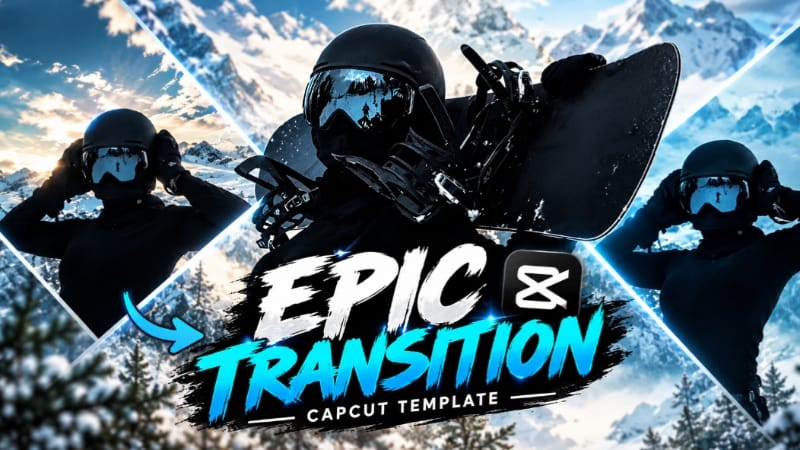
The Epic Transition CapCut Template is a ready-made transition editing concept designed for creating a dynamic trending-style video without manually building every transition and effect from scratch. The template format allows creators to add their own photos or clips and let the preset editing structure handle the timing and transitions.
Step-by-Step Workflow
Prepare the photos or video clips you want to use in the transition edit.
Open the Epic Transition CapCut Template.
Open the template in CapCut.
Tap Use Template when the option is available.
Select the required photos or clips from your gallery.
Make sure each selected image is properly framed for its template slot.
Continue to the template preview.
Check how CapCut has automatically arranged the selected media.
Replace any photo or clip that does not fit the transition properly.
Preview the complete edit from beginning to end.
Check transition timing, framing, effects, and clip placement.
Make only the necessary adjustments while keeping the template's original visual flow.
Export the finished transition video in a suitable quality.
Review the final video once more before sharing it on Reels, Shorts, or other social platforms.
2. Ajmer Sharif AI Photo | Spiritual Dargah Look
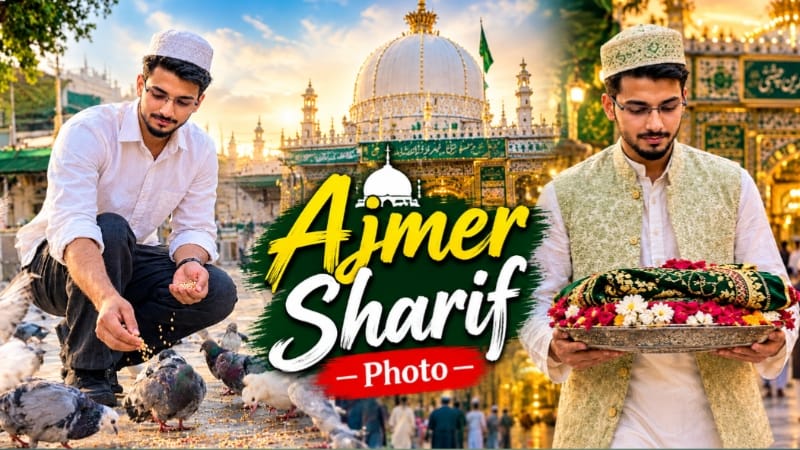
The Ajmer Sharif AI Photo concept uses ChatGPT to transform a reference photo into a peaceful and respectful dargah-inspired portrait. The uploaded image acts as the primary identity reference, while the environment, architecture, lighting, clothing, and composition are adapted into a realistic spiritual setting.
The page includes multiple variations, including a person sitting respectfully in front of the dargah, walking toward the entrance with a decorated plate containing a chadar and flowers, and feeding grain to pigeons in the courtyard. The featured compositions use realistic DSLR-style photography, warm natural lighting, detailed architecture, natural skin texture, and 4:5 framing.
Step-by-Step Workflow
Select a clear, high-quality reference photo with the face clearly visible.
Open ChatGPT and upload the reference image.
Copy the Ajmer Sharif AI Photo prompt.
Paste the prompt into ChatGPT.
Keep the uploaded image as the primary identity reference.
Select the desired scene: sitting in front of the shrine, walking toward the entrance, or feeding pigeons.
Maintain the respectful traditional clothing and natural appearance specified in the selected prompt.
Add the dargah-inspired architecture, courtyard, golden dome, marble textures, and appropriate background details.
Use the specified warm or natural lighting according to the selected scene.
Generate the image.
Compare the generated person with the original reference.
Check face, hairstyle, skin tone, hands, clothing, body proportions, and expression.
Inspect the architecture, pigeons, chadar, flowers, marble floor, lighting, and background.
If any element looks unnatural, give ChatGPT a specific correction instruction and refine the image.
Maintain the 4:5 composition where specified.
Perform a final realism and respectful-presentation check.
Save/export the completed AI photo in high quality.
3. Humayun's Tomb Couple Cinematic | Flow AI Video
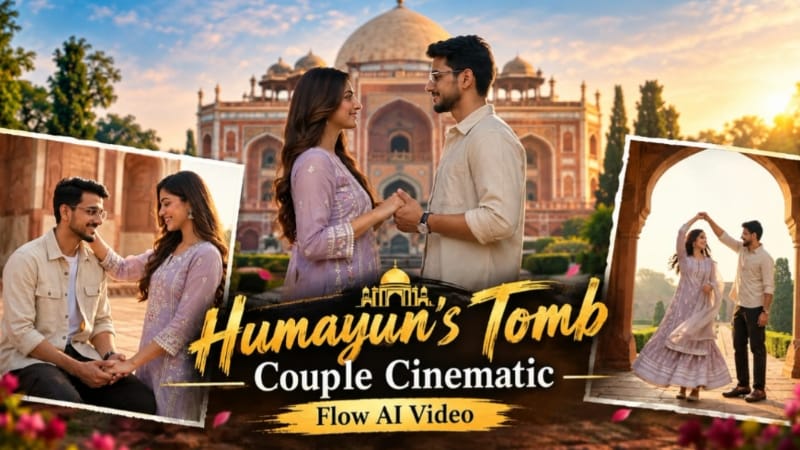
The Humayun's Tomb Couple Cinematic concept transforms couple reference photos into a cinematic heritage-location travel video using Flow AI. The video is set around the Mughal architecture, gardens, red sandstone pathways, archways, and domes of Humayun's Tomb, with warm golden-hour lighting and smooth cinematic camera movement.
The concept uses two reference photos and emphasizes keeping both people visually consistent throughout the video. The featured styling includes a traditional black/charcoal ethnic outfit with silver detailing and accessories for the woman, and a striped Cuban-collar shirt with white trousers, white sneakers, and a black wristwatch for the man. The detailed prompt contains eight cinematic scenes in a 16:9, ultra-realistic 8K narrative fashion-film style.
Step-by-Step Workflow
Prepare clear, high-quality reference photos of both people.
Make sure both faces are clearly visible in the reference images.
Create character-reference sheets in ChatGPT if required by the workflow.
Open Flow AI and upload the prepared reference images.
Use the Humayun's Tomb cinematic video prompt.
Keep the identity-preservation instructions for both subjects.
Maintain the specified outfits, hairstyles, accessories, and natural proportions.
Select 16:9 widescreen format.
Use the highest suitable quality available.
Generate the eight-scene cinematic sequence.
Check the hand-holding close-up and garden pathway walking scene.
Review the Mughal archway twirl and grand garden approach.
Check the vaulted corridor, arched romantic scene, terrace interaction, and final balustrade shot.
Verify that both faces remain consistent throughout all scenes.
Check clothing, jewellery, hair, fabric movement, hands, and body proportions.
Inspect the red sandstone architecture, green gardens, domes, shadows, and golden-hour lighting.
Make sure camera movements remain smooth and connected between scenes.
Regenerate any scene with identity drift, distorted hands, unnatural fabric movement, or background inconsistencies.
Preview the complete video from beginning to end.
Export the final cinematic travel video in high quality.
4. Emotional Rose Heartbreak Cinematic AI Video | Day-to-Night Transition
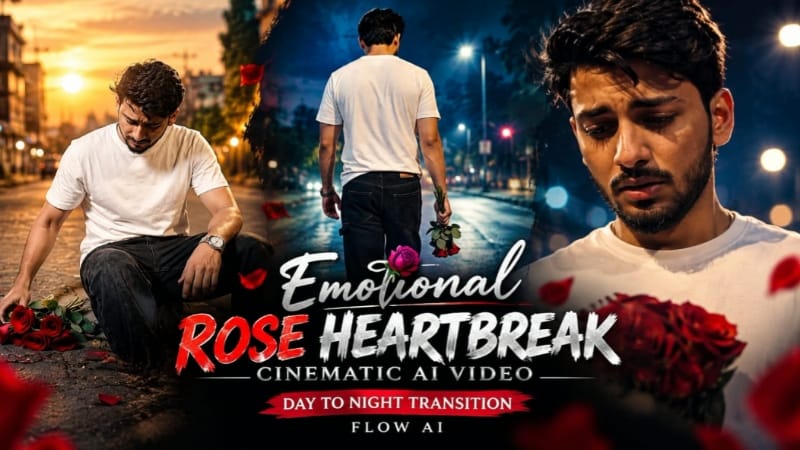
The Emotional Rose Heartbreak Cinematic AI Video creates a six-scene emotional story in Flow AI. The story begins during warm daylight with the character collecting scattered red roses from a roadside pavement and then transitions into a lonely nighttime sequence. The key storytelling moment is the day-to-night transformation exactly when the character becomes fully upright in Scene 2.
The same reference identity, outfit, location, and visual continuity are maintained throughout the video. The six scenes move from rose collection to the day-to-night transformation, emotional close-up, nighttime walking sequence, holding the roses close, and a final high-angle zoom-out. The prompt specifies 16:9 widescreen and premium 4K/8K quality.
Step-by-Step Workflow
Open Flow AI Video Generator.
Upload a clear reference photo.
Copy the complete Emotional Rose Heartbreak AI Video prompt.
Paste the prompt into Flow AI's video-generation section.
Use the uploaded image as the identity reference.
Select 16:9 widescreen format.
Select the highest available quality or 4K/8K option.
Confirm that the video contains exactly six scenes.
In Scene 1, make sure only the hands, roses, and wristwatch are visible.
Check that the scattered roses are picked up one by one during the opening three seconds.
In Scene 2, make sure the character slowly stands upright.
The day-to-night transition should occur exactly when the character becomes fully upright.
Check the deep-blue night sky and warm amber streetlight after the transition.
Review Scene 3's slow facial push-in and natural emotional expression.
Check the rear tracking shot as the character walks through the nighttime street.
In Scene 5, make sure the roses are held naturally against the chest.
In Scene 6, check the sitting pose and the final high-angle slow zoom-out.
Maintain the same white T-shirt, black baggy jeans, red slides, and silver wristwatch throughout.
Check face identity, body proportions, hands, fingers, and movement.
Keep the petrol station, roadside shops, auto-rickshaws, pavement, and surrounding street consistent.
Maintain warm daylight before the transition and amber-blue nighttime lighting afterward.
Avoid unwanted black-and-white, faded, or heavily desaturated output.
Check that the roses maintain realistic shape, petals, and quantity.
Make sure the single NoorEditing07 watermark stays fixed in the same bottom corner.
Preview all six scenes in order.
Perform the final quality check and export the completed cinematic video.
5. Tera Zikr Hi Kaafi Hai VN QR Template | Viral VN Code Template
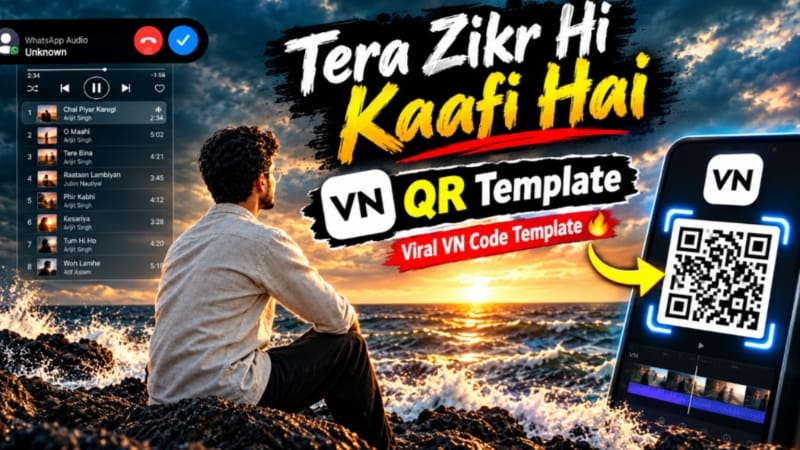
The Tera Zikr Hi Kaafi Hai VN QR Template is a ready-made VN Video Editor concept that allows creators to apply preset transitions, effects, timing, and visual styling to their own photos or video clips. Instead of manually creating every transition, the QR template provides a quicker template-based editing workflow.
The template can be used for short-form content such as Instagram Reels, YouTube Shorts, WhatsApp Status, and Facebook Reels. Clear photos and well-framed video clips generally work better because the selected media must fit the template's preset structure.
Step-by-Step Workflow
Install and open VN Video Editor.
Prepare the photos or video clips you want to use.
Open the Tera Zikr Hi Kaafi Hai VN QR Template QR code.
In VN, open the QR Code Scanner.
Scan the QR code.
Wait for the template to open in VN.
Tap Use or Apply Template if the option is displayed.
Select the required photos or video clips from your gallery.
Tap Next.
Allow VN to automatically arrange the selected media according to the preset timing, transitions, and effects.
Preview the complete video.
Check whether every photo or clip is positioned correctly.
Replace any media that does not fit the template properly.
Make basic text, music, or other available adjustments if required.
Avoid unnecessary changes that could disrupt the template's original editing flow.
Preview the entire video once more.
Check transitions, timing, media quality, and overall visual consistency.
Tap Export and select a suitable video quality.
Save the finished video to your phone gallery.
If the QR code does not scan, use a clear QR image and try scanning it again through VN's QR scanner.
Final Result
These five concepts cover trending CapCut transitions, spiritual AI photography, cinematic Humayun's Tomb couple videos, emotional day-to-night AI storytelling, and VN QR-code template editing.
For the most consistent results, always start with clear reference images or high-quality clips, follow the correct template or prompt workflow, and carefully check faces, hands, clothing, proportions, backgrounds, lighting, transitions, camera movement, and overall continuity before exporting.
These editing techniques can be adapted for Instagram Reels, YouTube Shorts, Facebook Reels, WhatsApp Status, AI photo editing, cinematic AI videos, CapCut templates, VN QR templates, and NoorEditing07 website tutorials.