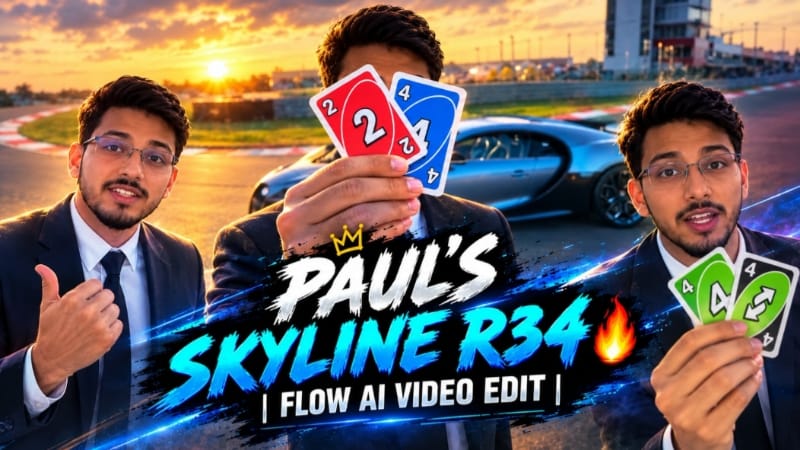
Paul Pulls Up in the Skyline R34 | Viral Car Edit Tutorial
Paul Pulls Up in the Skyline R34 is a cinematic car-edit concept inspired by the iconic Nissan Skyline R34 and the memorable automotive style associated with the Fast & Furious movie franchise. This editing concept combines a dramatic car reveal, stylish automotive visuals, smooth transitions and cinematic effects to create an engaging short video.
If you enjoy car edits, AI video generation and cinematic transitions, this tutorial will help you understand the creative process behind this type of edit. You can experiment with your own photo, a suitable car image and an AI video-generation tool to develop a personalized version of the concept.
What Is the Paul Pulls Up Skyline R34 Edit?
The Paul Pulls Up Skyline R34 edit focuses on the moment a legendary-looking sports car arrives in a cinematic scene. The visual style can include a dramatic entrance, a low-angle camera view, detailed car bodywork, atmospheric lighting and a smooth reveal.
The Nissan Skyline GT-R R34 is widely associated with automotive enthusiasts and the Fast & Furious films. This makes it a recognizable subject for car-themed edits and nostalgic automotive content.
The concept can be recreated as an AI-generated video or assembled manually using existing footage and a video editor. The exact workflow depends on the editing application and the assets you choose.
Why the Skyline R34 Works for Cinematic Edits
The R34's distinctive sports-car silhouette gives creators several visual elements to highlight, including its front profile, headlights, body shape and rear styling. Different camera angles can make these details stand out without overcrowding the video with unnecessary effects.
A cinematic edit often works best when the car remains the main subject. A clear opening shot, a dramatic reveal and a well-timed final frame can create a more cohesive result than adding too many transitions.
Creators can experiment with a silver, blue or other custom car appearance depending on their chosen reference image. If you want a specific R34 design, include a clear reference image and describe the desired colour, body style and environment.
How AI Can Help Create a Car Edit
AI photo-to-video tools can help animate a still image by generating camera movement, subtle environmental motion and a cinematic reveal. Depending on the tool, you may be able to upload a reference photo and describe how the scene should develop.
For example, you could begin with a still shot of a person standing in a cinematic setting. The scene can then transition to a sports car arriving nearby, followed by a close-up of the vehicle. If the AI tool supports multiple reference images or scene instructions, use them to guide the composition.
AI results can vary, particularly when generating detailed vehicles, wheels, headlights and recognizable car designs. Review the output carefully and regenerate any frames where the vehicle's shape changes unexpectedly.
Cinematic Camera Angles and Transitions
Camera movement plays an important role in car-edit videos. A low-angle shot can emphasize the vehicle's presence, while a front three-quarter view can show its shape and headlights. A side-tracking shot can create a sense of movement without requiring an unnecessarily complicated scene.
For transitions, consider a clean cut timed to the music, a brief zoom, a light flash or a controlled motion blur. Use effects sparingly so the car remains clear and the edit feels connected from beginning to end.
You can also combine a wide establishing shot with close-ups of the vehicle's exterior. Keeping the colour grading consistent helps the separate clips feel like part of the same cinematic sequence.
Music, Timing and Visual Style
Music and timing can influence the overall impact of a car edit. Choose audio that you are allowed to use on your publishing platform, then align the reveal or transition with a suitable beat.
Warm sunset lighting can create a nostalgic atmosphere, while a dark urban setting can produce a different cinematic mood. Pick one visual direction and maintain it throughout the video.
Avoid adding too much text or too many overlays. A simple title, a clean car reveal and a subtle NoorEditing07 watermark are often enough for a polished presentation.
Final Result
The goal of the Paul Pulls Up in the Skyline R34 edit is to create a stylish automotive video with a recognizable sports-car design, cinematic camera movement and smooth transitions.
You can experiment with AI-generated scenes or traditional video editing, depending on your available tools. Keep the car's appearance consistent, check every frame for visual errors and export the finished edit in the aspect ratio required by your chosen platform.
Use this concept as a starting point for your own Skyline-inspired car edit and create a version that reflects your personal editing style.
Sabse Pehle Character Sheet Photo Banaai ChatGPT Se
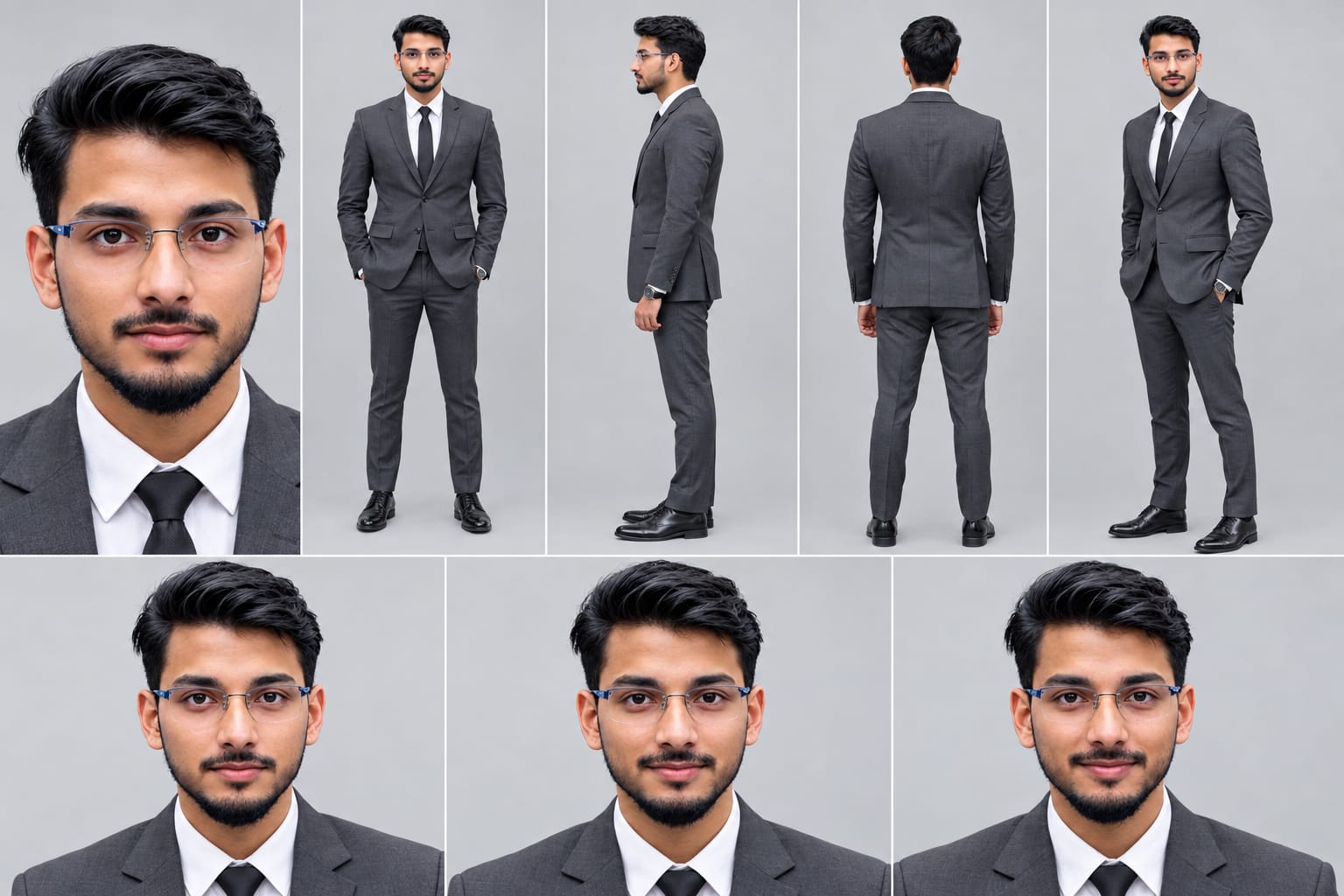
Create a professional character reference sheet of the person in the uploaded photo, on a plain light-grey studio background. IDENTITY LOCK (most important): Use the EXACT face from the uploaded photo. Same facial features, same skin tone, same hairstyle, same beard or no beard, same age, same body build and height. Do not beautify, change or replace the face. The face must be identical and clearly recognizable in every view. Layout: one wide image with 5 views of the same person, standing in a neutral relaxed pose, evenly spaced and the same size: 1. Close-up face portrait, looking straight at the camera 2. Front view, full body 3. Left side view, full body 4. Back view, full body 5. Three-quarter angle view, full body
Create a professional character reference sheet of the person in the uploaded photo, on a plain light-grey studio background.
IDENTITY LOCK (most important): Use the EXACT face from the uploaded photo. Same facial features, same skin tone, same hairstyle, same beard or no beard, same age, same body build and height. Do not beautify, change or replace the face. The face must be identical and clearly recognizable in every view.
Layout: one wide image with 5 views of the same person, standing in a neutral relaxed pose, evenly spaced and the same size:
1. Close-up face portrait, looking straight at the camera
2. Front view, full body
3. Left side view, full body
4. Back view, full body
5. Three-quarter angle view, full body
Outfit (same in every view): fitted charcoal-grey suit, white shirt, black tie, black dress shoes, wristwatch.
Extra row at the bottom: three face close-ups showing neutral, calm and slight-smile expressions.
Style: realistic photograph, soft even studio lighting, sharp detail, natural skin texture, 4K quality.
Negative: no face change, no different person, no cartoon or illustration style, no text, no labels, no logo, no watermark, no extra people, no distorted hands.
✓
Prompt copied to clipboard!
AI Character Reference Sheet Prompt Card
✦AI PHOTO PROMPT
Create a professional character reference sheet of the person in the uploaded photo, on a plain light-grey studio background. IDENTITY LOCK (most important): Use the EXACT face from the uploaded photo. Same facial features, same skin tone, same hairstyle, same beard or no beard, same age, same body build and height. Do not beautify, change or replace the face. The face must be identical and clearly recognizable in every view. Layout: one wide image with 5 views of the same person, standing in a neutral relaxed pose, evenly spaced and the same size: 1. Close-up face portrait, looking straight at the camera 2. Front view, full body 3. Left side view, full body 4. Back view, full body 5. Three-quarter angle view, full body
Create a professional character reference sheet of the person in the uploaded photo, on a plain light-grey studio background.
IDENTITY LOCK (most important): Use the EXACT face from the uploaded photo. Same facial features, same skin tone, same hairstyle, same beard or no beard, same age, same body build and height. Do not beautify, change or replace the face. The face must be identical and clearly recognizable in every view.
Layout: one wide image with 5 views of the same person, standing in a neutral relaxed pose, evenly spaced and the same size:
1. Close-up face portrait, looking straight at the camera
2. Front view, full body
3. Left side view, full body
4. Back view, full body
5. Three-quarter angle view, full body
Outfit (same in every view): fitted charcoal-grey suit, white shirt, black tie, black dress shoes, wristwatch.
Extra row at the bottom: three face close-ups showing neutral, calm and slight-smile expressions.
Style: realistic photograph, soft even studio lighting, sharp detail, natural skin texture, 4K quality.
Negative: no face change, no different person, no cartoon or illustration style, no text, no labels, no logo, no watermark, no extra people, no distorted hands.
Create a highly realistic 16:9 vertical video. A precise frame-by-frame recreation of the exact motion, performance, and subtle camera movements (dolly, pan, zoom) from the REFERENCE VIDEO, transferring them onto the person shown in the TARGET IMAGE. The final output must be photorealistic, maintaining the target person's facial identity, clothing, and physical characteristics perfectly, while performing the exact actions, gestures, expressions, and head/body rotations seen in the reference. The scene background should also be recreated as in the reference, but adapted for the 16:9 vertical aspect ratio, preserving correct spatial relationships and lighting. Seamless blending of identity and motion, high fidelity, 8K resolution.
Create a highly realistic 16:9 vertical video. A precise frame-by-frame recreation of the exact motion, performance, and subtle camera movements (dolly, pan, zoom) from the REFERENCE VIDEO, transferring them onto the person shown in the TARGET IMAGE. The final output must be photorealistic, maintaining the target person's facial identity, clothing, and physical characteristics perfectly, while performing the exact actions, gestures, expressions, and head/body rotations seen in the reference. The scene background should also be recreated as in the reference, but adapted for the 16:9 vertical aspect ratio, preserving correct spatial relationships and lighting. Seamless blending of identity and motion, high fidelity, 8K resolution.
✓
Prompt copied to clipboard!
AI Video Prompt Card
✦AI VIDEO PROMPT
Create a highly realistic 16:9 vertical video. A precise frame-by-frame recreation of the exact motion, performance, and subtle camera movements (dolly, pan, zoom) from the REFERENCE VIDEO, transferring them onto the person shown in the TARGET IMAGE. The final output must be photorealistic, maintaining the target person's facial identity, clothing, and physical characteristics perfectly, while performing the exact actions, gestures, expressions, and head/body rotations seen in the reference. The scene background should also be recreated as in the reference, but adapted for the 16:9 vertical aspect ratio, preserving correct spatial relationships and lighting. Seamless blending of identity and motion, high fidelity, 8K resolution.
Create a highly realistic 16:9 vertical video. A precise frame-by-frame recreation of the exact motion, performance, and subtle camera movements (dolly, pan, zoom) from the REFERENCE VIDEO, transferring them onto the person shown in the TARGET IMAGE. The final output must be photorealistic, maintaining the target person's facial identity, clothing, and physical characteristics perfectly, while performing the exact actions, gestures, expressions, and head/body rotations seen in the reference. The scene background should also be recreated as in the reference, but adapted for the 16:9 vertical aspect ratio, preserving correct spatial relationships and lighting. Seamless blending of identity and motion, high fidelity, 8K resolution.
Paul Pulls Up in the Skyline R34 Car Edit Kaise Banaye
Agar aap Paul Pulls Up in the Skyline R34 jaisa cinematic car edit banana chahte hain, to neeche diye gaye steps follow karein.
Step 1: Reference Photo Select Karein
Sabse pehle ek clear photo select karein. Aap apni photo, sports car ki photo ya dono use kar sakte hain, depending on the effect you want to create. Agar aapko specific Skyline R34 look chahiye, to usi design ki clear reference image use karein.
Step 2: AI Video Tool Open Karein
Apna preferred AI photo-to-video ya video-generation tool open karein. Check karein ki tool reference images upload karne aur prompt ke through video generate karne ki facility deta hai ya nahi.
Step 3: Reference Images Upload Karein
Apni selected reference photo upload karein. Agar tool multiple references support karta hai, to person aur car ke liye separate reference images use kar sakte hain.
Prompt mein clearly mention karein ki car ka design, colour aur overall appearance consistent rehna chahiye.
Step 4: Car Edit Prompt Taiyar Karein
Prompt mein cinematic car reveal, Skyline R34-inspired sports car, dramatic camera movement, realistic lighting aur smooth transitions ki details likhein.
Aap apne concept ke according sunset road, urban background ya cinematic parking area select kar sakte hain. Ek hi visual theme maintain karne se final edit zyada cohesive lagega.
Step 5: Video Generate Karein
Prompt paste karne ke baad available aspect ratio aur quality settings select karein. Generate par click karein aur output ready hone ka wait karein.
Agar car ka shape, wheels ya headlights distorted dikhte hain, to prompt refine karein ya doosra generation try karein.
Step 6: Cinematic Reveal Add Karein
Generated clips ko video editor mein arrange karein. Shuruaat mein establishing shot rakhein, uske baad car reveal aur phir vehicle ke close-up shots add karein.
Transitions ko music ke beats ke saath align karein. Smooth cuts, subtle zoom aur controlled motion blur use kar sakte hain.
Step 7: Music Aur Colour Grading Karein
Apne video ke mood ke according suitable audio select karein. Copyright aur platform ke audio-use rules ko dhyan mein rakhein.
Clips ki brightness, contrast aur colour tone ko consistent rakhein. Effects itne zyada na lagayein ki car ki details clearly dikhna band ho jayein.
Step 8: Final Video Check Karein
Export karne se pehle poora video preview karein. Check karein ki car ka design consistent hai, transitions smooth hain aur kisi frame mein unwanted distortion nahi hai.
Step 9: NoorEditing07 Watermark Add Karein
Agar aap apni editing ko NoorEditing07 branding ke saath publish karna chahte hain, to bottom corner mein ek subtle watermark add karein. Watermark ko car ya important visual details ke upar na rakhein.
Step 10: Export Aur Publish Karein
Apne platform ke according aspect ratio aur export quality select karein. Landscape video ke liye 16:9 aur vertical Reels ya Shorts ke liye 9:16 format choose kar sakte hain.
Video export karne ke baad final playback check karein. Ab aap apna Skyline R34-inspired cinematic car edit publish kar sakte hain.
In steps ki madad se aap ek stylish car reveal video create kar sakte hain aur apne editing style ke according effects aur transitions customize kar sakte hain.
Paul Pulls Up R34Skyline R34 EditNissan Skyline VideoViral Car EditCar Edit TutorialCinematic Car RevealR34 AI VideoPaul Walker Inspired EditCar Transition EditAI Video EditingSkyline GT-R R34Cinematic Car VideoPhoto To Video AITrending Car EditNoorEditing07
Paul Pulls Up R34Skyline R34 EditNissan Skyline VideoViral Car EditCar Edit TutorialCinematic Car RevealR34 AI VideoPaul Walker Inspired EditCar Transition EditAI Video EditingSkyline GT-R R34Cinematic Car VideoPhoto To Video AITrending Car EditNoorEditing07
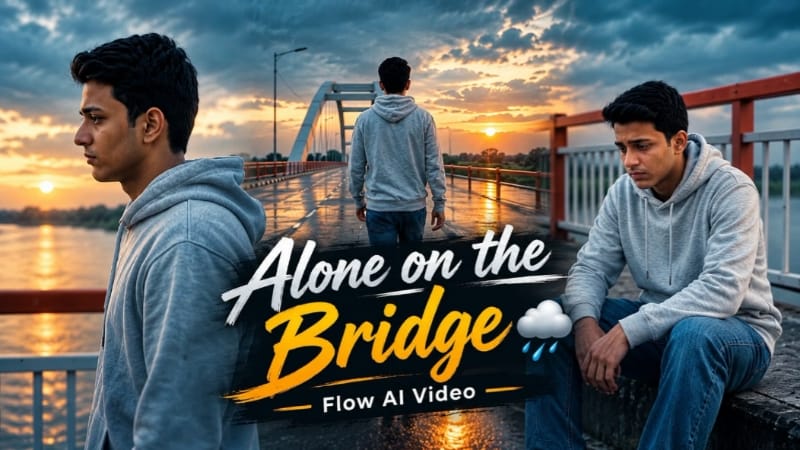
1. Bridge Sunset Cinematic AI Video | Flow AI Prompt
Bridge Sunset Cinematic AI Video Prompt se aap apni reference photo ko golden-hour sunset ke saath emotional cinematic walking video mein convert kar sakte hain. Is concept mein concrete river bridge, orange-white railings aur six camera shots use hote hain.
Step 1: Apni clear reference photo select karein aur Flow AI open karein.
Step 2: Photo upload karke Bridge Sunset Cinematic AI Video Prompt paste karein.
Step 3: Video format 16:9 landscape select karein.
Step 4: Outfit mein light-grey zip hoodie, relaxed blue jeans aur casual sneakers maintain karein.
Step 5: Scene 1 mein low-angle tracking shot ke saath character ko bridge par walk karte hue dikhayein.
Step 6: Scene 2 mein back-view walking shot rakhein, jahan character white bridge arch ki taraf ja raha ho.
Step 7: Scene 3 mein character ko orange-white railing ke paas bridge curb par baitha hua dikhayein.
Step 8: Scene 4 mein head slightly bowed ke saath side-profile walking shot create karein.
Step 9: Scene 5 mein character walking ke dauran hoodie ka hood head par pull karta hai.
Step 10: Final scene mein white bridge arch ki taraf back-view tracking shot aur bright lens flare rakhein.
Step 12: NoorEditing07 watermark verify karke final video export karein.
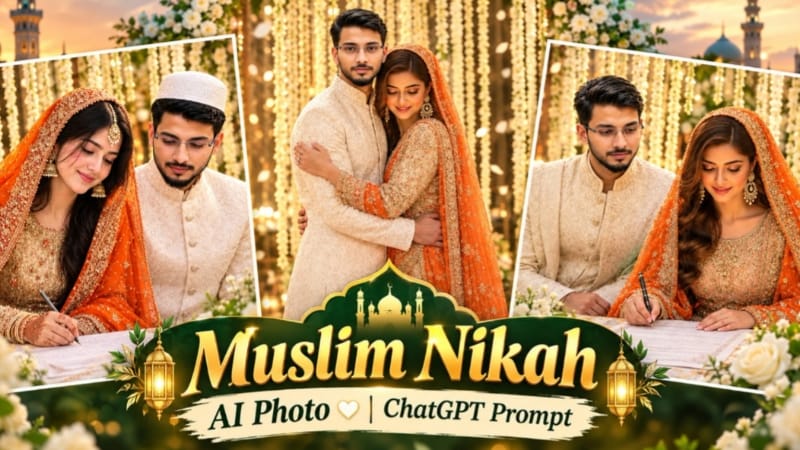
2. Muslim Nikah AI Photo Editing | Bride Groom ChatGPT Prompt
Muslim Nikah AI Photo Prompt se bride aur groom ki separate reference photos ko use karke realistic wedding ceremony portrait banaya ja sakta hai. Is concept mein Nikah Nama signing, floral decoration aur traditional wedding outfits ka use hota hai.
Step 11: Agar AI ne watermark sahi generate nahi kiya, to bottom corner mein subtle NoorEditing07 watermark add karein.
Step 12: Final image save karke wedding-themed posts ya AI editing projects mein use karein.
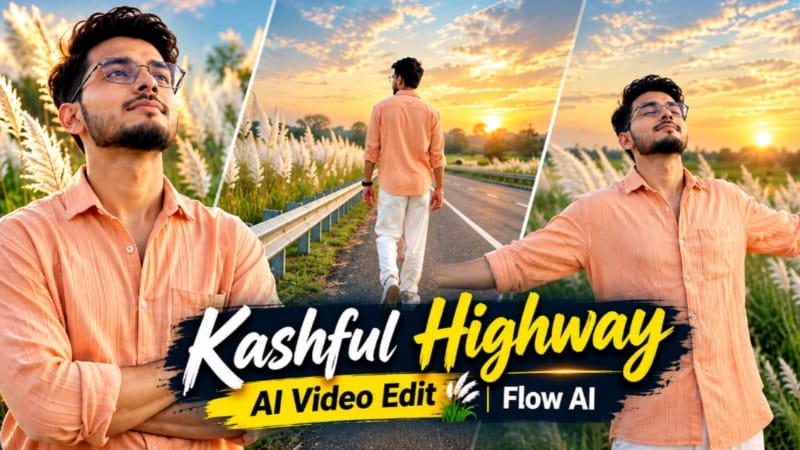
3. Kashful Highway Cinematic AI Video | Flow AI Prompt
Kashful Highway Cinematic AI Video Prompt se aap apni reference photo ko Kashful grass aur dramatic sunset background ke saath cinematic video mein transform kar sakte hain.
Step 1: Apni clear reference photo select karein aur Flow AI open karein.
Step 2: Reference photo upload karke Kashful Highway Cinematic AI Video Prompt paste karein.
Step 3: Video format 16:9 landscape select karein.
Step 4: Outfit mein peach-orange button-down shirt, loose white trousers aur white casual sneakers maintain karein.
Step 5: Scene 1 mein roadside railing ke paas back-view walking shot create karein.
Step 6: Scene 2 mein character ko metal barrier ke against arms crossed karke khada dikhayein.
Step 7: Scene 3 mein highway railing ke paas wide side-profile shot rakhein.
Step 8: Scene 4 mein road ki white line par arms spread karke walking shot create karein.
Step 9: Scene 5 mein character ko eyes closed karke sky ki taraf dekhte hue dikhayein.
Step 10: Final scene mein character ko distant horizon ki taraf running back-view shot mein rakhein.
Step 12: Face consistency aur NoorEditing07 watermark verify karke final video export karein.
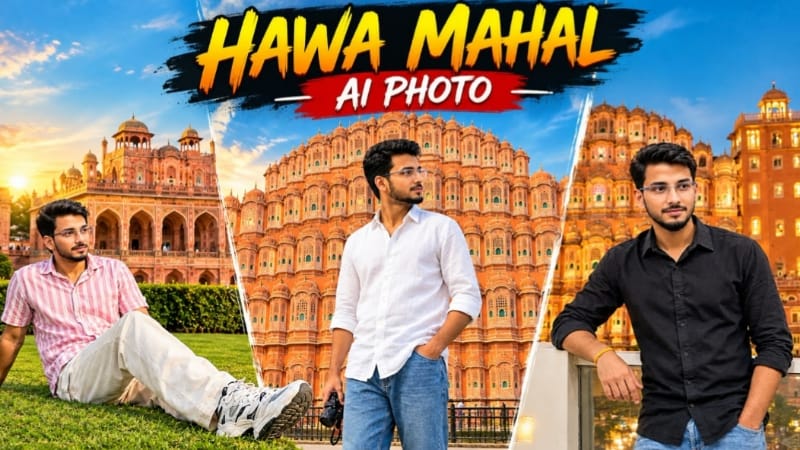
4. Hawa Mahal Jaipur AI Photo | Realistic Travel Photography
Hawa Mahal Jaipur AI Photo Prompt se aap apni reference photo ko Jaipur ke famous Hawa Mahal ke saamne realistic travel portrait mein transform kar sakte hain.
Step 1: Do reference photos ready karein: ek desired pose aur background ke liye, aur doosri apne face ke liye.
Step 2: ChatGPT open karke dono images upload karein.
Step 3: Hawa Mahal Jaipur AI Photo Prompt copy karke paste karein.
Step 4: Aspect ratio 4:5 select karein.
Step 5: Person ko frame ke right side mein side-profile pose mein rakhein, jahan woh Hawa Mahal ki taraf dekh raha ho.
Step 6: Outfit mein white loose-fit linen shirt, rolled-up sleeves aur blue relaxed-fit jeans maintain karein.
Step 7: Ek hand trouser pocket mein aur doosre hand mein small camera naturally hold karte hue dikhayein.
Step 11: Agar koi detail distorted ho, to prompt mein correction karke image regenerate karein.
Step 12: Final portrait save karke travel posts aur AI photo editing tutorials mein use karein.
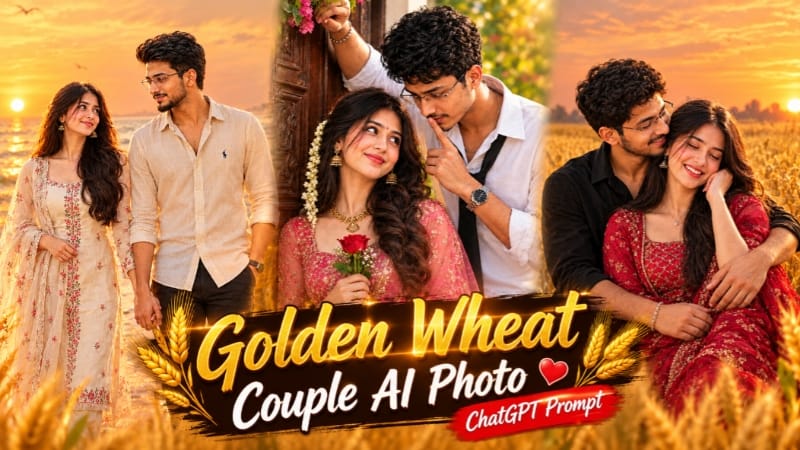
5. Golden Wheat Field Couple AI Photo | Romantic Sunset Portrait
Golden Wheat Field Couple AI Photo Prompt se aap couple ki reference photos ko use karke romantic sunset portrait create kar sakte hain. Is design mein golden wheat field, traditional outfits aur warm cinematic lighting ka combination hai.
Step 1: Teen images ready karein: pose aur background ke liye ek, woman ke face ke liye doosri aur man ke face ke liye teesri.
Step 2: ChatGPT open karke images upload karein.
Step 3: Golden Wheat Field Couple AI Photo Prompt paste karein.
Step 4: Image ka aspect ratio 4:5 select karein.
Step 5: Couple ko wheat field mein seated pose mein rakhein, man left side aur woman right side par ho.
Step 6: Man ke black shirt aur beige trousers ko prompt ke according maintain karein.
Step 7: Woman ke maroon-crimson traditional outfit, embroidered dupatta aur silver jewellery ki details preserve karein.
Step 8: Man ko woman ko gently side aur back se hug karte hue dikhayein.
Step 9: Background mein golden wheat stalks, distant trees aur glowing sunset create karein.