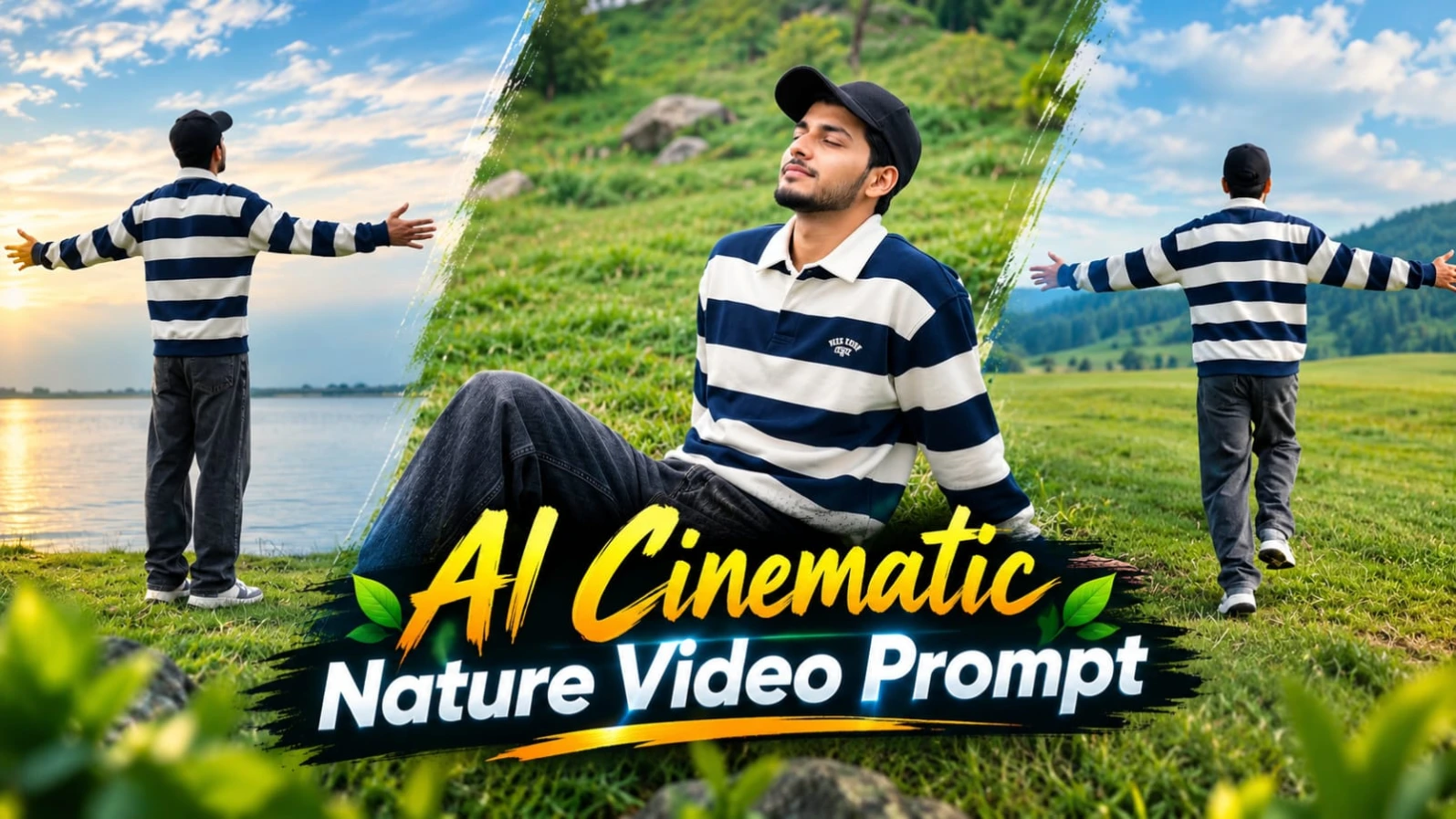
AI Cinematic Nature Video Prompt: Create a Realistic 7-Scene Outdoor Film
Nature-inspired cinematic videos are a beautiful way to combine personal portraits, peaceful landscapes, natural movement, and emotional storytelling. With a well-structured AI video prompt, creators can plan a film-like sequence featuring open green fields, a calm lake, a grassy hillside, and a breathtaking valley view. This seven-scene concept is designed for a realistic outdoor video with a consistent character appearance and a smooth cinematic flow.
The prompt uses a 16:9 widescreen aspect ratio and targets an ultra-realistic 8K visual style with a 120fps smooth-motion aesthetic. The environment features soft, cloudy daylight rather than harsh direct sunlight. This lighting direction helps maintain balanced shadows and a natural appearance throughout the sequence.
The main character's identity is especially important. The prompt requests strict facial identity consistency with the uploaded reference photo, including the eyes, nose, lips, jawline, hair, and skin tone. The character wears an oversized navy-blue and white horizontally striped long-sleeve polo sweatshirt with a collar, baggy charcoal denim jeans, chunky retro sneakers, and a plain black cap.
The sequence progresses through seven distinct scenes, starting with a back-view run across green grass and ending with the character standing on a high cliff overlooking a vast valley. Each scene contributes a different visual moment, making the finished video feel like a connected outdoor cinematic journey.
Why This Seven-Scene Prompt Work
A detailed prompt gives an AI video generator clear instructions about the character, clothing, environment, camera framing, lighting, and order of events. Instead of asking for a general nature video, this concept defines seven specific shots with individual actions.
The opening scene establishes freedom and movement. The side-profile shot introduces the character's face and outfit. The lakeside pebble scene adds a quiet, reflective moment, while the grassy slope creates a peaceful connection with the sky. The fifth and sixth scenes gradually expand the sense of openness, leading into the final cliff shot.
This variety makes the sequence more visually engaging without requiring a different character or a completely unrelated setting in every scene.
Strict Face and Identity Consistency
One of the most important requirements is keeping the character recognizable across all seven scenes. The prompt requests the uploaded photograph as the identity reference, with facial features, eyes, nose, lips, jawline, hair, and skin tone maintained as consistently as the generation tool allows.
The face visibility requirement also changes according to the shot. In Scene 1, the character must face away from the camera, and the face must remain completely hidden. In Scene 2, the character appears in a side-profile walking shot with the face clearly visible. Later scenes show the character sitting by the lake, relaxing on the grassy slope, opening his arms toward the horizon, and turning toward the camera on the shore.
These differences should be preserved rather than forcing the face to remain visible in every frame. A back-view shot is intentionally different from a front-facing portrait.
Reference images and identity instructions can help guide the generated appearance, but they cannot guarantee perfect facial consistency in every frame. Review each scene for changes in facial structure, hairstyle, skin tone, or other defining details. If the chosen platform supports reference images or character-consistency controls, use them where available.
Outfit and Styling Details
The clothing helps maintain a recognizable visual identity across the sequence. The character wears an oversized navy-blue and white horizontally striped long-sleeve polo sweatshirt with a collar, baggy charcoal denim jeans, chunky retro sneakers, and a plain black cap.
The stripes, colors, loose fit, and cap should remain consistent from scene to scene. These details matter because AI-generated videos can sometimes change clothing patterns, replace accessories, or introduce unexpected variations between shots.
For better continuity, repeat the outfit description when generating separate clips. If the tool supports reference images or visual guidance, use a consistent reference to help maintain the intended styling.
Understanding the Seven Exact Scenes
Scene 1 begins with a wide tracking shot from behind. The character runs forward across green grass with both arms spread wide. His back faces the camera, and his face remains completely hidden. This opening communicates freedom and creates a strong introduction to the landscape.
Scene 2 moves to a medium side-profile shot. The character walks from left to right across a grassy field with a rocky hill in the background. He wears the plain black cap, and his face should remain clearly visible in profile. This shot establishes his appearance without changing the outfit.
Scene 3 shows the character sitting on grass beside a lake. He throws a small pebble into the calm water, creating a quiet moment of interaction with the environment. The action should be natural and easy to follow, with the lake and shoreline providing context.
Scene 4 uses a medium low-angle shot of the character leaning back on a grassy slope and looking peacefully toward the sky. The scene should remain simple and uncluttered. The prompt specifically excludes insects and butterflies, so they should not be added as decorative environmental details.
Scene 5 uses a low-angle tracking shot near the lakeside. The character opens both arms wide toward the horizon, creating a feeling of openness and connection with the surrounding landscape. The movement should look natural rather than exaggerated.
Scene 6 shows the character standing in profile on the shore, then turning toward the camera with his arms open. This transition is important because it combines body movement, facial visibility, and a clear change in orientation. The character's identity and clothing should remain consistent during the turn.
Scene 7 finishes with a wide shot of the character standing at the edge of a high cliff, overlooking a vast valley below with both arms spread wide. The final composition should emphasize the scale of the landscape while keeping the character recognizable within the frame. The cliff should be presented as a scenic viewpoint, with the character's pose and the valley forming the central visual focus.
Soft Daylight and Natural Colors
The lighting specification calls for soft, cloudy daylight with no harsh sunlight. Overcast conditions can create gentle transitions between highlights and shadows, helping the character's face and clothing remain readable while preserving the natural atmosphere.
Vivid green grass, realistic rocky terrain, calm water, and a distant valley should contribute to the film's visual appeal. The colors should remain balanced rather than excessively saturated. A realistic outdoor appearance is more important than adding artificial glow or dramatic sun flares.
The requested 8K DSLR optics describe the intended sharpness, detail, and photographic character. However, the actual resolution depends on the generation platform and its export settings. The same applies to the requested 120fps smooth motion: it is a target specification, not a guarantee that the AI tool will generate native 120fps footage.
Camera Movement and Cinematic Composition
Each scene has its own framing and movement instructions. The opening uses a wide rear tracking shot, Scene 2 uses a medium side profile, Scene 3 focuses on a seated action, and Scene 4 emphasizes the sky through a low angle. The remaining scenes gradually return attention to the horizon and expansive landscape.
These differences give the sequence visual variety while preserving the same character and overall mood. If the video tool supports shot-level controls, generate each segment with the appropriate camera direction. If it does not, describe the framing and action clearly in the prompt and refine the result through editing.
The NoorEditing07 Watermark
The prompt requests a static NoorEditing07 watermark in a bottom corner. Its placement should remain consistent across the seven scenes, without distracting from the character or the landscape.
If the chosen platform supports text or watermark controls, use them where available. AI video generators may produce inconsistent lettering, so adding the watermark during final editing can be a more reliable option. Keep it stationary and readable, with enough spacing from the frame edges.
Final Thoughts
This AI cinematic nature video prompt combines a consistent character, carefully specified clothing, seven ordered scenes, soft outdoor lighting, and a wide landscape finale. The sequence moves from energetic freedom to quiet reflection and finally to an expansive scenic moment.
For the best result, preserve the original scene order, maintain the outfit description, respect the intentional back-view opening, and review the face in scenes where it should be visible. Use the requested resolution and frame rate as creative targets, then choose the best available generation and export settings.
Whether you are creating a personal cinematic montage, an AI filmmaking experiment, or a landscape-focused social media video, this structured prompt provides a clear starting point for building a connected and visually consistent outdoor film.
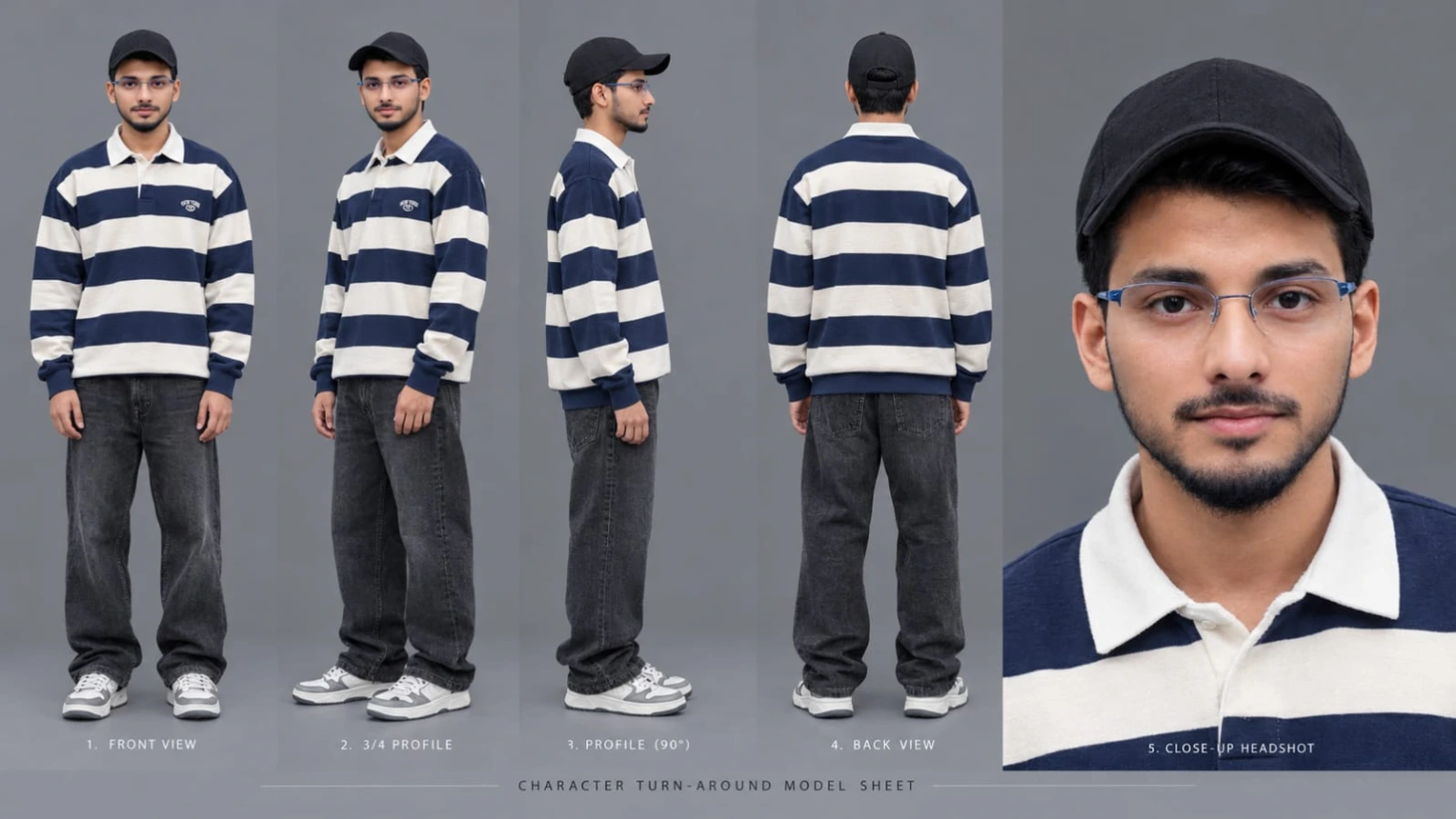
Sabse Pehle Character Sheet Photo Banaai ChatGPT Se
AI Photo Prompt
✦AI PHOTO PROMPT
Cinematic character turn-around model sheet, ultra-realistic 8K UHD, neutral grey studio backdrop, 16:9 aspect ratio. Strict face lock and identity from reference photo. Outfit: oversized navy-blue and off-white thick horizontally striped long-sleeve polo sweatshirt, baggy washed black/charcoal denim skater jeans, plain solid black baseball cap, chunky white and grey retro skate sneakers. Multi-view composition: Full Front View, 3/4 Profile Angle, Profile View (90°), Back View, High-Detail Close-Up Headshot. Watermark: NoorEditing07.
Cinematic character turn-around model sheet, ultra-realistic 8K UHD, neutral grey studio backdrop, 16:9 aspect ratio.
[STRICT FACE LOCK & IDENTITY]
Lock 100% exact facial geometry, eyes, nose, lips, jawline, hair, and authentic skin tone from the uploaded reference photo across all views. Flawless, smooth, blemish-free skin with real DSLR pore texture; completely avoid face morphing, heavy shadow crush, or distortion. Face must remain fully lit and distinct in every angle.
[OUTFIT & STYLING SPECIFICATIONS]
- Top: Oversized navy-blue and off-white thick horizontally striped long-sleeve polo sweatshirt featuring a sharp white collar and small chest patch.
- Bottom: Baggy washed black/charcoal denim skater jeans with relaxed drape.
- Headwear: Plain solid black baseball cap.
- Footwear: Chunky white and grey retro skate sneakers.
- Wardrobe and styling remain 100% consistent across every view.
[MULTI-VIEW MODEL SHEET COMPOSITION]
Full-body multi-angle character reference sheet arranged side-by-side in a single clean frame:
1. Full Front View: Standing relaxed, arms naturally at sides, wearing black cap, direct eye contact with camera, calm confident posture.
2. 3/4 Profile Angle: Standing at a 45-degree angle, showing sweatshirt drape, cap brim, side facial geometry, and jeans fit.
3. Profile View (90°): Clean side-profile shot displaying clear facial profile, cap angle, sleeve stripes, and sneaker details.
4. Back View: Direct rear angle displaying the back of the striped polo sweatshirt, backward shoulders, and cut of the baggy washed jeans.
5. High-Detail Close-Up Headshot: Ultra-sharp 4K portrait showing natural eyes, facial features, authentic beard line, clean skin texture, and cap detailing under balanced fill lighting.
[TECHNICAL SPECS & QUALITY]
High-end commercial streetwear lookbook catalog, shot on 85mm f/1.4 lens, softbox three-point illumination, hyper-detailed heavy cotton knit and washed denim weave textures, true-to-life colors, 8K resolution.
Watermark: A small, subtle watermark text "NoorEditing07" in the bottom corner, semi-transparent, elegant font, not blocking the subject.
✓
Prompt copied to clipboard!
AI Photo Prompt
✦AI PHOTO PROMPT
Cinematic character turn-around model sheet, ultra-realistic 8K UHD, neutral grey studio backdrop, 16:9 aspect ratio. Strict face lock and identity from reference photo. Outfit: oversized navy-blue and off-white thick horizontally striped long-sleeve polo sweatshirt, baggy washed black/charcoal denim skater jeans, plain solid black baseball cap, chunky white and grey retro skate sneakers. Multi-view composition: Full Front View, 3/4 Profile Angle, Profile View (90°), Back View, High-Detail Close-Up Headshot. Watermark: NoorEditing07.
Cinematic character turn-around model sheet, ultra-realistic 8K UHD, neutral grey studio backdrop, 16:9 aspect ratio.
[STRICT FACE LOCK & IDENTITY]
Lock 100% exact facial geometry, eyes, nose, lips, jawline, hair, and authentic skin tone from the uploaded reference photo across all views. Flawless, smooth, blemish-free skin with real DSLR pore texture; completely avoid face morphing, heavy shadow crush, or distortion. Face must remain fully lit and distinct in every angle.
[OUTFIT & STYLING SPECIFICATIONS]
- Top: Oversized navy-blue and off-white thick horizontally striped long-sleeve polo sweatshirt featuring a sharp white collar and small chest patch.
- Bottom: Baggy washed black/charcoal denim skater jeans with relaxed drape.
- Headwear: Plain solid black baseball cap.
- Footwear: Chunky white and grey retro skate sneakers.
- Wardrobe and styling remain 100% consistent across every view.
[MULTI-VIEW MODEL SHEET COMPOSITION]
Full-body multi-angle character reference sheet arranged side-by-side in a single clean frame:
1. Full Front View: Standing relaxed, arms naturally at sides, wearing black cap, direct eye contact with camera, calm confident posture.
2. 3/4 Profile Angle: Standing at a 45-degree angle, showing sweatshirt drape, cap brim, side facial geometry, and jeans fit.
3. Profile View (90°): Clean side-profile shot displaying clear facial profile, cap angle, sleeve stripes, and sneaker details.
4. Back View: Direct rear angle displaying the back of the striped polo sweatshirt, backward shoulders, and cut of the baggy washed jeans.
5. High-Detail Close-Up Headshot: Ultra-sharp 4K portrait showing natural eyes, facial features, authentic beard line, clean skin texture, and cap detailing under balanced fill lighting.
[TECHNICAL SPECS & QUALITY]
High-end commercial streetwear lookbook catalog, shot on 85mm f/1.4 lens, softbox three-point illumination, hyper-detailed heavy cotton knit and washed denim weave textures, true-to-life colors, 8K resolution.
Watermark: A small, subtle watermark text "NoorEditing07" in the bottom corner, semi-transparent, elegant font, not blocking the subject.
Cinematic 16:9 ultra-realistic 8K 120fps outdoor film under soft cloudy daylight, no harsh sun. Strict face and identity lock from reference photo. Outfit: oversized navy-blue and white horizontally striped long-sleeve polo sweatshirt with collar, baggy charcoal denim jeans, chunky retro sneakers, plain black cap. 7-scene sequence covering running across green grass, walking by lake edge, throwing pebbles, relaxing on grass slope, lakeside arms spread, and standing on a high cliff edge overlooking a valley. Watermark: NoorEditing07.
Cinematic 16:9 ultra-realistic 8K 120fps outdoor film under soft cloudy daylight, no harsh sun.
[STRICT FACE & IDENTITY LOCK]
100% facial features, eyes, nose, lips, jawline, hair, and skin tone locked to uploaded photo across all scenes. Clean, smooth DSLR skin, zero distortion, clear face visibility where facing camera.
[OUTFIT & STYLING]
Oversized navy-blue and white horizontally striped long-sleeve polo sweatshirt with collar, baggy charcoal denim jeans, chunky retro sneakers, plain black cap.
[7 EXACT SCENE SEQUENCE]
- Scene 1: Back-view wide tracking shot; boy runs forward away from camera across green grass with both arms spread wide, back facing camera, face completely hidden.
- Scene 2: Medium side profile walking left-to-right along grassy field with rocky hill background, wearing black cap with clear face.
- Scene 3: Medium shot sitting by lake edge on grass, throwing a small pebble into calm water.
- Scene 4: Medium low-angle shot leaning back on grass slope, looking peacefully toward sky without any insects or butterflies.
- Scene 5: Low-angle tracking shot by lakeside, opening arms wide toward the horizon.
- Scene 6: Medium profile standing on shore, turning toward camera with open arms.
- Scene 7: Wide shot standing on high cliff edge overlooking vast valley below, arms spread wide.
[COLOR & TECHNICAL]
Soft natural overcast daylight, balanced shadows, vivid greens, 8K DSLR optics, 120fps smooth motion, 16:9 ratio. Static watermark 'NoorEditing07' in bottom corner.
✓
Prompt copied to clipboard!
AI Video Prompt
✦AI VIDEO PROMPT
Cinematic 16:9 ultra-realistic 8K 120fps outdoor film under soft cloudy daylight, no harsh sun. Strict face and identity lock from reference photo. Outfit: oversized navy-blue and white horizontally striped long-sleeve polo sweatshirt with collar, baggy charcoal denim jeans, chunky retro sneakers, plain black cap. 7-scene sequence covering running across green grass, walking by lake edge, throwing pebbles, relaxing on grass slope, lakeside arms spread, and standing on a high cliff edge overlooking a valley. Watermark: NoorEditing07.
Cinematic 16:9 ultra-realistic 8K 120fps outdoor film under soft cloudy daylight, no harsh sun.
[STRICT FACE & IDENTITY LOCK]
100% facial features, eyes, nose, lips, jawline, hair, and skin tone locked to uploaded photo across all scenes. Clean, smooth DSLR skin, zero distortion, clear face visibility where facing camera.
[OUTFIT & STYLING]
Oversized navy-blue and white horizontally striped long-sleeve polo sweatshirt with collar, baggy charcoal denim jeans, chunky retro sneakers, plain black cap.
[7 EXACT SCENE SEQUENCE]
- Scene 1: Back-view wide tracking shot; boy runs forward away from camera across green grass with both arms spread wide, back facing camera, face completely hidden.
- Scene 2: Medium side profile walking left-to-right along grassy field with rocky hill background, wearing black cap with clear face.
- Scene 3: Medium shot sitting by lake edge on grass, throwing a small pebble into calm water.
- Scene 4: Medium low-angle shot leaning back on grass slope, looking peacefully toward sky without any insects or butterflies.
- Scene 5: Low-angle tracking shot by lakeside, opening arms wide toward the horizon.
- Scene 6: Medium profile standing on shore, turning toward camera with open arms.
- Scene 7: Wide shot standing on high cliff edge overlooking vast valley below, arms spread wide.
[COLOR & TECHNICAL]
Soft natural overcast daylight, balanced shadows, vivid greens, 8K DSLR optics, 120fps smooth motion, 16:9 ratio. Static watermark 'NoorEditing07' in bottom corner.
How to Create a Seven-Scene Cinematic Nature Video Using Flow AI
Follow this step-by-step process to turn the outdoor cinematic prompt into a realistic widescreen video. The exact features and settings may vary depending on your version of Flow AI and the generation mode you use.
Step 1: Prepare Your Reference Photo
Choose a clear reference photo of the person whose appearance you want to maintain. A well-lit photo with visible facial features can provide useful visual guidance.
The prompt requests consistent eyes, nose, lips, jawline, hair, and skin tone across all seven scenes. If reference-image or character-consistency controls are available, use them to guide the generated character. Perfect identity consistency cannot be guaranteed in every frame.
Step 2: Open Flow AI
Open Flow AI and create a new video project. Select the appropriate generation mode and check which options are available for aspect ratio, clip duration, reference images, and camera movement.
If a requested feature is unavailable, describe it in the prompt as a creative instruction rather than assuming the platform supports it directly.
Step 3: Set the 16:9 Format
Choose a 16:9 widescreen aspect ratio if available. This format is well suited to landscape scenery, cinematic compositions, and wide shots of valleys and lakes.
The prompt requests an ultra-realistic 8K appearance and 120fps smooth motion. Treat these as visual targets. Actual resolution, frame rate, and export options depend on the selected tool.
Step 4: Enter the Character and Outfit Description
Use the complete character description: the person from the uploaded reference photo, wearing an oversized navy-blue and white horizontally striped long-sleeve polo sweatshirt with a collar, baggy charcoal denim jeans, chunky retro sneakers, and a plain black cap.
Repeat the same clothing details when creating separate clips. Avoid introducing alternate colors, different trousers, or changes to the cap. Consistent descriptions help communicate the intended appearance.
Step 5: Establish the Outdoor Environment
Describe green grass, rocky hills, a calm lake, a grassy slope, a shoreline, and a high cliff overlooking a vast valley. Specify soft, cloudy daylight without harsh direct sunlight.
Request balanced shadows, vivid but natural greens, realistic water, detailed terrain, and an ultra-realistic DSLR-style appearance. The environment should feel like a connected outdoor film rather than a collection of unrelated locations.
Step 6: Generate Scene 1
Create a wide tracking shot from behind. The character runs forward across green grass with both arms spread wide.
His back must face the camera, and his face must remain completely hidden. Do not force a facial close-up in this opening shot. This scene establishes the feeling of freedom and introduces the landscape.
Step 7: Generate Scene 2
Create a medium side-profile shot of the character walking from left to right across a grassy field. Include a rocky hill in the background and retain the plain black cap.
The face should be clearly visible in profile. Maintain the same outfit and reference identity without changing the hairstyle, skin tone, or clothing.
Step 8: Generate Scene 3
Show the character sitting on grass at the edge of a calm lake. He picks up and throws a small pebble into the water.
Keep the action simple and natural. The water, shoreline, and sitting position should remain visually coherent. Avoid adding unrelated actions or unnecessary objects.
Step 9: Generate Scene 4
Use a medium low-angle shot of the character leaning back on a grassy slope and looking peacefully toward the sky.
Maintain soft cloudy daylight and natural colors. Do not add insects or butterflies, because the original prompt explicitly excludes them.
Step 10: Generate Scenes 5 and 6
For Scene 5, use a low-angle tracking shot near the lakeside as the character opens his arms wide toward the horizon.
For Scene 6, show him standing in profile on the shore before turning toward the camera with his arms open. Ensure the turning movement looks natural and that the face becomes visible at the intended moment.
If the tool cannot generate all these actions reliably in one clip, create the scenes separately and combine them during editing.
Step 11: Generate Scene 7
Finish with a wide shot of the character standing at the edge of a high cliff, overlooking a vast valley with both arms spread wide.
Emphasize the scale of the valley while preserving the character's outfit and proportions. Keep the composition scenic and cinematic, with the landscape providing the dramatic finale.
Step 12: Add the Watermark and Review
The original prompt requests a static NoorEditing07 watermark in a bottom corner. If the generator does not render the text cleanly, add it in a video editor and keep its position consistent throughout the sequence.
Review all seven scenes in order. Check facial consistency, clothing stripes, cap placement, scene-specific actions, lighting, and unwanted insects or butterflies.
Finally, assemble the clips, smooth the transitions, and export using the best available 16:9 resolution and frame-rate settings. Preview the completed video before publishing to ensure that the sequence follows the original prompt.
AI cinematic nature video promptFlow AI video tutorial16:9 cinematic video promptseven scene AI videorealistic outdoor AI videoAI face consistency promptlakeside cinematic videogreen landscape video promptcliff valley cinematic shotovercast daylight AI videostriped sweatshirt AI promptultra realistic AI videocinematic tracking shot promptAI nature video editingNoorEditing07 video prompt
AI cinematic nature video promptFlow AI video tutorial16:9 cinematic video promptseven scene AI videorealistic outdoor AI videoAI face consistency promptlakeside cinematic videogreen landscape video promptcliff valley cinematic shotovercast daylight AI videostriped sweatshirt AI promptultra realistic AI videocinematic tracking shot promptAI nature video editingNoorEditing07 video prompt
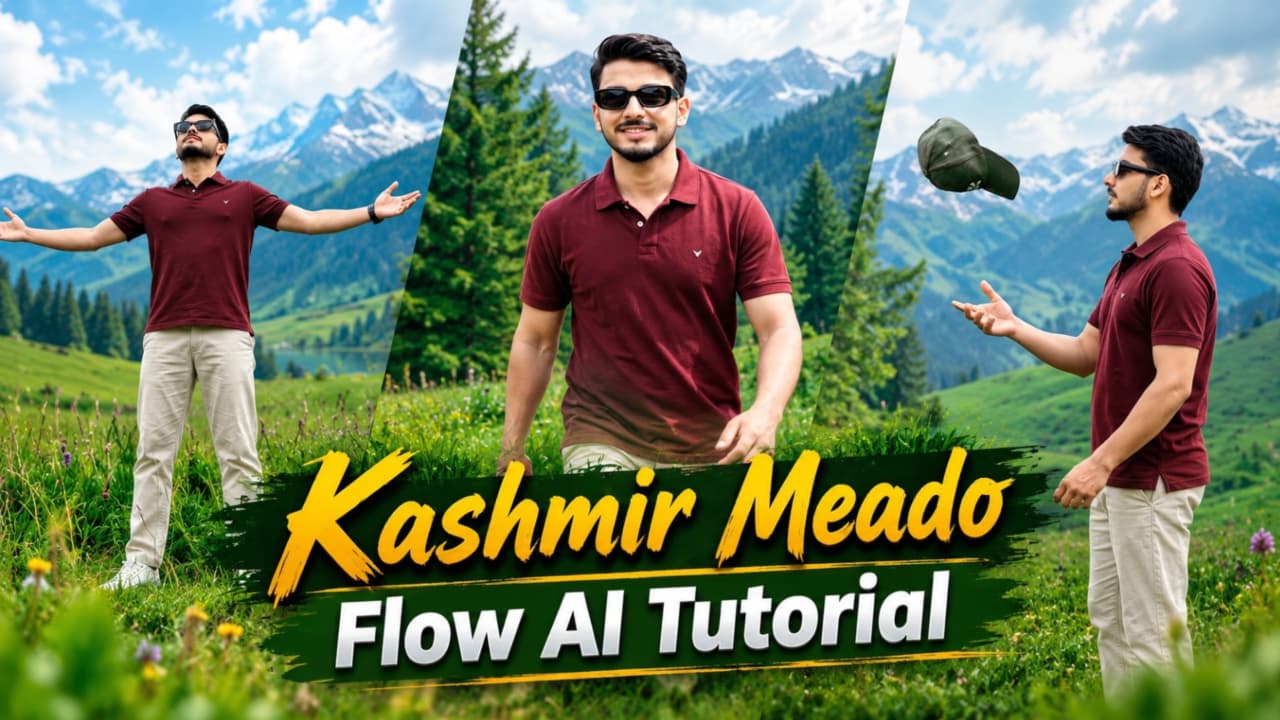
Kashmir Meadows AI Video Prompt ki madad se aap green mountains, pine forests, wildflowers aur camping scenery ke saath ek cinematic travel video create kar sakte hain. Is concept mein ek man maroon polo T-shirt, beige trousers, white sneakers aur black rectangular sunglasses pehenkar scenic meadow mein walk karta hai.
Video mein seven visual moments hain, jaise green meadow mein walking, cap toss karna, purple wildflowers ke beech tracking shot, blue camping tent ke paas se guzarna aur hillside par baithkar pine trees ko dekhna. Bright daylight aur natural green colours video ko realistic travel-film look dete hain.
Kashmir Meadows Video Kaise Banaye
Step 1: Flow AI open karein aur video-generation option select karein.
Step 2: Reference-image feature available ho to apni clear photo upload karein.
Step 3: Maroon polo T-shirt, beige trousers, white sneakers aur black sunglasses ki details prompt mein add karein.
Step 4: Green meadows, pine trees, purple wildflowers, blue camping tent aur hillside ke scenes describe karein.
Step 5: Har scene generate karke face, outfit aur body movements check karein.
Step 6: Clips ko video editor mein sequence mein arrange karein aur smooth transitions add karein.
Step 7: Final video ko review karke 9:16 format mein export karein. Actual 8K resolution aur 120FPS output tool ki capabilities par depend karta hai.
2. Village Cricket Cinematic Video Edit – Flow AI Prompt
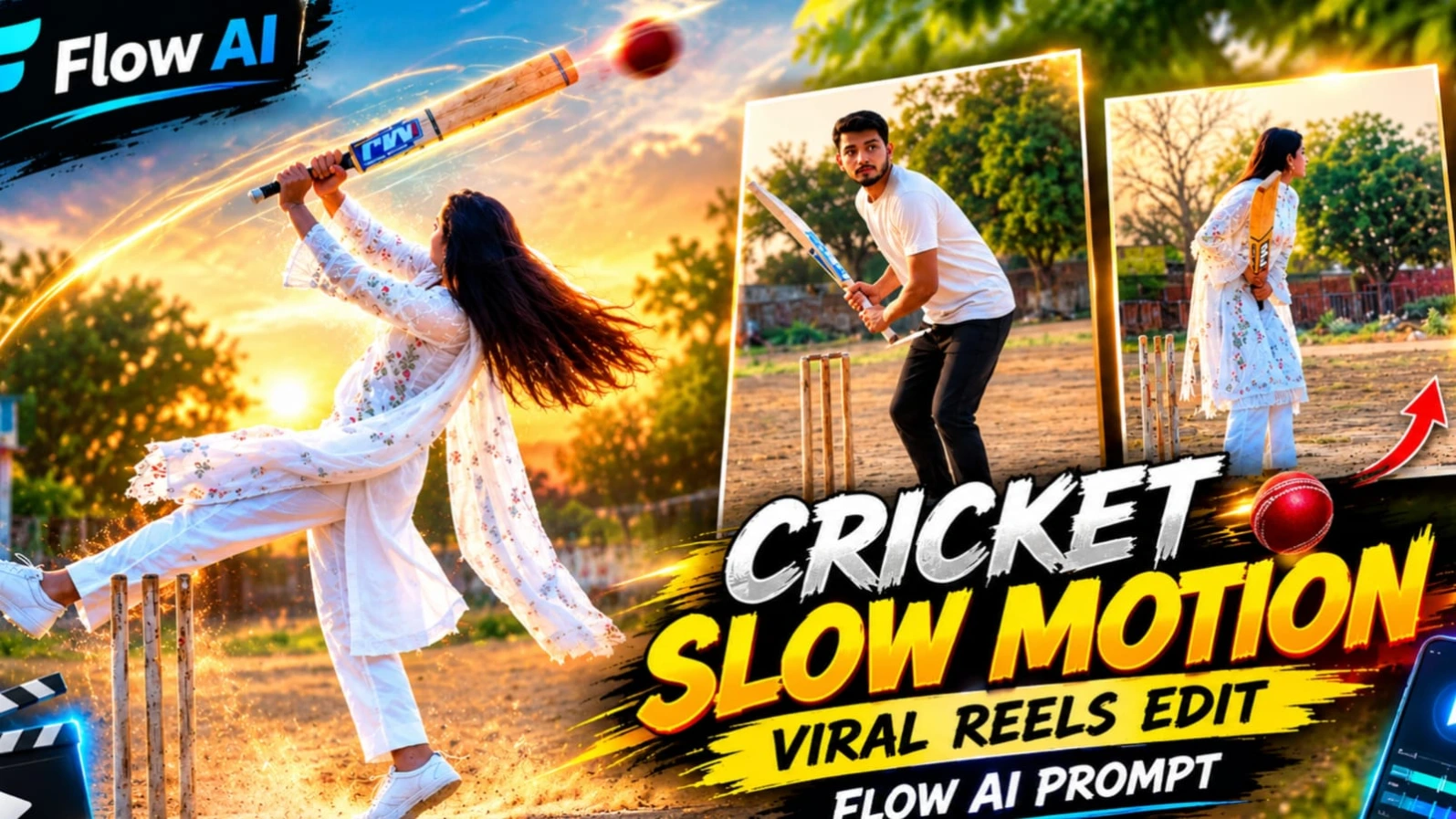
Village Cricket Cinematic Video Prompt ek village-style cricket scene ko cinematic AI video mein convert karne ka concept hai. Ismein ek woman white chikankari kurta, matching straight pants, sheer dupatta aur white sneakers pehenkar dusty village cricket ground par cricket bat ke saath different movements karti hai.
Background mein wooden stumps, concrete playing strip, trees aur blue-and-white building nazar aati hai. Golden-hour lighting video ko warm cinematic look deti hai. Static camera framing se character aur cricket action ko clearly dikhaya ja sakta hai.
Village Cricket Video Kaise Banaye
Step 1: Flow AI ya compatible AI video tool open karein.
Step 2: Reference photo upload karein, agar tool is feature ko support karta hai.
Step 3: White chikankari kurta, matching pants, dupatta aur white sneakers ka description add karein.
Step 4: Dusty village ground, wooden stumps, trees aur concrete playing strip ko background mein specify karein.
Step 5: Cricket bat ko raise karna, ground par tap karna aur jump ya turn jaise actions ko sequence mein describe karein.
Step 6: Generated video mein face, hands, bat movement aur outfit consistency check karein.
Step 7: Final clip ko editor mein trim karein, zarurat ke hisaab se music add karein aur vertical video ke roop mein export karein.
Note: Is page ko fetch karne par timeout aaya, isliye yeh article available page details par based hai.
3. Couple College Campus AI Video Prompt – Cinematic Video
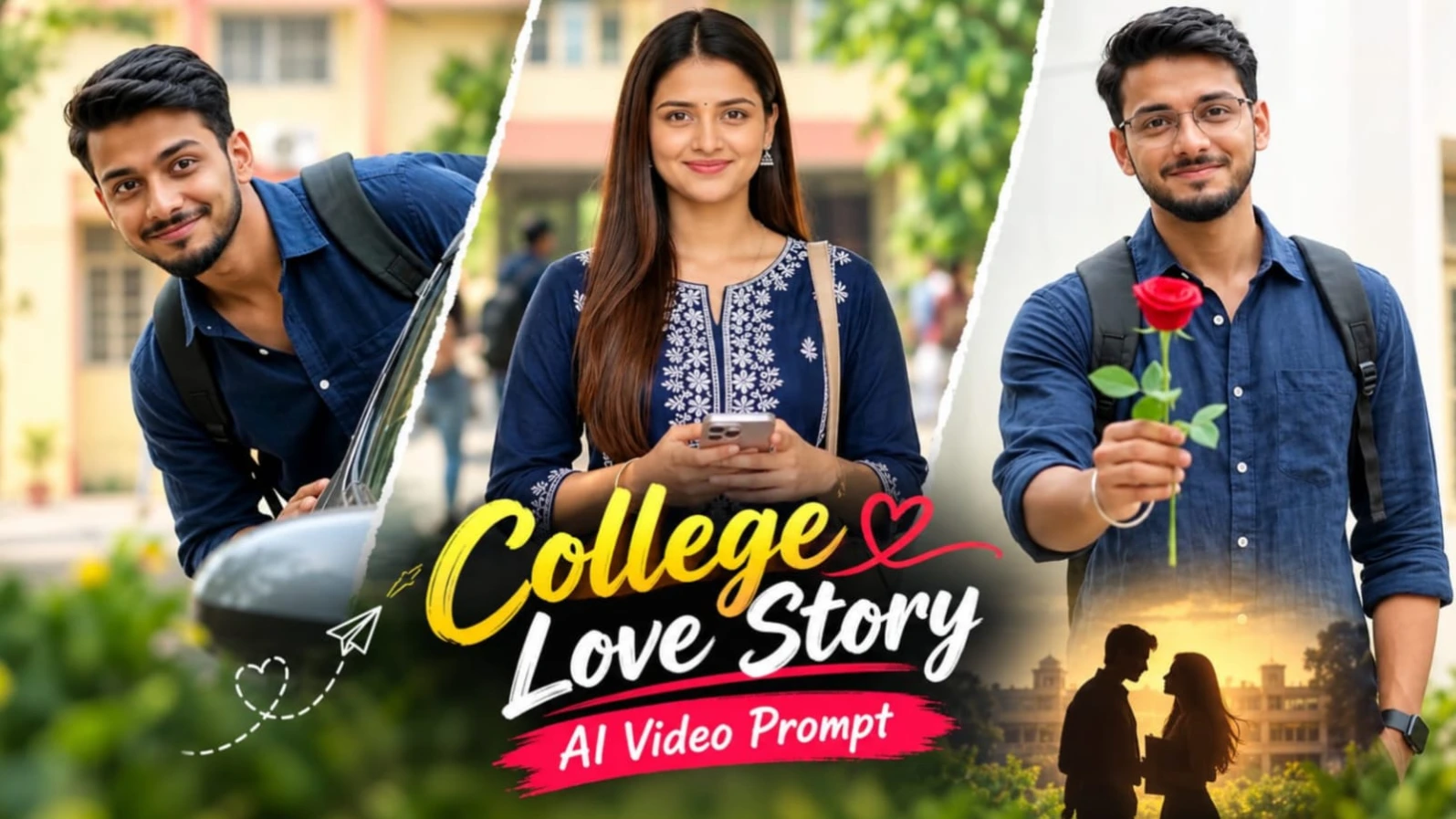
Couple College Campus AI Video Prompt se aap ek realistic romantic campus video create kar sakte hain. Is concept mein young man aur woman green college campus mein walk karte hain, smiles share karte hain aur playful moments ke through ek simple love-story feel create karte hain.
Man navy-blue linen shirt, off-white trousers, white sneakers aur black wristwatch pehenta hai. Woman navy-blue kurta, matching palazzo, embroidered dupatta, beige shoulder bag aur white sneakers mein nazar aati hai. Campus mein white multi-storey buildings, yellow-painted building, parked cars, trees aur motorcycle dikhaye gaye hain.
Video mein ten shots hain, jo simple hard cuts se connect hote hain. Final shot mein man camera ki taraf smile karte hue red rose raise karta hai.
Couple Campus Video Kaise Banaye
Step 1: Flow AI mein video-generation workflow open karein.
Step 2: Man aur woman ki reference images upload karein, agar supported ho.
Step 3: Dono characters ke outfits, hairstyle aur facial appearance ki details consistent rakhein.
Step 4: College buildings, yellow wall, parked cars, motorcycle aur green trees ka background describe karein.
Step 5: Walking, camera ki taraf dekhna, smile karna aur final red rose gesture jaise shots separately generate karein.
Step 6: Clips ko correct order mein arrange karein aur hard cuts ke saath connect karein.
Step 7: Faces, outfit consistency aur natural movements check karke final video export karein.
4. Happy Diwali AI Photo Prompt 8K – Create a Festive Portrait
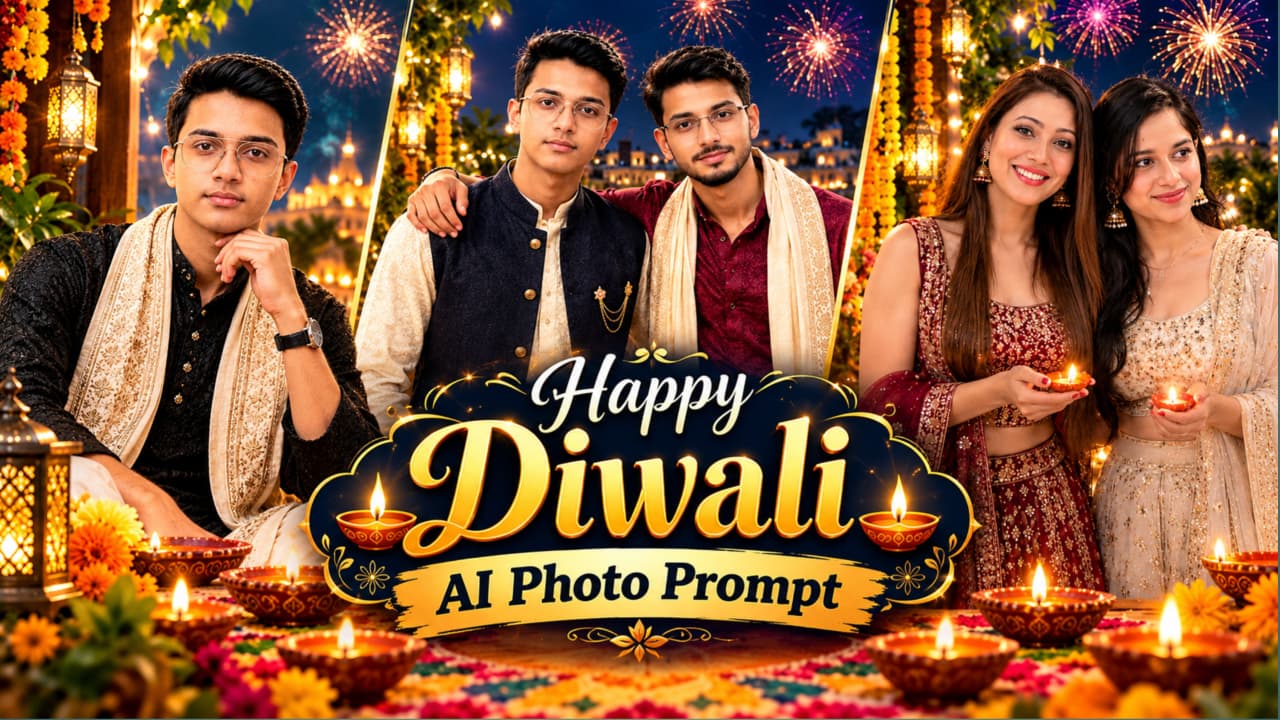
Happy Diwali AI Photo Prompt se aap ek personalised festive greeting portrait bana sakte hain. Is concept mein black textured kurta, ivory shawl with golden embroidery aur cream trousers ke saath ek elegant traditional look diya gaya hai.
Person cross-legged sitting pose mein camera ki taraf dekhta hai. Background mein illuminated temple, river ghat, marigold garlands, lanterns, floating diyas aur colourful fireworks hain. Upper-right area mein golden “Happy Diwali” typography aur greeting message poster ko festive appearance dete hain.
Happy Diwali Photo Kaise Banaye
Step 1: ChatGPT ya compatible AI image-generation tool open karein.
Step 2: Apni clear reference photo upload karein, agar tool image-reference editing support karta hai.
Step 3: Black textured kurta, ivory-golden shawl aur cream trousers ka description add karein.
Step 4: Sitting pose, chin ke paas right hand aur camera ki taraf face rakhne ki instructions dein.
Step 5: Temple, river reflections, diyas, rangoli, marigold flowers aur fireworks ko background mein describe karein.
Step 6: Golden “Happy Diwali” text aur greeting message generate karne ko kahein.
Step 7: Face, hands aur text spelling check karein. Zarurat ho to greeting text photo editor mein correct karke 4:5 format mein export karein.
5. ChatGPT AI Cinematic LED Screen Photo Editing Prompt 8K
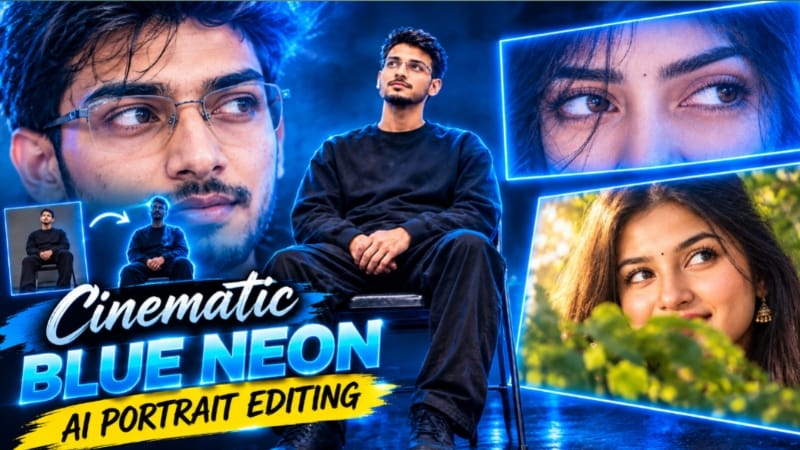
ChatGPT AI Cinematic LED Screen Photo Editing Prompt ek dramatic studio portrait create karne ka concept hai. Ismein ek young man black folding chair par baitha hai aur upar lagi giant LED screen ki taraf dekh raha hai. Screen par doosre person ki eyes ka extreme close-up dikhai deta hai.
Man oversized black sweatshirt, loose black trousers aur black sneakers pehenta hai. Dark studio, electric-blue lighting, deep navy shadows aur glossy reflective floor image ko cinematic look dete hain. Low camera angle se seated subject aur giant screen dono composition mein clearly nazar aate hain.
LED Screen Photo Edit Kaise Banaye
Step 1: ChatGPT ya compatible AI photo-editing tool open karein.
Step 2: Main subject ki clear reference photo upload karein.
Step 3: Black folding chair, oversized black sweatshirt, black trousers aur sneakers ki details specify karein.
Step 4: Subject ko chair par seated pose mein rakhein, head LED screen ki taraf tilted ho aur hands lap par naturally resting hon.
Step 5: Giant LED screen par doosre person ki eyes ka close-up dikhane ka instruction dein. Dono reference photos use kar rahe hain to unke roles clearly identify karein.