King Movie Cinematic AI Video Editing: Create a Stunning Movie-Style Video with Flow AI
Cinematic AI video editing is becoming a popular creative trend among video editors and social media creators. With modern AI video generation tools, you can turn an ordinary portrait into a dramatic movie-style character and create impressive cinematic scenes. The King Movie Cinematic AI Video Editing Prompt is designed for creators who want to experiment with a powerful movie-inspired visual style using their own face and Flow AI.
This editing concept focuses on dramatic character shots, stylish outfits, realistic environments, cinematic lighting, camera movements and professional colour grading. Instead of creating a simple video, the idea is to build a movie-style sequence with a strong visual atmosphere and a consistent main character.
What Is King Movie Cinematic AI Video Editing?
King Movie Cinematic AI Video Editing is a creative AI video concept inspired by the dramatic presentation of action and thriller cinema. It uses detailed prompts to guide an AI video generator in creating scenes with a powerful character appearance, atmospheric backgrounds, cinematic camera angles and realistic movements.
You can use your own clear face photo as a character reference. The AI tool uses that reference to generate a character based on your appearance. A carefully written prompt can describe the hairstyle, outfit, facial expression, body posture, environment, lighting and camera direction.
Create Your Own Cinematic Character
The main attraction of this editing concept is the personalized lead character. Rather than using a random AI-generated face, you can upload your own reference photo and ask the AI tool to maintain your facial features throughout the video. A clear front-facing photo with good lighting can help the tool understand your appearance.
If your video includes multiple scenes, a character sheet can provide additional visual references. It may include front, side and three-quarter views, helping the generator maintain a more consistent character appearance across different angles. However, exact identity consistency cannot be guaranteed in every generated frame.
Cinematic Scenes and Camera Movements
A movie-style video becomes more engaging when it combines different camera angles and scene compositions. You can describe wide establishing shots, dramatic close-ups, slow camera pushes, side tracking shots and low-angle character views. These directions help communicate the visual style you want the AI generator to create.
Background details are equally important. Depending on your creative concept, you can use cinematic city streets, dramatic buildings, atmospheric locations, cloudy skies or stylish indoor environments. Consistent lighting and colour grading can make different scenes feel like parts of the same movie sequence.
The King-inspired visual concept can use rich dark tones, controlled highlights, dramatic shadows and warm cinematic lighting. These elements help create a premium movie-poster atmosphere in a moving video.
Why Use Flow AI?
Flow AI is a creative tool for generating AI videos and working with visual references. Depending on the available features, you can use reference images, prompts and video-generation options to build your cinematic sequence. The final result depends on the model, settings, reference quality and generation limits available in your account.
Before generating, prepare your face reference photo and any additional character images you want to use. Write a detailed prompt that explains the scene, character appearance, clothing, camera movement, lighting and video format. This gives the AI generator clearer instructions about your intended result.
How to Create a King Movie Cinematic AI Video
First, open Flow AI and choose a suitable video-generation option. Upload your clear face photo or character reference if image uploads are supported in the selected workflow. Paste your cinematic AI video prompt into the prompt box and review the scene instructions carefully.
Choose the required aspect ratio and video settings. If you want a vertical video for Reels or Shorts, use a vertical format such as 9:16. For a cinematic landscape video, choose 16:9. Click Generate and wait for the video to finish processing.
After generation, preview the result and check the character's face, clothing, movements, background and lighting. If the video contains multiple scenes, review the transitions and character consistency. You may need to generate individual clips and combine them in a video editor if your selected tool does not support the full duration in one generation.
Tips for Better Cinematic Results
Use a clear reference image, describe the character's outfit consistently and avoid changing the appearance instructions between scenes. Keep camera directions specific and make sure the lighting description matches the intended environment. Generate a few variations when the first result does not match your creative idea.
AI video generators can sometimes change small facial details, create unexpected movements or interpret text and scene instructions differently. Therefore, review every generated clip before publishing. You can also use a video editor to adjust the timing, add transitions, improve the colour grade and include suitable background music.
Create and Share Your Own Movie-Style Video
The King Movie Cinematic AI Video Editing Prompt is useful for AI video creators, movie-style editing enthusiasts, social media content creators and anyone who wants to explore personalized cinematic videos. With a reference photo, a detailed prompt and Flow AI, you can experiment with dramatic scenes and create a video that reflects your own creative style.
For more AI photo editing prompts, cinematic video prompts, Flow AI tutorials and viral editing ideas, search NoorEditing07 on Google and explore the latest articles.
Sabse Pehle Character Sheet Photo Banaai ChatGPT Se
AI Photo Prompt
✦AI PHOTO PROMPT
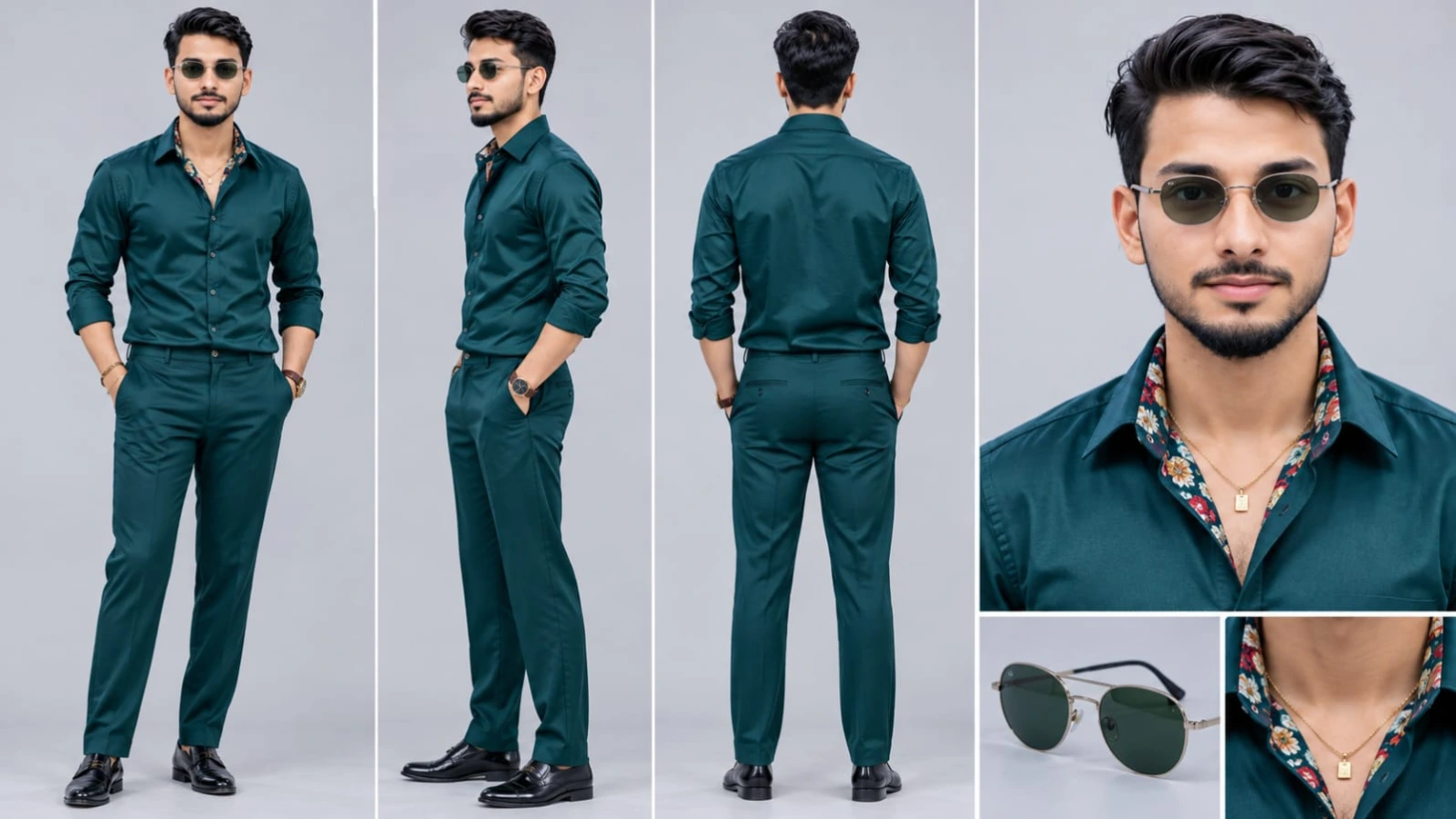
Cinematic character turn-around model sheet, ultra-realistic 8K UHD, plain light grey studio background. Strict face and identity lock from reference photo with smooth, blemish-free skin texture. Layout: front view, side view, back view, close-up face portrait, and an extra close-up of the sunglasses. Outfit: deep teal-green silk-look button-up shirt with colorful floral inner lining, matching deep teal trousers, thin gold chain necklaces, gold and leather bracelets, and thin round metal-frame sunglasses with dark green-grey lenses. Watermark: NoorEditing07.
Create a full character sheet of the exact same man from my uploaded photo: identical face shape, features, skin tone and body build, no changes. Show front view, side view and back view, plus one close-up face portrait, standing in a relaxed pose on a plain light grey studio background. Skin: clean, clear, smooth, even-toned, no pimples, no acne, no spots, no blemishes, while keeping his exact identity. Hair styled voluminous, textured and swept up like the man in my second photo (reference frame), matched to his natural hair length. Outfit exactly like the man in the reference frame: deep teal-green silk-look button-up shirt with the top buttons open and the collar slightly open, a colourful floral patterned inner scarf-like lining visible at the neck, thin gold chain necklaces with a small pendant, matching deep teal trousers, gold and leather bracelets on the wrist, and thin round metal-frame sunglasses with dark green-grey lenses (one extra close-up of the sunglasses). Ultra realistic, 8K, sharp details, soft even studio light, no text.
Watermark: A small, subtle watermark text "NoorEditing07" in the bottom corner, semi-transparent, elegant font, not blocking the subject.
✓
Prompt copied to clipboard!
AI Photo Prompt
✦AI PHOTO PROMPT
Cinematic character turn-around model sheet, ultra-realistic 8K UHD, plain light grey studio background. Strict face and identity lock from reference photo with smooth, blemish-free skin texture. Layout: front view, side view, back view, close-up face portrait, and an extra close-up of the sunglasses. Outfit: deep teal-green silk-look button-up shirt with colorful floral inner lining, matching deep teal trousers, thin gold chain necklaces, gold and leather bracelets, and thin round metal-frame sunglasses with dark green-grey lenses. Watermark: NoorEditing07.
Create a full character sheet of the exact same man from my uploaded photo: identical face shape, features, skin tone and body build, no changes. Show front view, side view and back view, plus one close-up face portrait, standing in a relaxed pose on a plain light grey studio background. Skin: clean, clear, smooth, even-toned, no pimples, no acne, no spots, no blemishes, while keeping his exact identity. Hair styled voluminous, textured and swept up like the man in my second photo (reference frame), matched to his natural hair length. Outfit exactly like the man in the reference frame: deep teal-green silk-look button-up shirt with the top buttons open and the collar slightly open, a colourful floral patterned inner scarf-like lining visible at the neck, thin gold chain necklaces with a small pendant, matching deep teal trousers, gold and leather bracelets on the wrist, and thin round metal-frame sunglasses with dark green-grey lenses (one extra close-up of the sunglasses). Ultra realistic, 8K, sharp details, soft even studio light, no text.
Watermark: A small, subtle watermark text "NoorEditing07" in the bottom corner, semi-transparent, elegant font, not blocking the subject.
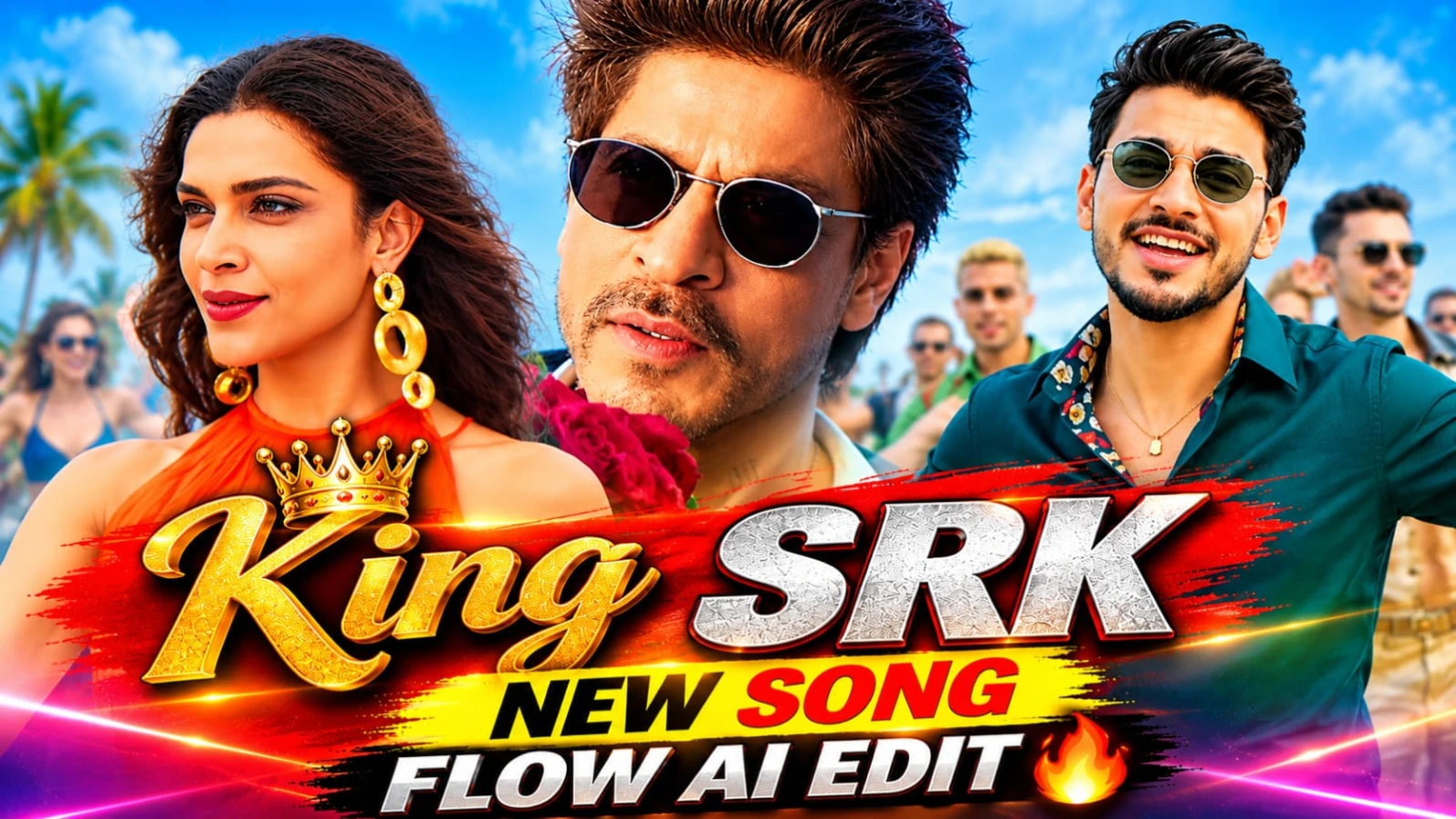
Cinematic 16:9, true 8K ultra-realistic HDR video, exactly 17 seconds, exact second-by-second recreation of the reference video. Replaces the lead man with the uploaded character sheet man (identical face, clean skin, voluminous swept-up hair, deep teal button-up shirt, floral inner collar, gold chains, teal trousers, bracelets, round grey-green sunglasses). Retains the woman in the orange fringe halter top and all other dancers, costumes, Marshall amplifiers, drum kit, rooftop terrace, sea, and mountain backdrop. Permanent static watermark 'NoorEditing07'.
Cinematic 16:9, true 8K ultra-realistic HDR video, exactly 17 seconds, an exact second-by-second recreation of the uploaded reference video. Use the uploaded reference video as the strict master for every shot, cut, camera move, dance move, timing, location, lighting and colour; no moment may be skipped, merged, reordered or changed. Only one change is allowed: the lead man of the reference is replaced by the man from the uploaded character sheet and face close-up. Everyone and everything else must stay a perfect copy of the reference: the woman in the orange fringe halter top must be copied exactly from the reference video and her uploaded frame (identical face, long wavy dark hair, orange fringe halter top, large gold hoop earrings, skin tone and body), and all dancers, outfits, building, sea, mountains and props stay the same.
[FACE AND IDENTITY LOCK]
The lead man's face must be 100% identical to the uploaded face close-up and character sheet in every single frame (same face shape, eyes, nose, lips, jawline, skin tone, body build), from front, side, low-angle, while singing, turning and dancing. No face change, no morphing, no drifting, no age change, no resemblance to the original actor. The woman's face must stay identical to the reference throughout. Skin: clean, clear, smooth, even-toned, like a professional cinema beauty retouch, absolutely no pimples, no acne, no spots, no blemishes, but natural and not plastic. Natural expressive singing with correct lip movement. His hair is voluminous, textured and swept up as in the reference.
[OUTFIT & LOCATION LOCK]
Outfit locked in every shot: deep teal-green button-up shirt with top buttons open, colourful floral inner scarf-like lining at the neck, thin gold chain necklaces with a small pendant, matching deep teal trousers, gold and leather bracelets on the wrist, thin round metal-frame sunglasses with grey-green lenses (in the low-angle sky shot the frame looks white-silver). Location: rooftop terrace of a modern white building with glass balconies and a curved ribbed roof, blue sky with soft clouds, sea on one side, big green rocky mountain and a city skyline in cloud, black Marshall amplifiers and a drum kit, a large crowd of dancers in teal, green, gold, aqua, blue and yellow outfits.
[EXACT 17-SECOND SCENE SEQUENCE]
- 0.0-0.4s: The opening frame is a wider shot of the man standing in side profile on a green hilltop with the city skyline at the bottom and the mountain behind, followed by a very fast zoom-in.
- 0.4-1.5s: Close-up of his face and shoulders in three-quarter view, looking to the right, singing, his head tilting up, big blurred mountain and pale sky behind, camera slowly arcing and pushing in.
- 1.5-2.0s: Hard cut to a low-angle wide shot of the white modern building with glass balconies, the man standing as a small teal figure at the very top of the frame on the roof edge, rocky mountain behind.
- 2.0-2.5s: The camera drifts right and slightly down, the man standing on the roof near the centre-left, dancing, green hill on the right.
- 2.5-3.5s: The camera keeps drifting right, revealing the curved ribbed roof structure behind the building; the man on top of the roof dances with his arm raised, small in the frame.
- 3.5-4.0s: Hard cut to an extreme low-angle shot from below: his arm with a gold bracelet swings into the blurred foreground against the blue sky with soft clouds, face partly visible behind it.
- 4.0-4.5s: His finger points straight at the camera in the blurred foreground, face behind it, white-silver round sunglasses, lips pursed as he sings.
- 4.5-5.0s: The hand moves away to the left and his face turns towards the camera, still shot from below.
- 5.0-6.0s: The camera pushes closer until his face fills the frame, mouth open, singing, head tilted, hair moving in the wind.
- 6.0-6.5s: Hard cut to the open sea and cloudy sky at low camera height; he swoops in from the upper right of the frame, his arm crossing his body, a woman in a lime-yellow bikini top dancing behind him.
- 6.5-7.0s: Medium front shot, he dances with his chin up, dancers behind him raising their arms (woman in lime-yellow top on the left, woman in gold sequin top on the right), a black Marshall amp at the right edge.
- 7.0-7.5s: The camera moves slowly back as he dances forward; a stack of black Marshall amplifiers and a drum kit cymbal appear behind him, a man in a tan jacket and a teal shirt dances on the left.
- 7.5-8.0s: He moves his hand across his chest with the bracelet visible; a man in an aqua shirt, a woman in a green satin dress and a man in a black patterned shirt dance behind him.
- 8.0-8.5s: He leans forward with his right arm stretched out wide, a woman in a gold sequin top and other dancers with raised arms around him, the sea horizon behind.
- 8.5-9.2s: A fast whip-pan to the right with heavy motion blur across the crowd of dancers.
- 9.2-9.7s: The whip-pan lands on the woman in the orange fringe halter top at the right of the frame, looking to the left; behind her a man with bleached blond hair in a brown jacket, a woman in a gold crop top with long braids dancing, the misty green mountain and city skyline behind.
- 9.7-11.0s: The camera slowly pushes in as she moves her arm out to the side, looking left and smiling softly, her wavy hair moving, large gold earrings swinging; a woman in a gold crop top, a woman in a teal top and a man in a maroon shirt dance behind her.
- 11.0-11.5s: Closer shot of her face and orange halter, looking left, dancers in gold, aqua and green behind her.
- 11.5-12.0s: The man enters from the left edge of the frame and stands face to face with her, their hands touching at the bottom, a city skyline and cloudy mountains behind.
- 12.0-13.0s: Close two-shot: the man at the left singing to her, the woman at the right smiling at him, her gold hoop earrings clearly visible, a man in a grey-green jacket and women in blue and aqua dancing between them, the ribbed building behind, the camera slowly swinging around.
- 13.0-14.0s: Close two-shot: the man on the left, with sunglasses, singing intensely, her face at the right edge, a woman in an aqua top dancing behind, a mountain and the ribbed building in the background.
- 14.0-14.5s: Medium close-up of the man singing, turning towards the camera, gold pendant chains visible, dancers in blue and green behind him; she exits the right edge of the frame, only her orange dress remains.
- 14.5-15.0s: Medium close-up of the man alone, the camera slightly moving, bright blue sky, dancers in blue and green on the terrace behind him.
- 15.0-16.0s: Close-up of the man singing, with the camera sliding sideways, the dancers in blue, green and gold behind him turning into strong motion blur, then the blur settles to a sharp image.
- 16.0-16.5s: Medium close-up of the man on the left, singing, with dancers in aqua, green, blue and lime raising their hands on the white terrace behind him, the sea behind.
- 16.5-17.0s: Final frame: the woman's arm and orange outfit with the gold earring enters from the right edge, her hand reaches and holds his hand, the dancers and the sea behind, happy energetic ending.
[COLOUR GRADING & QUALITY]
True 8K detail, HDR10+ / Dolby Vision style high dynamic range, 10-bit colour, deep rich contrast, bright but controlled highlights, vibrant cinematic colour grading with teal-green and orange complementary tones, glowing warm skin tones, soft blue-sky haze, subtle bloom, shallow depth of field, gentle film grain, razor-sharp detail, flawless clean skin, no plastic look.
Watermark: A small, subtle white watermark text "NoorEditing07" stays at the bottom centre of the frame throughout the entire video, clean and non-distracting.
✓
Prompt copied to clipboard!
AI Video Prompt
✦AI VIDEO PROMPT
Cinematic 16:9, true 8K ultra-realistic HDR video, exactly 17 seconds, exact second-by-second recreation of the reference video. Replaces the lead man with the uploaded character sheet man (identical face, clean skin, voluminous swept-up hair, deep teal button-up shirt, floral inner collar, gold chains, teal trousers, bracelets, round grey-green sunglasses). Retains the woman in the orange fringe halter top and all other dancers, costumes, Marshall amplifiers, drum kit, rooftop terrace, sea, and mountain backdrop. Permanent static watermark 'NoorEditing07'.
Cinematic 16:9, true 8K ultra-realistic HDR video, exactly 17 seconds, an exact second-by-second recreation of the uploaded reference video. Use the uploaded reference video as the strict master for every shot, cut, camera move, dance move, timing, location, lighting and colour; no moment may be skipped, merged, reordered or changed. Only one change is allowed: the lead man of the reference is replaced by the man from the uploaded character sheet and face close-up. Everyone and everything else must stay a perfect copy of the reference: the woman in the orange fringe halter top must be copied exactly from the reference video and her uploaded frame (identical face, long wavy dark hair, orange fringe halter top, large gold hoop earrings, skin tone and body), and all dancers, outfits, building, sea, mountains and props stay the same.
[FACE AND IDENTITY LOCK]
The lead man's face must be 100% identical to the uploaded face close-up and character sheet in every single frame (same face shape, eyes, nose, lips, jawline, skin tone, body build), from front, side, low-angle, while singing, turning and dancing. No face change, no morphing, no drifting, no age change, no resemblance to the original actor. The woman's face must stay identical to the reference throughout. Skin: clean, clear, smooth, even-toned, like a professional cinema beauty retouch, absolutely no pimples, no acne, no spots, no blemishes, but natural and not plastic. Natural expressive singing with correct lip movement. His hair is voluminous, textured and swept up as in the reference.
[OUTFIT & LOCATION LOCK]
Outfit locked in every shot: deep teal-green button-up shirt with top buttons open, colourful floral inner scarf-like lining at the neck, thin gold chain necklaces with a small pendant, matching deep teal trousers, gold and leather bracelets on the wrist, thin round metal-frame sunglasses with grey-green lenses (in the low-angle sky shot the frame looks white-silver). Location: rooftop terrace of a modern white building with glass balconies and a curved ribbed roof, blue sky with soft clouds, sea on one side, big green rocky mountain and a city skyline in cloud, black Marshall amplifiers and a drum kit, a large crowd of dancers in teal, green, gold, aqua, blue and yellow outfits.
[EXACT 17-SECOND SCENE SEQUENCE]
- 0.0-0.4s: The opening frame is a wider shot of the man standing in side profile on a green hilltop with the city skyline at the bottom and the mountain behind, followed by a very fast zoom-in.
- 0.4-1.5s: Close-up of his face and shoulders in three-quarter view, looking to the right, singing, his head tilting up, big blurred mountain and pale sky behind, camera slowly arcing and pushing in.
- 1.5-2.0s: Hard cut to a low-angle wide shot of the white modern building with glass balconies, the man standing as a small teal figure at the very top of the frame on the roof edge, rocky mountain behind.
- 2.0-2.5s: The camera drifts right and slightly down, the man standing on the roof near the centre-left, dancing, green hill on the right.
- 2.5-3.5s: The camera keeps drifting right, revealing the curved ribbed roof structure behind the building; the man on top of the roof dances with his arm raised, small in the frame.
- 3.5-4.0s: Hard cut to an extreme low-angle shot from below: his arm with a gold bracelet swings into the blurred foreground against the blue sky with soft clouds, face partly visible behind it.
- 4.0-4.5s: His finger points straight at the camera in the blurred foreground, face behind it, white-silver round sunglasses, lips pursed as he sings.
- 4.5-5.0s: The hand moves away to the left and his face turns towards the camera, still shot from below.
- 5.0-6.0s: The camera pushes closer until his face fills the frame, mouth open, singing, head tilted, hair moving in the wind.
- 6.0-6.5s: Hard cut to the open sea and cloudy sky at low camera height; he swoops in from the upper right of the frame, his arm crossing his body, a woman in a lime-yellow bikini top dancing behind him.
- 6.5-7.0s: Medium front shot, he dances with his chin up, dancers behind him raising their arms (woman in lime-yellow top on the left, woman in gold sequin top on the right), a black Marshall amp at the right edge.
- 7.0-7.5s: The camera moves slowly back as he dances forward; a stack of black Marshall amplifiers and a drum kit cymbal appear behind him, a man in a tan jacket and a teal shirt dances on the left.
- 7.5-8.0s: He moves his hand across his chest with the bracelet visible; a man in an aqua shirt, a woman in a green satin dress and a man in a black patterned shirt dance behind him.
- 8.0-8.5s: He leans forward with his right arm stretched out wide, a woman in a gold sequin top and other dancers with raised arms around him, the sea horizon behind.
- 8.5-9.2s: A fast whip-pan to the right with heavy motion blur across the crowd of dancers.
- 9.2-9.7s: The whip-pan lands on the woman in the orange fringe halter top at the right of the frame, looking to the left; behind her a man with bleached blond hair in a brown jacket, a woman in a gold crop top with long braids dancing, the misty green mountain and city skyline behind.
- 9.7-11.0s: The camera slowly pushes in as she moves her arm out to the side, looking left and smiling softly, her wavy hair moving, large gold earrings swinging; a woman in a gold crop top, a woman in a teal top and a man in a maroon shirt dance behind her.
- 11.0-11.5s: Closer shot of her face and orange halter, looking left, dancers in gold, aqua and green behind her.
- 11.5-12.0s: The man enters from the left edge of the frame and stands face to face with her, their hands touching at the bottom, a city skyline and cloudy mountains behind.
- 12.0-13.0s: Close two-shot: the man at the left singing to her, the woman at the right smiling at him, her gold hoop earrings clearly visible, a man in a grey-green jacket and women in blue and aqua dancing between them, the ribbed building behind, the camera slowly swinging around.
- 13.0-14.0s: Close two-shot: the man on the left, with sunglasses, singing intensely, her face at the right edge, a woman in an aqua top dancing behind, a mountain and the ribbed building in the background.
- 14.0-14.5s: Medium close-up of the man singing, turning towards the camera, gold pendant chains visible, dancers in blue and green behind him; she exits the right edge of the frame, only her orange dress remains.
- 14.5-15.0s: Medium close-up of the man alone, the camera slightly moving, bright blue sky, dancers in blue and green on the terrace behind him.
- 15.0-16.0s: Close-up of the man singing, with the camera sliding sideways, the dancers in blue, green and gold behind him turning into strong motion blur, then the blur settles to a sharp image.
- 16.0-16.5s: Medium close-up of the man on the left, singing, with dancers in aqua, green, blue and lime raising their hands on the white terrace behind him, the sea behind.
- 16.5-17.0s: Final frame: the woman's arm and orange outfit with the gold earring enters from the right edge, her hand reaches and holds his hand, the dancers and the sea behind, happy energetic ending.
[COLOUR GRADING & QUALITY]
True 8K detail, HDR10+ / Dolby Vision style high dynamic range, 10-bit colour, deep rich contrast, bright but controlled highlights, vibrant cinematic colour grading with teal-green and orange complementary tones, glowing warm skin tones, soft blue-sky haze, subtle bloom, shallow depth of field, gentle film grain, razor-sharp detail, flawless clean skin, no plastic look.
Watermark: A small, subtle white watermark text "NoorEditing07" stays at the bottom centre of the frame throughout the entire video, clean and non-distracting.
Step 1: Sabse pehle Chrome browser open karein aur Flow AI website par jaakar apna account open karein.
Step 2: Flow AI mein video generation ka option select karein. Apne project ke according Image to Video ya Text to Video workflow choose karein.
Step 3: Apni ek clear face photo upload karein. Photo mein face clearly visible hona chahiye, taaki AI aapki appearance ko reference ke roop mein use kar sake.
Step 4: Agar aapke paas Character Sheet hai, to use bhi upload karein. Isse AI ko character ke face, hairstyle aur outfit ke multiple views samajhne mein help mil sakti hai.
Step 5: Ab King Movie Cinematic AI Video Prompt copy karke prompt box mein paste karein. Prompt mein character appearance, outfit, cinematic background, camera angles aur lighting ki details ko check karein.
Step 6: Apne video ke liye aspect ratio select karein. Instagram Reels aur YouTube Shorts ke liye 9:16 aur landscape cinematic video ke liye 16:9 choose karein.
Step 7: Available video settings select karein aur Generate button par click karein. Ab AI aapke prompt aur reference images ke basis par cinematic video generate karega.
Step 8: Video ready hone ke baad use preview karein. Check karein ki face reference photo se match ho raha hai, outfit consistent hai aur camera movements cinematic lag rahe hain.
Step 9: Agar video mein multiple scenes hain aur ek generation mein sabhi scenes nahi ban rahe, to unhe short clips mein generate karein. Har clip mein same character reference aur outfit details use karein.
Step 10: Ab sabhi generated clips ko CapCut ya kisi video editor mein correct order mein arrange karein. Clips ko trim karein aur smooth transitions add karein.
Step 11: Video mein cinematic colour grading, suitable background music aur sound effects add karein. Zarurat ke according NoorEditing07 watermark bhi add kar sakte hain.
Step 12: Final video ko high quality mein export karein. Ab aapka King Movie-inspired Cinematic AI Video ready hai.
Note: Flow AI ke options aur generation limits account aur model ke according alag ho sakte hain. AI exact face identity ya movie ke original shots ki perfect copy guarantee nahi karta.
King movie cinematic AI videoKing movie AI video promptFlow AI cinematic video promptKing movie video editingAI movie style videocinematic AI video editingface replacement AI videoAI character video promptrealistic cinematic videoFlow AI tutorialviral AI video editingNoorEditing07
King movie cinematic AI videoKing movie AI video promptFlow AI cinematic video promptKing movie video editingAI movie style videocinematic AI video editingface replacement AI videoAI character video promptrealistic cinematic videoFlow AI tutorialviral AI video editingNoorEditing07
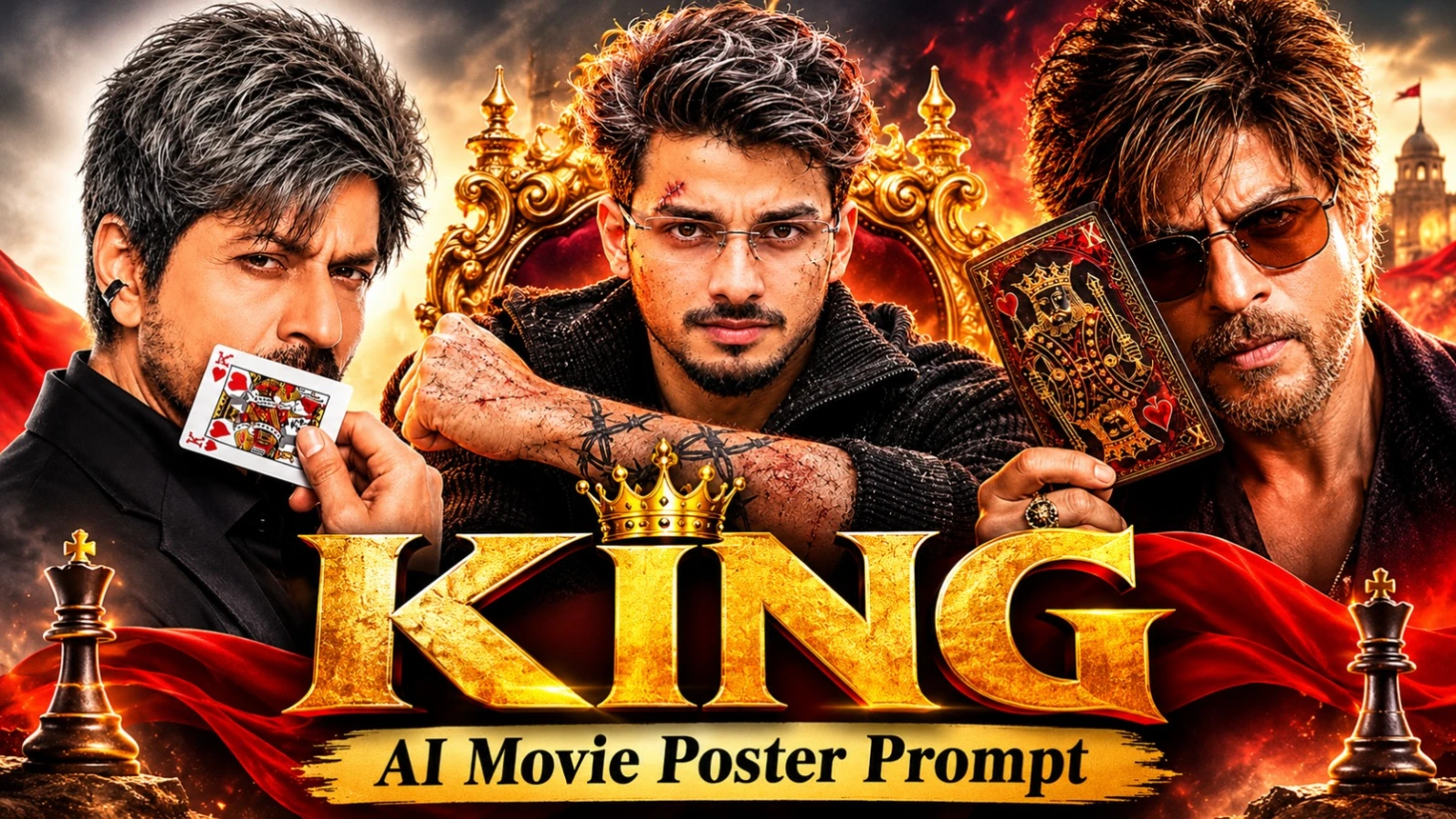
Apni normal photo ko KING theme ke cinematic movie poster mein convert karna chahte hain? Is article mein 3 alag-alag AI photo editing concepts diye gaye hain. Inmein King of Hearts studio poster, dark action-thriller poster aur royal golden sunset poster shamil hain. Har design mein alag background, outfit, lighting aur KING typography use ki gayi hai.
KING AI Movie Poster Kaise Banaye
Step 1: Sabse pehle apni ek clear reference photo select karein. Face achhe se visible hona chahiye.
Step 2: Apna favourite poster design choose karein. Pehle design mein black blazer, King of Hearts card aur light-grey studio background hai.
Step 3: Agar action-thriller look chahiye, to second concept select karein. Ismein black textured outfit, red-orange smoke, dramatic lighting aur white KING title diya gaya hai.
Step 4: Royal look ke liye third design use karein. Ismein dark maroon-black jacket, golden sunset, palace background aur metallic KING typography hai.
Step 6: Generated poster mein face, hands aur text spelling check karein. Agar KING title ya credits galat aayein, to unhe photo-editing app mein manually correct kar sakte hain.
Actual face consistency aur image quality AI platform par depend karti hai. Prompt mein diya gaya NoorEditing07 watermark bhi generate hone ke baad check karein.
Mountain Lake AI Video Prompt – 8 Cinematic Scenes Flow AI Edit
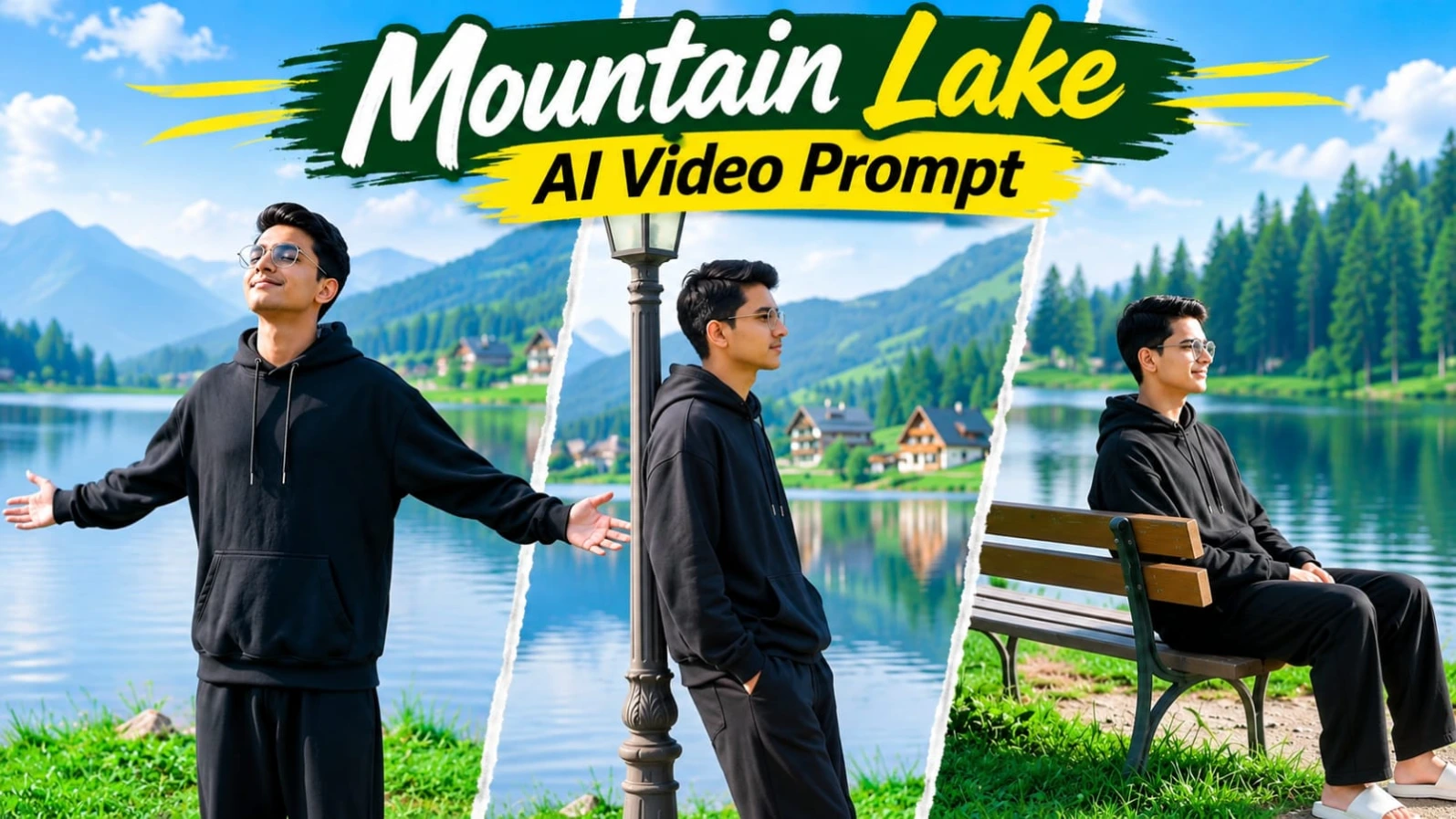
Mountain Lake AI Video Prompt se aap ek peaceful cinematic lakeside video create kar sakte hain. Is concept mein green grass, calm lake, pine forest, mountain cottages aur vintage wooden bench ka beautiful environment diya gaya hai. Video mein ek young man black oversized hoodie, loose black trousers aur white slides pehenta hai. Total 8 scenes mein sitting, walking aur relaxing moments dikhaye gaye hain.
Mountain Lake Flow AI Video Kaise Banaye
Step 1: Sabse pehle apni clear reference photo se character sheet banayein. Ismein black oversized hoodie, loose black trousers aur white slides rakhein.
Step 2: Flow AI open karein aur available reference-image feature se character ki photo upload karein.
Step 3: Mountain lake video prompt copy karein. Location mein calm lake, grassy bank, pine forest, mountain cottages, wooden bench aur vintage street lamp ka description rakhein.
Step 4: Video ko 8 scenes mein generate karein: lake ke paas bench par baithna, grassy bank par walk, bench par relax karna, cottages ki taraf chalna, street lamp ke paas khade hona, dono arms spread karna, bench par wapas baithna aur final low-angle walking shot.
Step 5: Har scene mein same outfit aur character appearance maintain karne ki koshish karein.
Step 6: Final video ko 16:9 landscape format mein arrange karein. Bright daylight aur natural green color grading rakhein.
8K aur 120fps desired specifications hain; actual output Flow AI ki settings par depend karega.
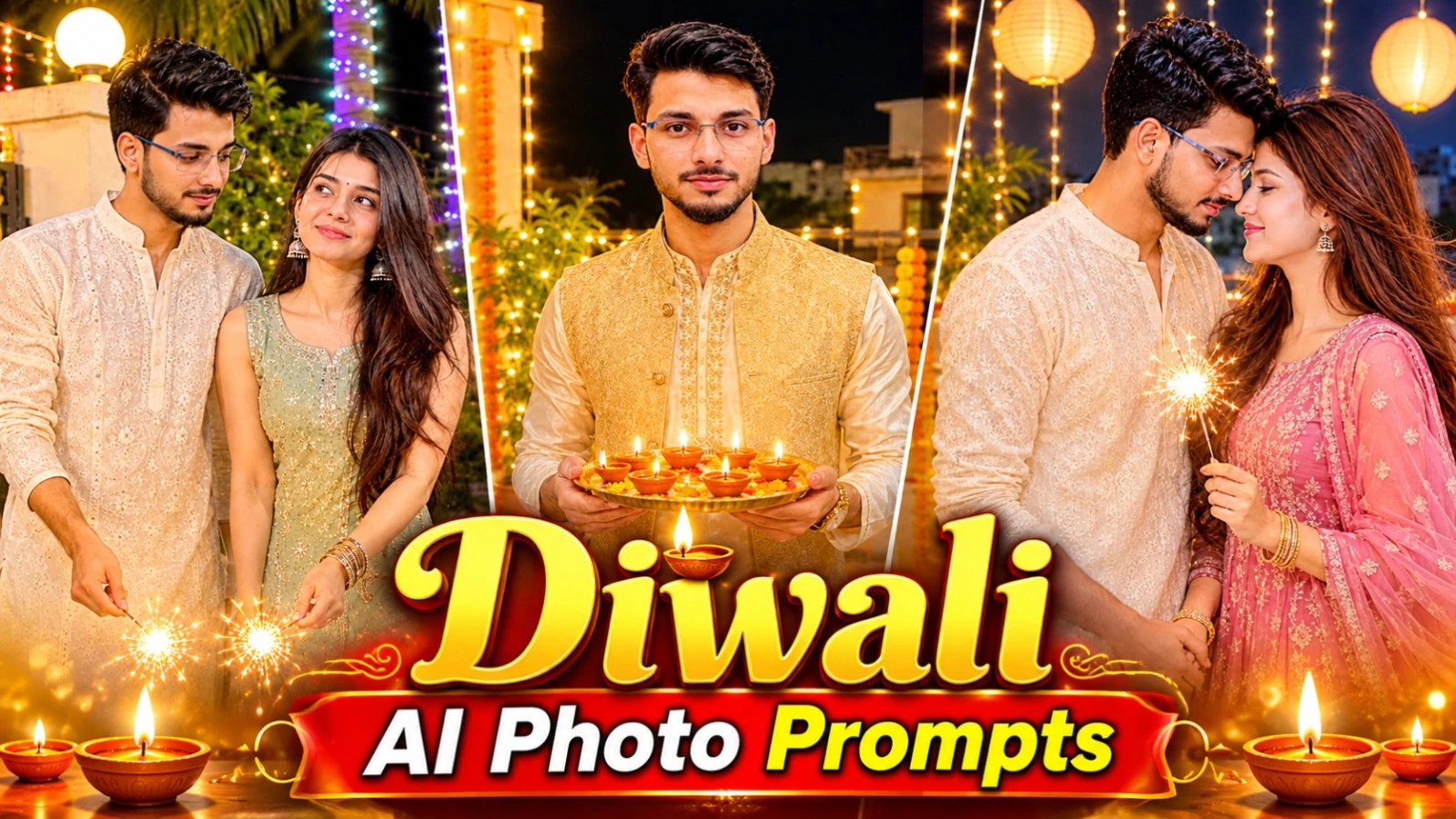
6 Diwali AI Photo Prompts – Couple, Solo & Festive Portraits
Diwali ke liye traditional outfits, glowing diyas, sparklers aur beautiful fairy lights ke saath AI photos create karna ek creative idea hai. Is collection mein women, men aur couples ke liye 6 festive photo concepts diye gaye hain. Aap apni reference photo use karke in designs ko personalized portrait mein convert kar sakte hain.
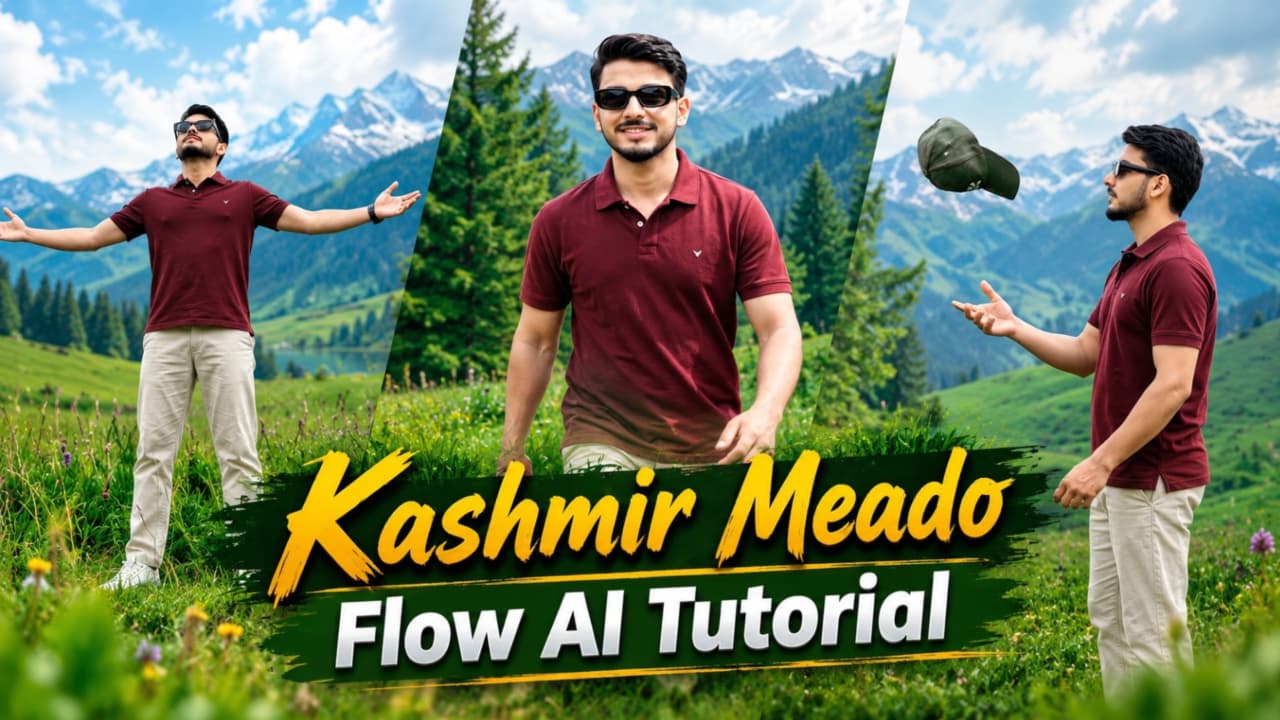
Kashmir ke green meadows, rolling hills, pine forests aur wildflowers par based cinematic travel video create karne ke liye yeh Flow AI concept diya gaya hai. Ismein ek consistent character maroon polo T-shirt, light beige trousers, white sneakers aur black rectangular sunglasses mein nazar aata hai. Video ka overall look bright daylight aur natural DSLR travel photography jaisa hai.
Step 2: Reference photo se character sheet banayein. Is concept mein maroon half-sleeve polo T-shirt, light beige straight trousers, white low-top sneakers aur black rectangular sunglasses use hote hain.
Step 3: Flow AI open karein aur supported reference-image feature se character sheet upload karein.
Step 4: AI video prompt copy karein. Ismein 7 scenes ka sequence diya gaya hai: green meadow mein downhill walk, cap toss karna, purple wildflowers ke beech walk, blue camping tent ke paas se guzarna, arms spread karna, grassy slope par baithna aur green hill se pine trees aur cottages dekhna.
Step 5: Har scene mein same character aur outfit maintain karne ki koshish karein.
Step 6: Video ke liye 9:16 vertical format aur bright daylight color grading rakhein.
Step 7: Final clips ko sequence mein arrange karein aur NoorEditing07 watermark check karein.
8K aur 120fps target specifications hain. Actual resolution aur frame rate tool ke available settings par depend karte hain.
Monsoon Cinematic AI Video – Flow AI Viral Video Prompt
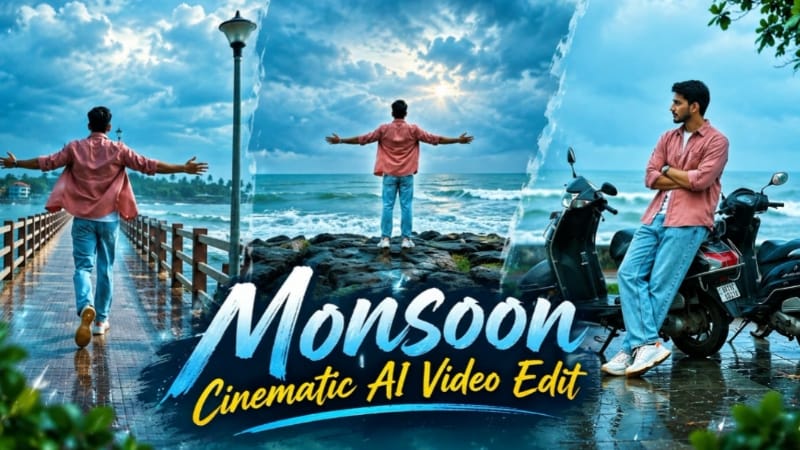
Flow AI Monsoon Cinematic Video Prompt se aap Indian coastal town ke rainy-season atmosphere par based ek realistic cinematic video create kar sakte hain. Is concept mein wet roads, grey-blue clouds, sea waves, coconut palms aur coastal locations dikhayi gayi hain. Character dusty rose-pink shirt, white T-shirt, light blue jeans aur white sneakers pehenta hai. Video mein total 6 shots aur 18 seconds ki duration rakhi gayi hai.
Monsoon Cinematic Flow AI Video Kaise Banaye
Step 1: Sabse pehle apni clear reference photos select karein, jisse character ki face appearance guide ho sake.
Step 2: Character ka outfit fix karein: dusty rose-pink rolled-sleeve shirt, white T-shirt, light blue jeans, white sneakers aur silver wristwatch.
Step 3: Flow AI open karein aur available reference-image feature se photos upload karein.
Step 4: Complete video prompt copy karein. Ismein 6 shots ka exact sequence diya gaya hai.
Step 5: Pehle shot mein seaside pier par running, doosre mein wet plaza par walking aur teesre mein parked scooters ke paas pose hai.
Step 6: Chauthe shot mein rocky viewpoint par arms spread karna, paanchve mein coconut palms ke paas side walk aur final shot mein sea rocks ki taraf walk karna hai.
Step 7: Sabhi clips mein same outfit, character appearance aur cool teal-blue monsoon color grading maintain karein.
Step 8: Clips ko 16:9 landscape format mein 18-second sequence ke roop mein arrange karein. Extra transitions aur effects ke bajay plain hard cuts use karein.
Final video mein face sharpness, scene order aur outfit consistency check karein. AI output mein small variations aa sakte hain, isliye export se pehle har shot review karein.