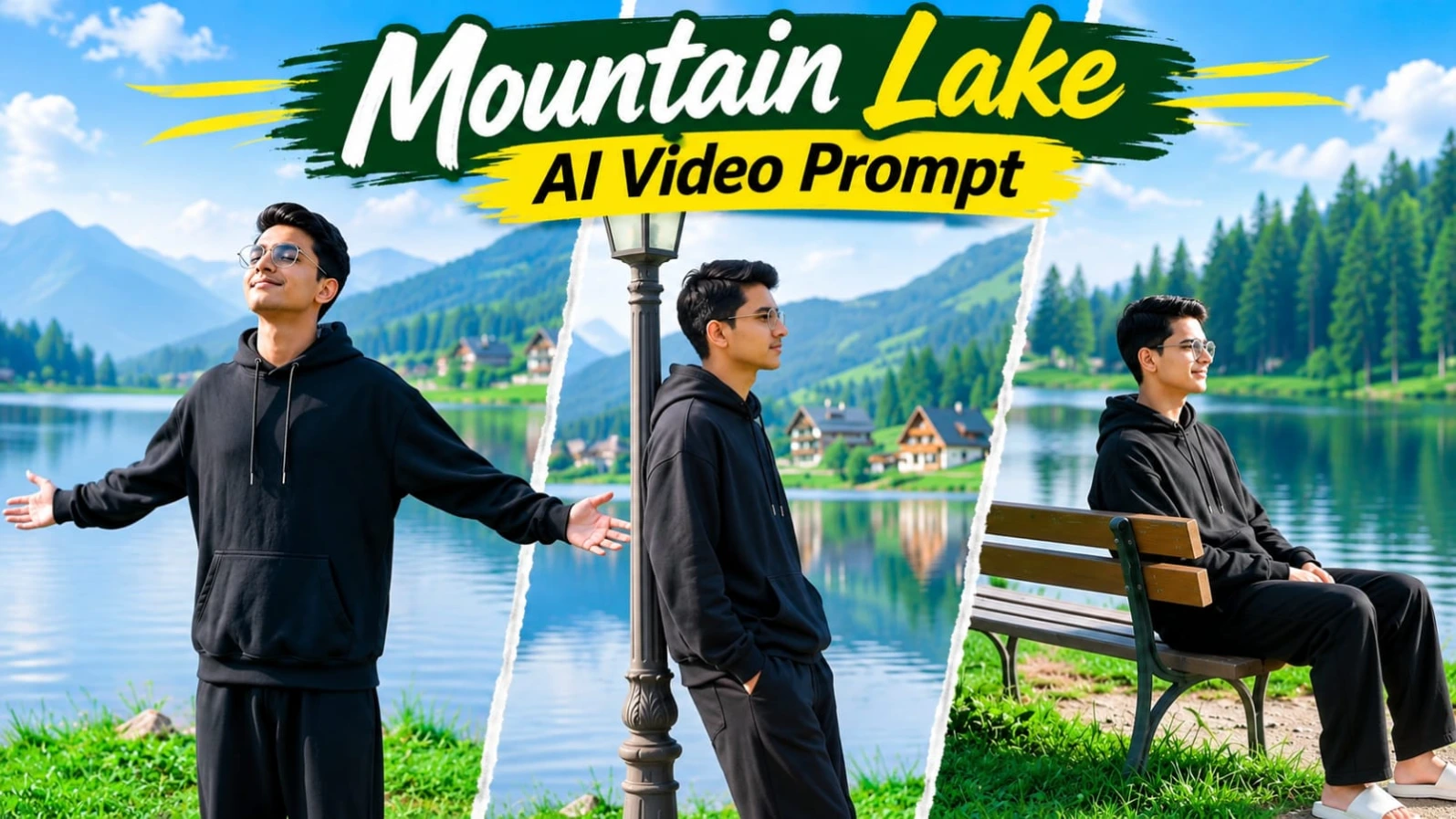
Mountain Lake AI Video Prompt | Cinematic Scenes Flow Ai Edit
Mountain Lake AI Video Prompt: Create a Cinematic Lakeside Video with 8 Scenes
A peaceful mountain lake, fresh green surroundings, tall pine trees, and beautiful mountain cottages can create an unforgettable cinematic atmosphere. These natural locations are perfect for lifestyle videos that focus on calm expressions, scenic views, and realistic human movements.
With AI video-generation tools, you can create this kind of cinematic experience using a detailed text prompt and a suitable reference photograph. This Mountain Lake AI Video Prompt is designed to recreate eight different moments featuring a young man enjoying a peaceful day beside a scenic mountain lake.
The video combines sitting, walking, looking towards the sky, and relaxing beside the water. Each scene has a specific camera angle and action, helping maintain a consistent visual sequence.
A Peaceful Mountain Lake Environment
The main location is a scenic lakeside grassy bank surrounded by natural mountain scenery.
The background includes a calm lake with soft water reflections, lush pine forests, distant mountain cottages, a vintage wooden park bench, and an old-fashioned street lamp post.
The environment should feel open, fresh, and peaceful. Bright daylight illuminates the grass, trees, water, and surrounding landscape without creating excessively dark shadows.
The combination of natural greens, soft reflections, and distant mountain scenery gives the video a relaxing outdoor photography style.
Young Man's Outfit and Appearance
The main subject is a young man wearing a black oversized hoodie, loose black trousers, and white slides.
The black outfit creates a simple contrast against the vivid green grass and bright natural environment.
The prompt also emphasizes facial identity consistency using an uploaded reference photograph. The man's facial features, beard, and skin tone should remain consistent throughout all eight scenes.
His face should remain clearly visible and naturally illuminated whenever the camera angle allows it. Realistic skin texture and natural facial proportions are important parts of the desired appearance.
Reference-image support can help guide identity consistency, although exact facial preservation depends on the capabilities of the selected video generator.
Understanding the Eight Cinematic Scenes
The video follows eight carefully described scenes, each showing a different interaction with the mountain lake environment.
Scene 1: Sitting Beside the Lake
The opening begins with a wide profile shot. The young man sits on a vintage wooden bench beside the lake, quietly looking at the water.
This establishes the peaceful atmosphere and introduces the main location.
Scene 2: Walking Along the Grassy Bank
The second scene uses an eye-level side-tracking camera movement. The man walks towards the right along the grassy lakeside while a lush hillside appears in the background.
The movement should feel natural and relaxed.
Scene 3: Relaxing on the Bench
A medium shot shows the man leaning back against the bench. He rests his head against the backrest and looks upwards peacefully.
This moment gives the video a calm and reflective feeling.
Scene 4: Walking Towards the Mountain Cottages
The fourth scene uses a wide back-view composition. The man walks away along the grassy edge of the lake, moving towards the distant mountain cottages.
The camera captures the surrounding landscape and the subject together.
Scene 5: Standing Beside the Vintage Street Lamp
The fifth scene is a medium profile shot. The man casually leans back against a vintage street lamp post beside the water.
The composition highlights both the subject and the lakeside environment.
Scene 6: Spreading Both Arms Open
A front medium-wide shot captures the man standing on the grass. He tilts his head upwards and spreads both arms wide.
This creates an expressive moment that communicates freedom, relaxation, and appreciation of nature.
Scene 7: Returning to the Lakeside Bench
The seventh scene returns to the wooden bench. The man sits again and leans his head backwards towards the sky.
This creates a visual connection with the opening scene while maintaining the peaceful mood.
Scene 8: Low-Angle Walking Shot
The final scene uses a low-angle profile tracking movement. The man walks slowly forward along the grassy lakebank.
The sequence ends with natural movement and a scenic view of the surrounding environment.
Bright Daylight and Natural Color Grading
Lighting is one of the most important elements of this video concept.
The prompt requests bright daylight, vivid natural greens, soft reflections on the lake, and lifted shadows. The subject should remain clearly visible without dark areas hiding his face or outfit.
The overall color grading should look fresh and natural rather than excessively dark or oversaturated.
Soft daylight also helps create a realistic outdoor DSLR photography appearance.
Why Facial Identity Consistency Matters
The same person should appear throughout all eight scenes. Changes in facial structure, beard, skin tone, or hairstyle can make the final sequence feel inconsistent.
A suitable reference photograph can help guide the subject's appearance. If the platform supports image references or character consistency features, use them according to the available settings.
The face-lock instructions describe the desired result, but no text prompt can guarantee perfect identity preservation in every generated frame.
16:9 Widescreen Cinematic Composition
Unlike vertical social media reels, this concept uses a 16:9 widescreen aspect ratio.
This format provides more room to show the lake, mountains, pine trees, cottages, and grassy surroundings alongside the main subject.
The prompt requests 8K visual detail and 120fps motion. These are target specifications; actual resolution and frame rate depend on the video generator's supported output settings.
Final Thoughts
The Mountain Lake AI Video Prompt combines peaceful outdoor storytelling with realistic cinematic camera movements.
Its eight scenes show a natural progression from sitting beside the lake to walking through the grassy landscape and relaxing on the wooden bench.
For the intended result, focus on consistent facial appearance, the same black outfit, accurate scene order, bright daylight, and the natural mountain-lake environment.
Sabse Pehle Character Sheet Photo Banaai ChatGPT Se
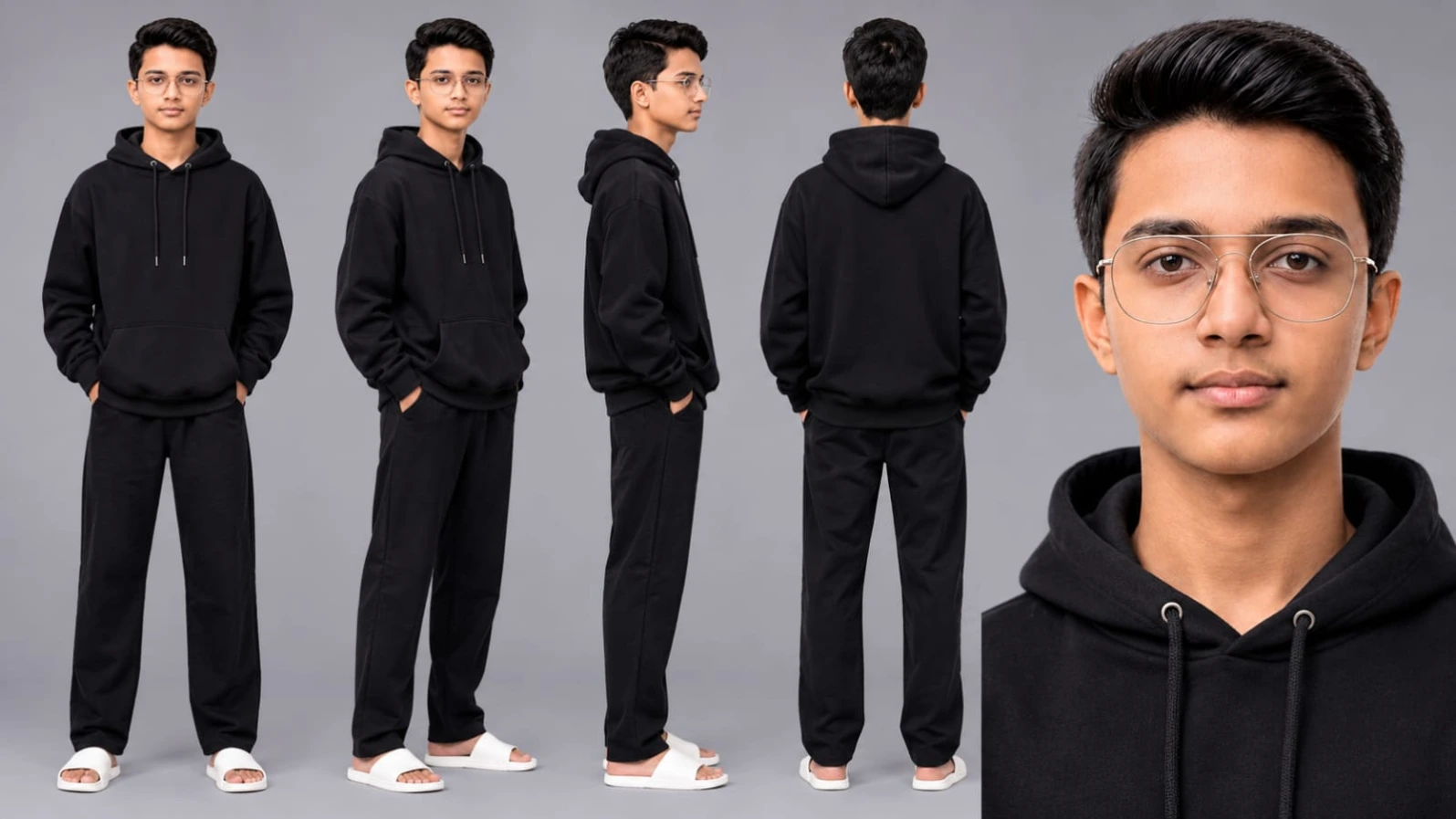


How to Create a Mountain Lake Cinematic AI Video Using Flow AI
You can use this Mountain Lake AI Video Prompt with Flow AI or another compatible AI video generator. The goal is to create a realistic widescreen cinematic video featuring a young man enjoying peaceful moments beside a beautiful mountain lake.
Follow these steps to create your video.
Step 1: Open Flow AI
Open Flow AI and navigate to the available video-generation workflow.
Sign in to your account and check which text-to-video or image-to-video options are available. The exact features may vary depending on your account and platform updates.
Step 2: Upload Your Face Reference Photo
Prepare a clear reference photograph of the person who will appear in the video.
Upload it if your selected workflow supports reference images. Choose a photo with a clearly visible face and beard.
The prompt requests consistent facial features, beard, and skin tone across all eight scenes.
Reference-image guidance can help maintain the intended appearance, but perfect identity consistency is not guaranteed.
Step 3: Copy the Complete Master Video Prompt
Copy the Mountain Lake AI Video Prompt from this article.
It includes the subject's outfit, location, background, facial identity instructions, eight scene descriptions, lighting, camera movements, and technical specifications.
Keep the scene sequence intact if you want to recreate the intended video structure.
Step 4: Understand the Outfit and Appearance
The young man should wear the same outfit throughout the video:
Black oversized hoodie.
Loose black trousers.
White slides.
Keep the facial appearance, beard, and skin tone consistent with the uploaded reference photograph.
Avoid introducing unrelated clothing or accessories that change the intended look.
Step 5: Set Up the Mountain Lake Environment
The background should include:
Calm mountain lake.
Grassy lakeside bank.
Vintage wooden park bench.
Vintage street lamp post.
Pine forest.
Mountain cottages.
These environmental details should remain consistent across the different scenes.
Step 6: Generate Scene 1 and Scene 2
Start with the opening two scenes.
Scene 1: Create a wide profile shot of the man sitting on the vintage wooden bench and gazing at the lake.
Scene 2: Generate an eye-level side-tracking shot showing him walking towards the right along the grassy lakeside.
Check that the subject and outfit remain consistent between the shots.
Step 7: Generate Scene 3 and Scene 4
Scene 3 shows the man leaning back on the bench, resting his head against the backrest, and looking upwards.
Scene 4 uses a wide back-view shot of him walking away along the grassy water edge towards the mountain cottages.
Preserve the specified camera angles and relaxed movements.
Step 8: Generate Scene 5 and Scene 6
Scene 5 shows the man leaning casually against the vintage street lamp post beside the water.
Scene 6 uses a front medium-wide composition. The man stands on the grass, tilts his head upwards, and spreads both arms wide open.
Make sure his face remains naturally illuminated whenever visible.
Step 9: Generate Scene 7 and Scene 8
Scene 7 returns to the wooden lakeside bench. The man sits and leans his head back towards the sky.
Scene 8 is a low-angle profile tracking shot showing him walking slowly forward along the grassy lakebank.
These final scenes should maintain the same peaceful cinematic atmosphere.
Step 10: Apply Bright Daylight Color Grading
Use bright daylight as the main lighting direction.
The desired appearance includes vivid natural greens, soft water reflections, lifted shadows, and clear facial visibility.
Avoid excessive darkness, crushed shadows, or unnatural color changes.
Step 11: Check the Video Quality and Scene Continuity
After generation, review all eight scenes carefully.
Check these details:
Same facial appearance and beard.
Same black hoodie and trousers.
Same white slides.
Consistent mountain lake environment.
Correct wooden bench and street lamp.
Accurate scene order.
Natural walking and sitting movements.
Bright daylight with realistic shadows.
Smooth transitions between clips.
If the generator produces separate clips, arrange them in the correct order using a video editor.
Step 12: Add the NoorEditing07 Watermark
The prompt requests a subtle NoorEditing07 watermark in the bottom corner.
If your generator cannot reproduce the text accurately, add the watermark during editing. Keep it small and unobtrusive.
Step 13: Export the Final Video
Select the available 16:9 widescreen export settings.
The prompt requests 8K and 120fps, but the final resolution and frame rate depend on the platform's actual capabilities. Use the highest suitable settings available.
Review the complete video before exporting to ensure the eight scenes follow the intended sequence.
Conclusion
With a suitable reference photograph and a detailed scene-by-scene prompt, you can create a peaceful mountain lake cinematic video using Flow AI or another compatible generator.
Focus on facial consistency, the black oversized outfit, natural daylight, accurate camera movements, and the beautiful lakeside environment to achieve the intended visual style.
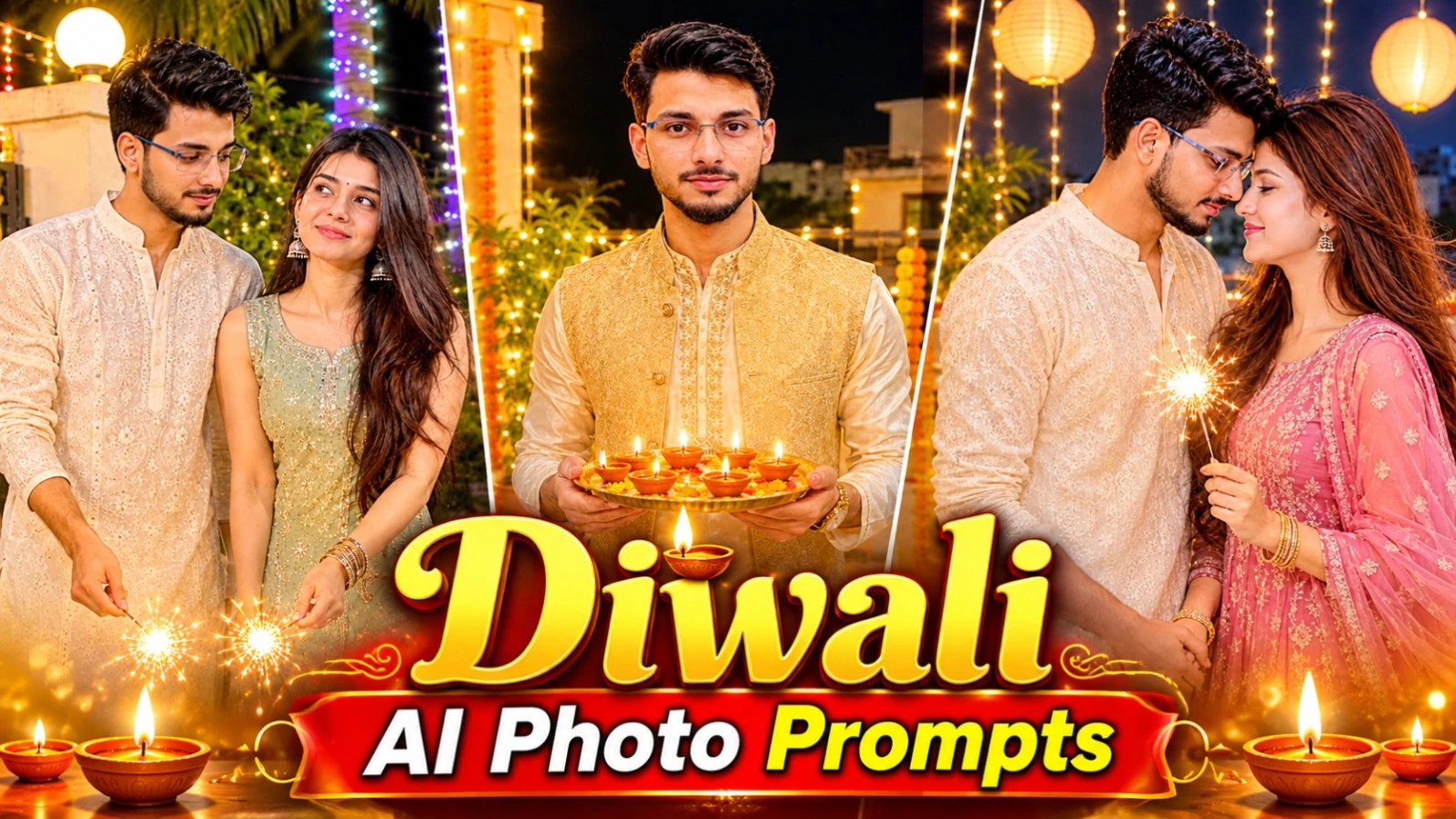
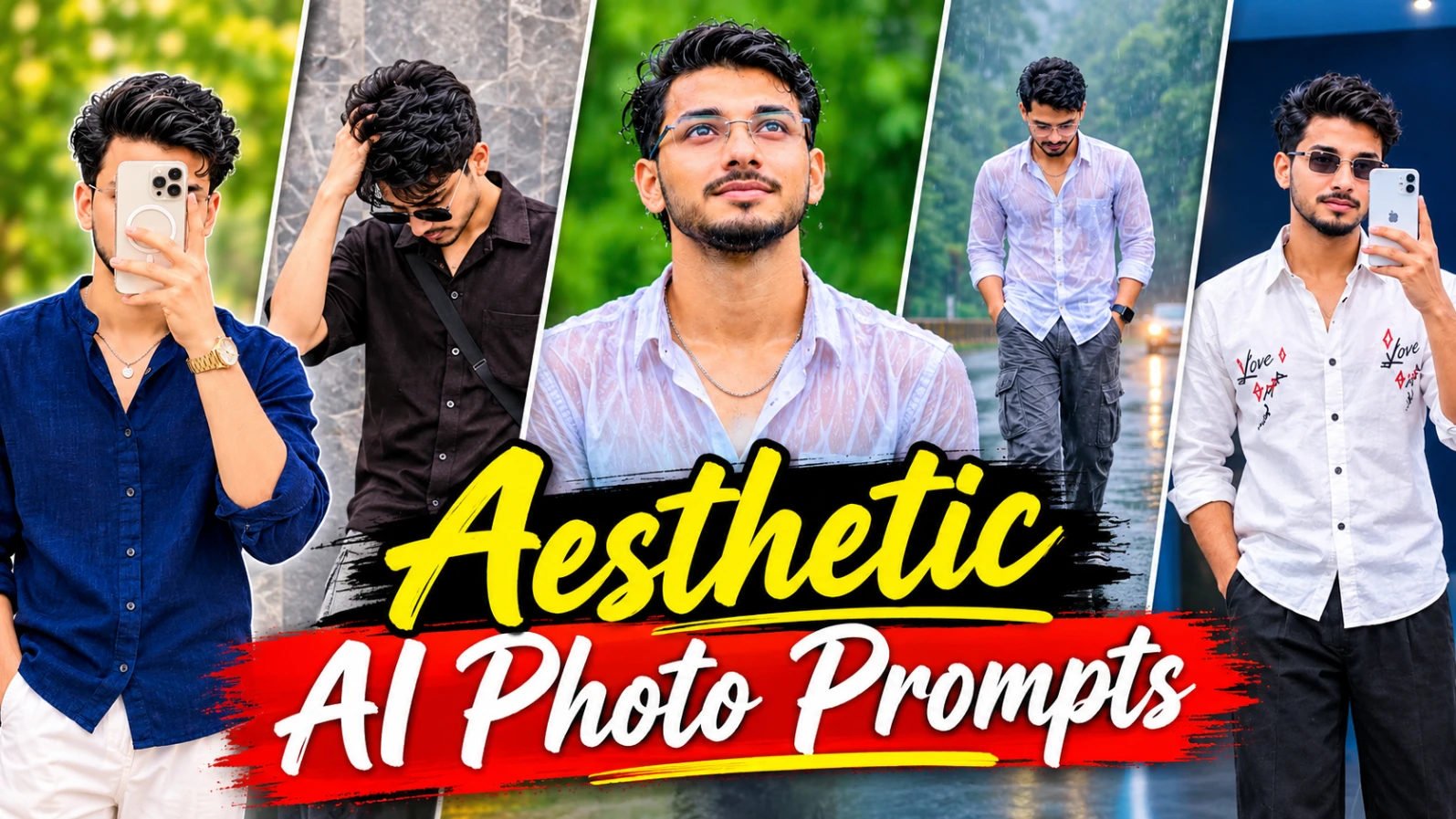
1. 6 Diwali AI Photo Prompts | Couple, Solo & Festive Portraits
Original URL: https://www.noorediting07.com/6-diwali-ai-photo-prompts-couple-solo-festive-portraits
Diwali ke mauke par aap AI ki madad se beautiful festive portraits create kar sakte hain. Is article mein 6 alag photo concepts hain, jinmein solo portraits, romantic couple photos aur traditional festive collage shamil hain. Sabhi concepts mein traditional Indian outfits, glowing diyas, sparklers aur warm fairy lights ka use kiya gaya hai.
6 Diwali AI Photos Kaise Banaye
Step 1: Apni clear face photo select karein. Couple photo ke liye dono persons ki separate reference photos upload karein, agar AI tool support karta hai.
Step 2: Pehla concept red floral Anarkali suit wali girl ka 2x2 collage hai. Ismein diya thali, sparkler aur different poses hain.
Step 3: Doosra concept society gate par couple portrait hai, jisme cream chikankari kurta aur pastel mint outfit ke saath sparklers hain.
Step 4: Teesra aur chautha concept men's solo portraits hain. Ek mein cream silk kurta ke saath diya thali hai, doosre mein white chikankari outfit aur sparkler hai.
Step 5: Paanchve concept mein maroon sherwani aur emerald-green lehenga pehne couple floral rangoli ke paas diyas jalata hai.
Step 6: Chhathe concept mein ivory kurta aur dusty rose Anarkali pehne couple romantic rooftop pose deta hai.
Step 7: Vertical 4:5 format mein image generate karein. Face, outfit, hands aur lighting check karein. NoorEditing07 watermark ko zarurat par editing app se add karein.
2. 5 Aesthetic AI Photo Prompts for Instagram | Cinematic Portraits
Original URL: https://www.noorediting07.com/5-aesthetic-ai-photo-prompts-for-instagram-cinematic-portraits
Instagram ke liye creative photos aur stylish posters banane ke liye ye 5 AI photo concepts useful hain. Is collection mein Spring Vibes collage, Eyes Speak poster, romantic couple collage, rainy-day portrait aur blue LED mirror selfie shamil hain. Sabhi designs vertical 4:5 composition ke liye hain.
5 Aesthetic AI Photos Kaise Banaye
Step 1: ChatGPT ya compatible AI image generator open karein aur apni reference photo upload karein.
Step 2: Spring Vibes poster mein olive-green background, navy-blue shirt wala mirror selfie aur right side mein three Polaroid photos create karein.
Step 3: Eyes Speak poster mein greige paper background, torn-paper strip ke andar woman's eyes aur neeche black shirt wale character ka sticker-style portrait rakhein.
Step 4: Romantic couple collage mein three horizontal panels banayein. White haveli, black-and-white close-up aur sunset fort walking shot include karein.
Step 5: Rainy-day collage mein wet forest road, fog, white shirt portrait aur black sports motorcycle ke paas seated pose rakhein.
Step 6: Blue LED mirror selfie ke liye organic-shaped mirror, electric-blue lighting, white doodle shirt aur black trousers use karein.
Step 7: Final 4:5 image mein text spelling, face, hands aur collage arrangement check karein. NoorEditing07 watermark add karein.
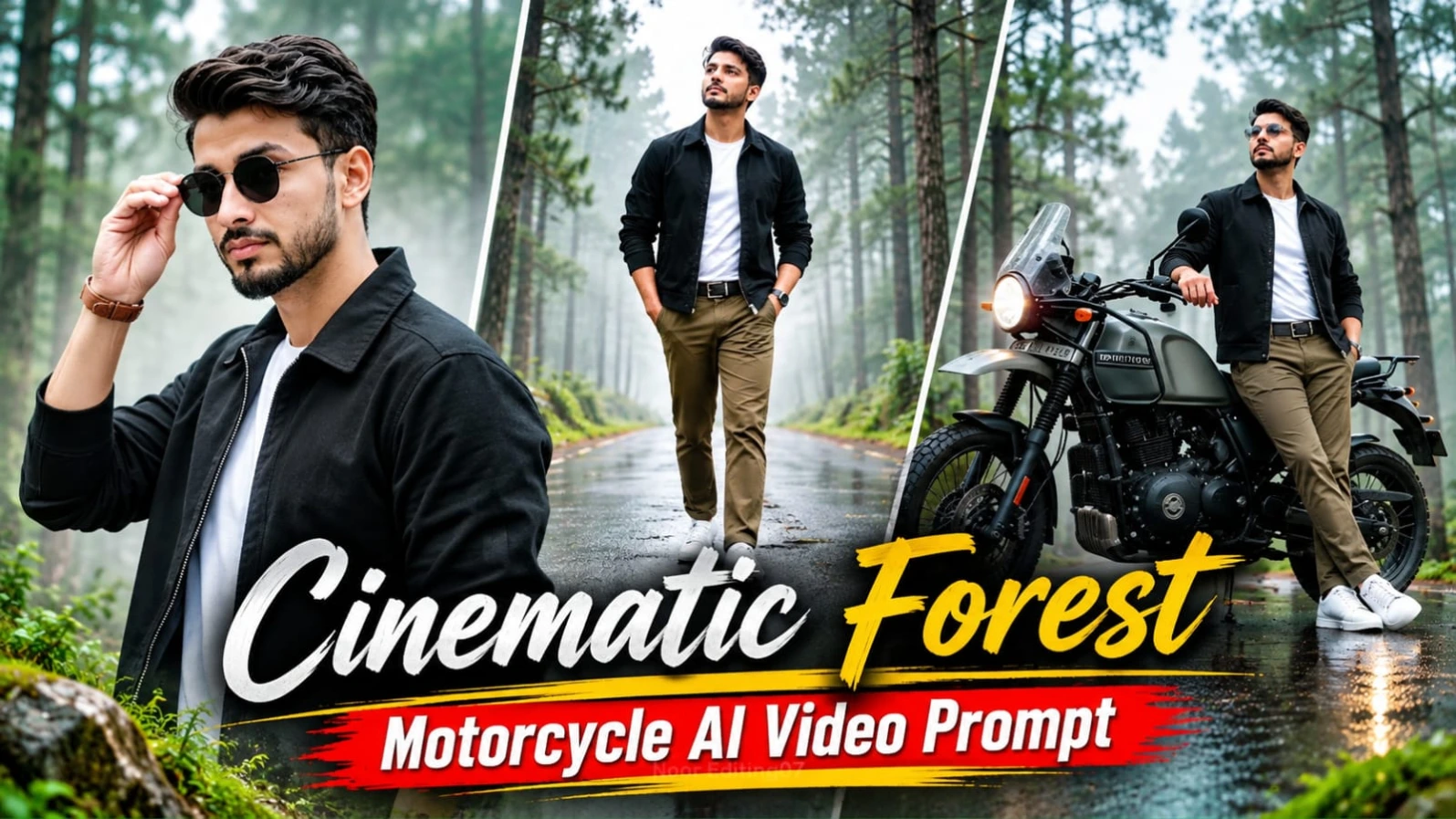
3. Cinematic Forest Motorcycle AI Video Prompt | Flow AI Edit
Original URL: https://www.noorediting07.com/cinematic-forest-motorcycle-ai-video-prompt-flow-ai-edit
Cinematic Forest Motorcycle AI Video ek 25-second adventure-film style concept hai. Ismein misty pine forest, wet reflective road aur olive-grey adventure motorcycle dikhai deti hai. Character black work jacket, white T-shirt, olive-brown chinos, white sneakers aur black round sunglasses pehenta hai.
Video mein 12 cinematic scenes hain. Motorcycle poore sequence mein parked aur stationary rehti hai. Character ko har scene mein visible rakhna is concept ka important part hai.
Forest Motorcycle Video Kaise Banaye
Step 1: ChatGPT mein apni photo upload karke front, side, back aur face close-up wali character sheet banayein.
Step 2: Flow AI open karein aur character reference upload karein. Same face, hairstyle, beard aur outfit maintain karein.
Step 3: Background mein tall pine trees, mossy trunks, drifting fog aur wet asphalt rakhein. Colour palette muted olive, grey aur beige ho.
Step 4: Olive-grey motorcycle mein round headlight, mirrors, handlebar aur black seat ki details preserve karein.
Step 5: 12 scenes ko original sequence mein generate karein: motorcycle ke paas opening shot, face close-up, walking, sneakers tracking, trees, motorcycle details aur final forest composition.
Step 6: Camera arc, push-in, tracking aur pull-back movements use karein. Motorcycle ko drive ya ride karte hue na dikhayein.
Step 7: Sabhi clips ko 16:9 format mein combine karein. Face visibility, motorcycle consistency aur transitions check karke NoorEditing07 watermark add karein.
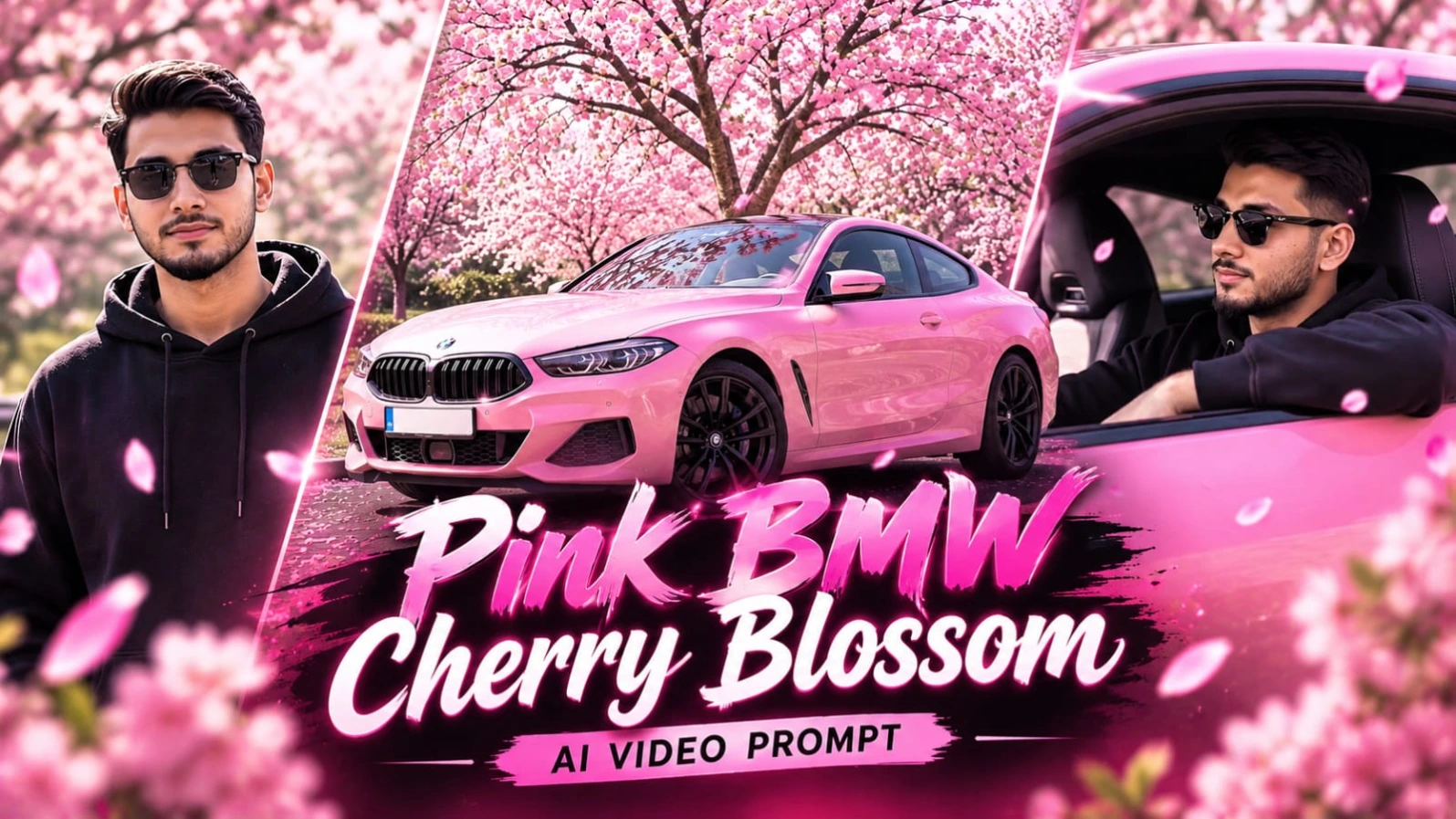
4. Pink BMW Cherry Blossom AI Video Prompt | Flow AI
Original URL: https://www.noorediting07.com/pink-bmw-cherry-blossom-ai-video-prompt
Pink BMW Cherry Blossom AI Video ek luxury car cinematic concept hai. Ismein glossy pink BMW blooming cherry blossom trees ke neeche parked hoti hai. Bright daylight, falling pink petals aur car ke polished body reflections video ko premium automotive commercial jaisa look dete hain.
Is video mein 8 different scenes hain. Character oversized black hoodie aur dark sunglasses pehenta hai. Car aur character ki appearance har scene mein consistent rakhne ki instruction di gayi hai.
Pink BMW Video Kaise Banaye
Step 1: Apni clear photo upload karke character reference sheet banayein. Black hoodie, dark sunglasses aur same hairstyle maintain karein.
Step 2: Flow AI mein reference image upload karein. Pink BMW ke body shape, headlights, wheels aur glossy finish ko consistent rakhein.
Step 3: Pehle scene mein front headlight aur wet hood ka macro close-up banayein.
Step 4: Doosre scene mein cherry blossom tree ke neeche BMW ka wide hero shot create karein.
Step 5: Baaki scenes mein driver POV, interior driving shot, open window portrait, car ke paas standing pose aur rear beauty shot generate karein.
Step 6: Aakhri scene mein cherry blossom canopy ke neeche front low-angle tracking shot banayein, jahan pink petals windshield ke paas move karte hon.
Step 7: Sabhi 8 scenes ko 16:9 format mein combine karein. NoorEditing07 watermark bottom corner mein add karein. 8K aur 120fps actual output tool ki settings par depend karega.
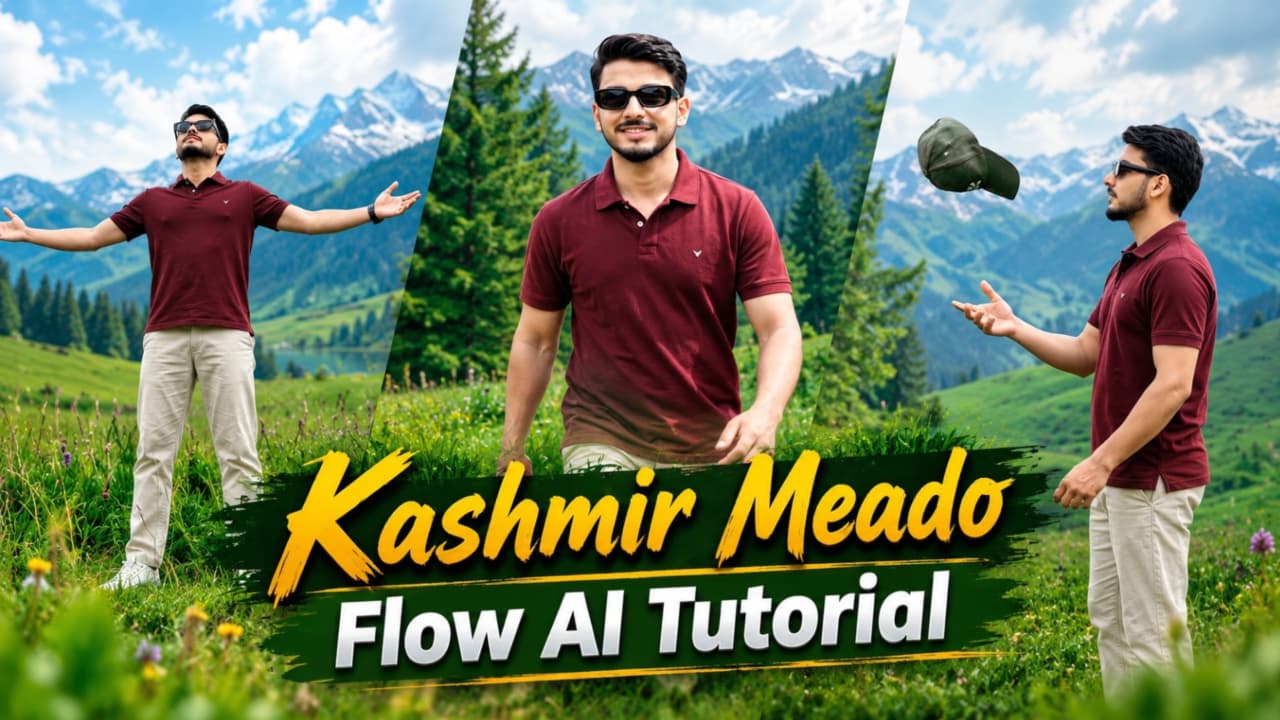
5. Kashmir Meadows AI Video Prompt 8K 120FPS | Flow AI Tutorial
Original URL: https://www.noorediting07.com/kashmir-meadows-ai-video-prompt-8k-120fps-flow-ai-tutorial
Kashmir Meadows AI Video ek beautiful travel-style cinematic concept hai. Ismein lush green meadows, rolling hills, tall pine trees, wild purple flowers aur camping scenery dikhai deti hai. Character maroon half-sleeve polo T-shirt, light beige trousers, white sneakers aur black rectangular sunglasses pehenta hai.
Video mein total 7 scenes hain, jisme walking shots, cap toss, camping tent aur peaceful mountain views shamil hain.
Kashmir Meadows Video Kaise Banaye
Step 1: ChatGPT mein apni reference photo upload karke front, side, back aur close-up wali character sheet banayein.
Step 2: Flow AI mein same reference image use karein. Maroon polo T-shirt, beige trousers aur white sneakers ka outfit har scene mein same rakhein.
Step 3: Pehla scene green meadow mein downhill walking aur pine forest background ke saath generate karein.
Step 4: Doosre scene mein rolling hills ke paas cap toss aur catch action rakhein.
Step 5: Teesre scene mein purple wildflowers ke beech walking close-up aur chauthe mein blue camping tent ke paas full-body walking shot banayein.
Step 6: Paanchve scene mein character dono arms spread kare, chhathe mein grassy slope par baithkar pine trees dekhe aur final scene mein green hill se cottages aur forest ka wide view ho.
Step 7: Vertical 9:16 format mein sabhi 7 clips combine karein. Face aur outfit consistency check karein aur bottom corner mein NoorEditing07 watermark add karein. 8K aur 120fps actual output selected tool par depend karega.