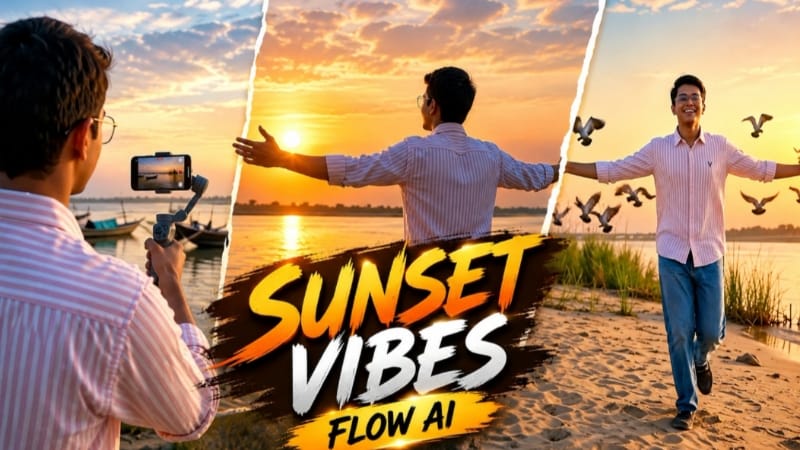
Riverbank Sunset Cinematic Video Edit is an AI video editing concept designed to transform a simple reference image or a detailed text prompt into a beautiful cinematic sunset scene. By using Flow AI, creators can explore warm sunset lighting, calm river water, natural landscapes, realistic reflections, and smooth camera movements to create a film-style video.
Sunset scenes are visually appealing because of their warm colors, soft shadows, and peaceful atmosphere. When these elements are combined with a riverbank environment, the result can feel like a cinematic travel film or a professional outdoor video. With a well-structured prompt, you can guide the AI toward the landscape, lighting, camera angle, and movement you want.
What Is Riverbank Sunset Cinematic Video Edit?
Riverbank Sunset Cinematic Video Edit is a creative AI video concept featuring a river beside a beautiful sunset. The scene can include gently flowing water, a sandy or grassy riverbank, trees in the distance, golden sunlight, and a sky filled with warm orange, pink, and golden tones.
The video can focus entirely on the natural scenery or include a person standing, walking, or looking toward the sunset. The final composition depends on your selected reference image and the instructions included in your Flow AI prompt.
Features of a Cinematic Sunset Video
A cinematic video combines several visual elements to create a consistent atmosphere. Warm golden-hour lighting can illuminate the riverbank, while subtle reflections on the water help create a natural appearance. Distant trees and the horizon can add depth to the scene.
Camera movement is another important element. A slow push-in can gradually bring attention to the sunset, while a gentle sideways tracking shot can reveal more of the riverbank. A wide establishing shot can show the complete landscape before moving closer to the main subject.
These instructions help communicate the intended composition to the video generator. The exact result can vary depending on the prompt, reference image, model, and available settings.
Why Use Flow AI for Cinematic Video Editing?
Flow AI can help creators explore video concepts through text prompts and visual references. Rather than manually creating every visual element, you can describe the environment, lighting, subject movement, and camera behavior, then review the generated result.
For a riverbank sunset video, you can specify the time of day, the color of the sky, the direction of sunlight, the movement of the water, and the desired cinematic style. If you are using a reference image, describe how the scene should move while keeping important visual details consistent.
How to Create a Riverbank Sunset Video
Start by deciding whether you want a landscape-only video or a scene featuring a person. If you want to preserve a person's appearance, prepare a clear reference photo and describe the identity and clothing consistently in the prompt.
Next, write a detailed description of the riverbank environment. Include the calm river, natural shoreline, distant trees, glowing horizon, and warm sunset reflections. Explain how the camera should move, such as a slow cinematic push-in or a wide shot followed by a gentle tracking movement.
Open Flow AI and choose an available video-generation mode that matches your workflow. Add a reference image if needed, enter your prompt, and select suitable aspect ratio and output settings. Generate the video and review the result carefully.
Tips for Realistic Sunset Results
Keep the lighting description consistent throughout the prompt. Natural golden highlights, soft shadows, realistic water reflections, and balanced colors can help the scene feel more believable. Avoid requesting too many unrelated actions in one short clip.
If a person appears in the video, clearly describe their position and movement. If the video is intended to show only nature, specify that no extra people or unexpected objects should appear. Review the horizon, river surface, trees, and camera movement for unwanted visual changes.
Suitable Uses for This Video Edit
A riverbank sunset video can be used for cinematic landscape content, travel-themed videos, relaxing visual edits, social media posts, and creative AI video experiments. You can prepare a widescreen version for landscape content or a vertical version for platforms that support short-form video.
Before publishing, review the generated footage from beginning to end. Check that the scene looks consistent, the camera movement feels smooth, and the sunset colors remain natural.
Conclusion
Riverbank Sunset Cinematic Video Edit | Flow AI is a creative way to explore realistic sunset scenery with AI video generation. By describing the environment, lighting, reflections, and camera movement clearly, you can guide the generation process toward your intended cinematic style.
Experiment with different reference images and prompt details to discover the composition that works best for your project. Always preview the result before exporting your final video.
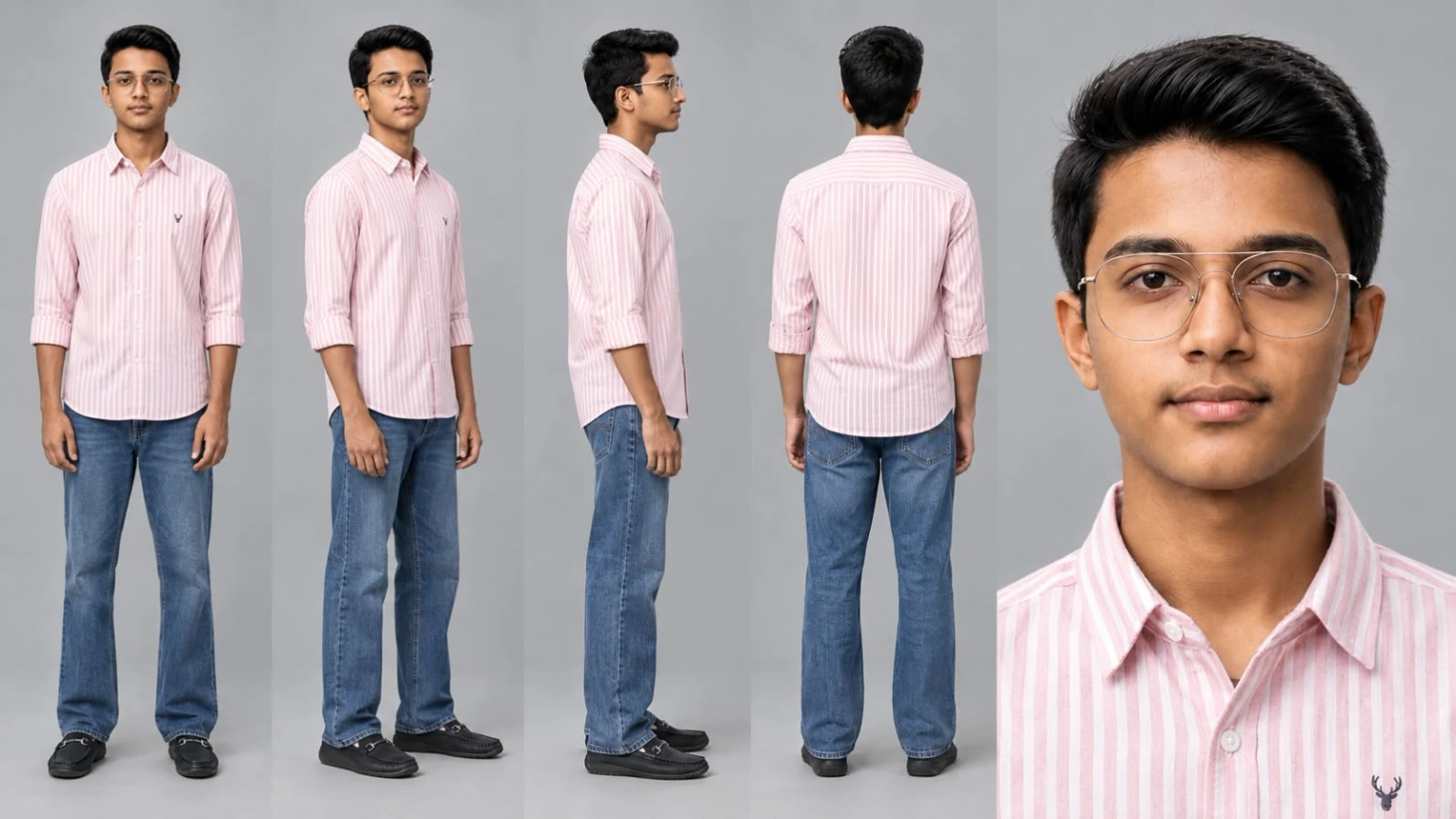
Sabse Pehle Character Sheet Photo Banaai ChatGPT Se
Cinematic character turn-around model sheet, ultra-realistic 8K UHD portrait photography, neutral soft-grey studio backdrop, 16:9 aspect ratio. [CHARACTER CONSISTENCY & FACE LOCK] Strictly lock 100% exact facial structure, eyes, beard, and authentic skin tone from the uploaded reference photo across all views. Clean, blemish-free DSLR skin texture with natural pore detail, perfectly balanced soft studio fill lighting (no harsh shadows, no silhouette, no facial distortion). [OUTFIT & STYLING SPECIFICATIONS] - Top: Light pink and white vertically striped button-down dress shirt with subtle embroidered deer logo on the chest, neatly fitted. - Bottom: Medium blue relaxed straight-leg denim jeans.
Cinematic character turn-around model sheet, ultra-realistic 8K UHD portrait photography, neutral soft-grey studio backdrop, 16:9 aspect ratio.
[CHARACTER CONSISTENCY & FACE LOCK]
Strictly lock 100% exact facial structure, eyes, beard, and authentic skin tone from the uploaded reference photo across all views. Clean, blemish-free DSLR skin texture with natural pore detail, perfectly balanced soft studio fill lighting (no harsh shadows, no silhouette, no facial distortion).
[OUTFIT & STYLING SPECIFICATIONS]
- Top: Light pink and white vertically striped button-down dress shirt with subtle embroidered deer logo on the chest, neatly fitted.
- Bottom: Medium blue relaxed straight-leg denim jeans.
- Footwear: Dark casual shoes / loafers.
- Styling remains 100% identical and consistent across every angle.
[MULTI-VIEW MODEL SHEET COMPOSITION]
Full-body multi-angle character reference sheet arranged side-by-side in a single clean frame:
1. Full Front View: Standing straight, arms relaxed at sides, direct eye contact with camera, calm friendly expression.
2. Left 3/4 Angle: Standing three-quarters turn, showing side jawline, shirt collar detail, and natural posture.
3. Profile View (90°): Clean side-profile shot displaying facial silhouette, ear, beard line, and side garment drape.
4. Back View: Direct rear angle displaying the back of the striped shirt, shoulders, and jeans fit.
5. High-Detail Close-Up Headshot: Ultra-sharp 4K portrait showing natural eyes, clear facial features, warm subtle smile, and micro skin textures.
[RENDER & TECHNICAL QUALITY]
Masterpiece fashion lookbook aesthetic, shot on 85mm f/1.4 lens, Hasselblad medium-format camera quality, hyper-realistic fabric weave and seam details, soft rim lighting, perfectly balanced color palette, 8K resolution.
✓
Prompt copied to clipboard!
AI Character Model Sheet Prompt Card
✦AI PHOTO PROMPT
Cinematic character turn-around model sheet, ultra-realistic 8K UHD portrait photography, neutral soft-grey studio backdrop, 16:9 aspect ratio. [CHARACTER CONSISTENCY & FACE LOCK] Strictly lock 100% exact facial structure, eyes, beard, and authentic skin tone from the uploaded reference photo across all views. Clean, blemish-free DSLR skin texture with natural pore detail, perfectly balanced soft studio fill lighting (no harsh shadows, no silhouette, no facial distortion). [OUTFIT & STYLING SPECIFICATIONS] - Top: Light pink and white vertically striped button-down dress shirt with subtle embroidered deer logo on the chest, neatly fitted. - Bottom: Medium blue relaxed straight-leg denim jeans.
Cinematic character turn-around model sheet, ultra-realistic 8K UHD portrait photography, neutral soft-grey studio backdrop, 16:9 aspect ratio.
[CHARACTER CONSISTENCY & FACE LOCK]
Strictly lock 100% exact facial structure, eyes, beard, and authentic skin tone from the uploaded reference photo across all views. Clean, blemish-free DSLR skin texture with natural pore detail, perfectly balanced soft studio fill lighting (no harsh shadows, no silhouette, no facial distortion).
[OUTFIT & STYLING SPECIFICATIONS]
- Top: Light pink and white vertically striped button-down dress shirt with subtle embroidered deer logo on the chest, neatly fitted.
- Bottom: Medium blue relaxed straight-leg denim jeans.
- Footwear: Dark casual shoes / loafers.
- Styling remains 100% identical and consistent across every angle.
[MULTI-VIEW MODEL SHEET COMPOSITION]
Full-body multi-angle character reference sheet arranged side-by-side in a single clean frame:
1. Full Front View: Standing straight, arms relaxed at sides, direct eye contact with camera, calm friendly expression.
2. Left 3/4 Angle: Standing three-quarters turn, showing side jawline, shirt collar detail, and natural posture.
3. Profile View (90°): Clean side-profile shot displaying facial silhouette, ear, beard line, and side garment drape.
4. Back View: Direct rear angle displaying the back of the striped shirt, shoulders, and jeans fit.
5. High-Detail Close-Up Headshot: Ultra-sharp 4K portrait showing natural eyes, clear facial features, warm subtle smile, and micro skin textures.
[RENDER & TECHNICAL QUALITY]
Masterpiece fashion lookbook aesthetic, shot on 85mm f/1.4 lens, Hasselblad medium-format camera quality, hyper-realistic fabric weave and seam details, soft rim lighting, perfectly balanced color palette, 8K resolution.
Cinematic 16:9 ultra-realistic 8K emotional riverbank sunset film, soft golden hour lighting without harsh glare. [IDENTITY & FACE PRESERVATION] Strictly lock 100% exact facial structure, eyes, beard, and authentic skin tone from uploaded reference photo across all scenes. Clean, smooth, blemish-free DSLR skin texture with zero AI morphing or silhouette blackout; face remains clearly visible in every angle. [OUTFIT & STYLING] Light pink and white vertically striped button-down dress shirt with subtle deer chest logo, medium blue relaxed straight denim jeans, dark casual shoes. [EXACT SCENE SEQUENCE] - Scene 1: Wide tracking shot running joyfully forward along the sandy riverbank with both arms spread wide, birds taking flight from tall shoreline grass. - Scene 2: Medium side profile standing by the water's edge, gazing thoughtfully at the calm river and setting sun.
Cinematic 16:9 ultra-realistic 8K emotional riverbank sunset film, soft golden hour lighting without harsh glare.
[IDENTITY & FACE PRESERVATION]
Strictly lock 100% exact facial structure, eyes, beard, and authentic skin tone from uploaded reference photo across all scenes. Clean, smooth, blemish-free DSLR skin texture with zero AI morphing or silhouette blackout; face remains clearly visible in every angle.
[OUTFIT & STYLING]
Light pink and white vertically striped button-down dress shirt with subtle deer chest logo, medium blue relaxed straight denim jeans, dark casual shoes.
[EXACT SCENE SEQUENCE]
- Scene 1: Wide tracking shot running joyfully forward along the sandy riverbank with both arms spread wide, birds taking flight from tall shoreline grass.
- Scene 2: Medium side profile standing by the water's edge, gazing thoughtfully at the calm river and setting sun.
- Scene 3: Medium close-up tilting head back slightly with a peaceful smile, absorbing the cool evening breeze.
- Scene 4: Wide low-angle shot spreading arms wide toward the glowing sunset, lake water reflecting warm colors.
- Scene 5: Over-the-shoulder shot holding a smartphone on a selfie gimbal, framing distant wooden fishing boats.
- Scene 6: Full-body tracking shot walking leisurely along wet sand beside glowing water reflections.
- Scene 7: Low shot sitting down on the sandbank, dipping one hand into the water, watching ripples form.
- Scene 8: Extreme wide tracking shot walking forward against the wide horizon under twilight skies.
- Scene 9: Medium shot sitting on the sandy bank, holding up one hand to shade eyes while looking at the horizon.
- Scene 10: Side tracking walk along the river edge as birds fly across the sky, turning toward camera with a confident smile.
[CINEMATOGRAPHY & WATERMARK]
Soft twilight pastel grading, vivid blue and soft amber hues, balanced exposure, 8K DSLR depth, 16:9 widescreen format. Semi-transparent watermark 'NoorEditing07' fixed in the bottom corner.
✓
Prompt copied to clipboard!
AI Video Prompt Card
✦AI VIDEO PROMPT
Cinematic 16:9 ultra-realistic 8K emotional riverbank sunset film, soft golden hour lighting without harsh glare. [IDENTITY & FACE PRESERVATION] Strictly lock 100% exact facial structure, eyes, beard, and authentic skin tone from uploaded reference photo across all scenes. Clean, smooth, blemish-free DSLR skin texture with zero AI morphing or silhouette blackout; face remains clearly visible in every angle. [OUTFIT & STYLING] Light pink and white vertically striped button-down dress shirt with subtle deer chest logo, medium blue relaxed straight denim jeans, dark casual shoes. [EXACT SCENE SEQUENCE] - Scene 1: Wide tracking shot running joyfully forward along the sandy riverbank with both arms spread wide, birds taking flight from tall shoreline grass. - Scene 2: Medium side profile standing by the water's edge, gazing thoughtfully at the calm river and setting sun.
Cinematic 16:9 ultra-realistic 8K emotional riverbank sunset film, soft golden hour lighting without harsh glare.
[IDENTITY & FACE PRESERVATION]
Strictly lock 100% exact facial structure, eyes, beard, and authentic skin tone from uploaded reference photo across all scenes. Clean, smooth, blemish-free DSLR skin texture with zero AI morphing or silhouette blackout; face remains clearly visible in every angle.
[OUTFIT & STYLING]
Light pink and white vertically striped button-down dress shirt with subtle deer chest logo, medium blue relaxed straight denim jeans, dark casual shoes.
[EXACT SCENE SEQUENCE]
- Scene 1: Wide tracking shot running joyfully forward along the sandy riverbank with both arms spread wide, birds taking flight from tall shoreline grass.
- Scene 2: Medium side profile standing by the water's edge, gazing thoughtfully at the calm river and setting sun.
- Scene 3: Medium close-up tilting head back slightly with a peaceful smile, absorbing the cool evening breeze.
- Scene 4: Wide low-angle shot spreading arms wide toward the glowing sunset, lake water reflecting warm colors.
- Scene 5: Over-the-shoulder shot holding a smartphone on a selfie gimbal, framing distant wooden fishing boats.
- Scene 6: Full-body tracking shot walking leisurely along wet sand beside glowing water reflections.
- Scene 7: Low shot sitting down on the sandbank, dipping one hand into the water, watching ripples form.
- Scene 8: Extreme wide tracking shot walking forward against the wide horizon under twilight skies.
- Scene 9: Medium shot sitting on the sandy bank, holding up one hand to shade eyes while looking at the horizon.
- Scene 10: Side tracking walk along the river edge as birds fly across the sky, turning toward camera with a confident smile.
[CINEMATOGRAPHY & WATERMARK]
Soft twilight pastel grading, vivid blue and soft amber hues, balanced exposure, 8K DSLR depth, 16:9 widescreen format. Semi-transparent watermark 'NoorEditing07' fixed in the bottom corner.
Step 1: Open Google Flow Sabse pehle apne browser mein Google Flow open karein. Apne account se sign in karein, agar zaroori ho, aur ek naya project start karein. Prompt box mein apne desired video scene ki details likhne ke liye ready ho jaayein. Video generation ka option select karein. Available features aapke account aur selected model ke hisaab se alag ho sakte hain.
Step 2: Prepare Your Reference Image Agar aapke paas riverbank sunset ki reference photo hai, to use ready rakhein. Aisi image choose karein jisme river, sunset, trees aur surrounding landscape clearly visible hon. Agar aap text prompt se video banana chahte hain, to supported text-to-video workflow ka use karein. Reference image add karne par prompt mein batayein ki image ke visual elements ko kaise follow karna hai.
Step 3: Copy the Cinematic Video Prompt Neeche diya gaya prompt copy karein. Ismein sunset lighting, river reflections, camera movement aur natural scenery ki details hain.
Create an ultra-realistic cinematic video of a peaceful riverbank at sunset. Warm golden sunlight spreads across the horizon, creating beautiful orange and golden reflections on the gently flowing river. Natural trees, a realistic shoreline, soft atmospheric haze, and a dramatic sunset sky create a peaceful cinematic atmosphere.
Begin with a wide establishing shot of the riverbank and glowing sunset. Slowly move the camera forward toward the river, capturing gentle water ripples and realistic reflections. Use smooth cinematic camera movement, natural lighting, realistic colors, detailed scenery, soft shadows, and professional film-style color grading. Keep the environment consistent throughout the video. Avoid distorted water, unnatural reflections, sudden camera movements, and unexpected scene changes.
Step 4: Paste the Prompt into Flow AI Google Flow ke prompt box mein copied prompt paste karein. Agar reference image use kar rahe hain, to use supported option ke through add karein. Prompt mein riverbank, sunset sky, lighting aur camera movement ki instructions ko clear rakhein. Isse AI ko aapke desired scene ko samajhne mein madad milti hai.
Step 5: Choose Video Settings Video settings mein available aspect ratio, model, output count aur generation length select karein. YouTube landscape content ke liye 16:9 aur Instagram Reels ya YouTube Shorts ke liye 9:16 choose kar sakte hain, agar selected model mein ye options available hon. Generate karne se pehle apni settings check kar lein.
Step 6: Generate Your Video Prompt aur settings ready hone ke baad Generate par tap ya click karein. Generation complete hone tak wait karein. Uske baad video preview karein. Check karein ki sunset natural lag raha hai, river reflections realistic hain aur camera movement smooth hai.
Step 7: Improve the Result Agar video mein unnatural water, distorted reflections ya sudden scene changes nazar aate hain, to prompt refine karein. Lighting ko softer rakhne, camera movement ko slow karne aur scenery consistent rakhne ki instructions add kar sakte hain. Available generation options ke through another version try karein.
Step 8: Download Your Final Video Jab result pasand aa jaye, to Flow ke available download ya export option ka use karein. Video ko apne device mein save karein. Reels ya Shorts par upload karne se pehle framing aur quality check karein. Zaroorat ho to video editor mein music, title aur additional finishing effects add karein.
In steps ko follow karke aap Flow AI ki help se Riverbank Sunset Cinematic Video Edit create kar sakte hain. Best results ke liye detailed prompt, suitable settings aur final preview par dhyan dein.
Riverbank SunsetFlow AIFlow AI PromptCinematic Video EditSunset AI VideoRiverbank VideoAI Video EditingGolden Hour CinematicRiver Sunset VideoNature Cinematic VideoFlow AI TutorialSunset Video PromptAI Video GeneratorCinematic LandscapeRiver Reflection
Riverbank SunsetFlow AIFlow AI PromptCinematic Video EditSunset AI VideoRiverbank VideoAI Video EditingGolden Hour CinematicRiver Sunset VideoNature Cinematic VideoFlow AI TutorialSunset Video PromptAI Video GeneratorCinematic LandscapeRiver Reflection
1. VN QR Code Template | Trending VN Video Editing Template
VN QR Code Template ki help se aap ready-made video editing template ko VN Video Editor mein apply karke apni photos aur clips ka video bana sakte hain. Template ke available effects, transitions aur clip requirements uske specific QR code par depend karte hain.
Step 1: VN App Install Karein
Apne mobile mein VN Video Editor install karein. Agar app already installed hai, to use open karein.
VN app mein QR scanner option available ho, to usse code scan karein. Template open hone par use apply karne ka option select karein.
Step 4: Photos Ya Clips Add Karein
Template ke instructions ke according gallery se apni photos ya videos select karein. Required media slots ko sahi order mein fill karein.
Step 5: Preview Check Karein
Video preview karke transitions, clip timing aur photo cropping check karein. Agar koi image sahi fit nahi ho rahi, to use replace karein.
Step 6: Video Export Karein
Final preview dekhne ke baad suitable resolution select karke video export karein. Apne finished edit ko Instagram Reels, YouTube Shorts ya WhatsApp Status par share karein.
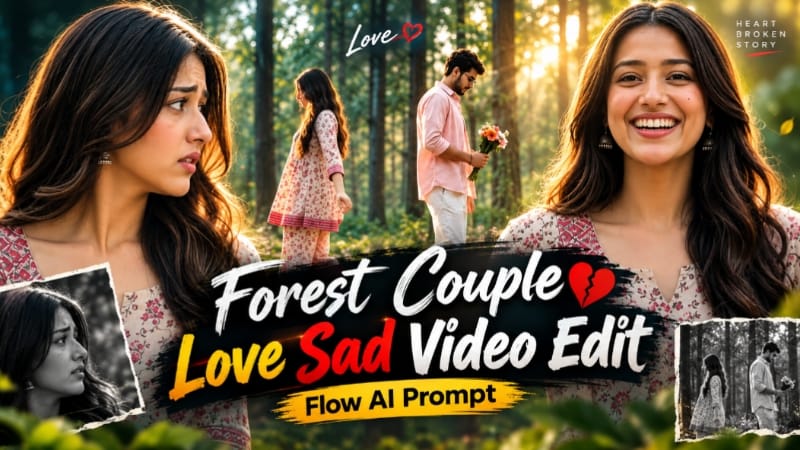
2. Forest Couple AI Video Edit | Emotional Flow AI Prompt
Forest Couple AI Video ek cinematic emotional story concept hai, jisme green forest, golden-hour sunlight, autumn leaves aur orange, pink aur white flowers ka bouquet use hota hai. Video mein man aur woman ke eight shots hain, aur central scene mein ghost-style double-exposure effect dikhaya gaya hai. <Link url="https://www.noorediting07.com/forest-couple-ai-video-edit-emotional-flow-ai-prompt" title="Original article"/>.
Step 1: Character Reference Photos Banayein
Man aur woman ki clear reference photos ready karein. Image 1 male character aur Image 2 female character ke liye use karein.
Step 2: Flow AI Open Karein
Flow AI mein video-generation feature open karein aur available reference option se dono images add karein.
Step 3: Prompt Paste Karein
Forest Couple AI Video Prompt copy karke paste karein. Concept ke liye 16:9 landscape aur 10-second duration target rakhein.
Step 4: Outfits Consistent Rakhein
Man pastel-pink open shirt, white T-shirt aur white pleated trousers pehenta hai. Woman cream-beige floral kurti, matching palazzo aur tan Kolhapuri sandals mein hai.
Step 5: Eight Shots Generate Karein
Woman ka opening close-up, bouquet ke saath man, woman ka arms-open gesture aur man ka medium shot create karein. Central wide shot mein dono opposite directions se aate hain aur semi-transparent effect ke saath positions cross karte hain.
Step 6: Final Close-Ups Banayein
Woman ka emotional close-up, man ka serious expression aur final woman close-up ko sequence mein rakhein.
Step 7: Review Aur Export
Faces, outfits, bouquet aur transparency transition check karein. Zarurat par clips separately generate karke combine karein aur final video export karein.
3. Night Park Couple AI Video Edit | Romantic Meeting Flow AI Prompt
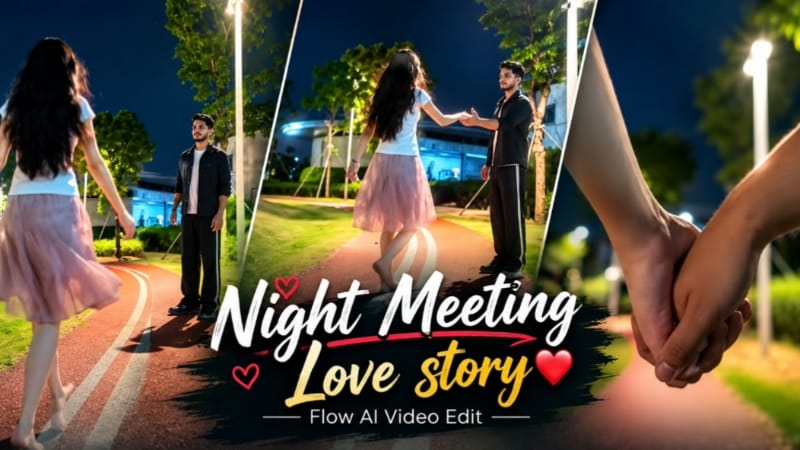
Night Park Couple AI Video ek romantic nighttime scene hai, jisme curved park pathway, green grass, glowing streetlights aur deep-blue night sky ka cinematic combination hai. Story hand-holding close-up se shuru hoti hai aur couple ki meeting ke moment par focus karti hai. <Link url="https://www.noorediting07.com/night-park-couple-ai-video-edit-romantic-meeting-flow-ai-prompt" title="Original article"/>.
Step 1: Reference Photos Ready Karein
Boy aur girl ki clear reference photos select karein, taaki unki appearance ko video mein guide kiya ja sake.
Step 2: Flow AI Open Karein
Flow AI ka video-generation feature open karein aur reference images upload karein, agar selected workflow support karta ho.
Step 3: Prompt Paste Karein
Night Park Couple AI Video Prompt copy karke paste karein. Reels ke liye 9:16 vertical format select karein, agar available ho.
Step 4: Outfits Maintain Karein
Boy ke liye plain black T-shirt, loose grey trousers aur dark footwear rakhein. Girl ke liye white short-sleeved top aur light-pink skirt maintain karein.
Step 5: Opening Scene Generate Karein
Low-angle close-up se shuru karein, jisme couple ke hands holding position mein hon. Iske baad curved pathway aur surrounding park ka wider view dikhayein.
Step 6: Meeting Scene Banayein
Boy ko pathway par khada aur girl ko opposite direction se approach karte hue dikhayein. Final moment mein dono ek-doosre ki taraf haath badhate hain.
Step 7: Final Video Check Karein
Hand movements, face consistency, outfits aur streetlight background inspect karein. Unnatural frames ko regenerate karke final video export karein.
4. Kashful Highway Cinematic AI Video | Flow AI Prompt
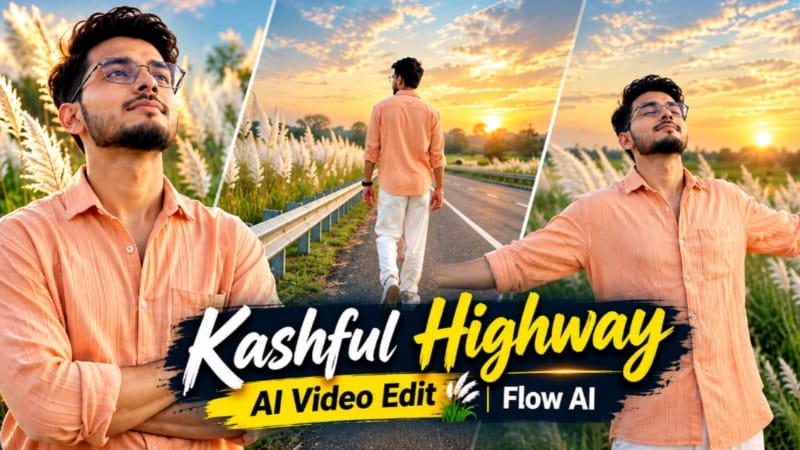
Kashful Highway Cinematic AI Video ek photo-to-video concept hai, jisme tall white Kashful grass, roadside railing aur sunset lighting ke saath six cinematic shots create kiye jaate hain. Peach-orange shirt aur white trousers character ko warm landscape ke against visually distinct look dete hain.
Peach-orange button-down shirt, loose white trousers aur white casual sneakers ka look consistent rakhein.
Step 5: First Three Shots Banayein
Roadside railing ke paas back-view walking shot, metal barrier ke against arms-crossed pose aur highway railing ke paas wide side-profile shot generate karein.
Step 6: Remaining Shots Generate Karein
Character ko road ki white line par arms spread karke walk karte hue, eyes closed karke sky ki taraf dekhte hue aur final shot mein horizon ki taraf running karte hue dikhayein.
Step 7: Lighting Aur Consistency Check Karein
White Kashful grass, highway aur indigo-amber sunset tones ko consistent rakhein. Face aur outfit mein unwanted changes inspect karein.
Step 8: Export Karein
Zarurat par clips separately generate karke editor mein combine karein. Final preview ke baad video export karein.
5. Hawa Mahal Jaipur AI Photo | Realistic Travel Photography | ChatGPT Prompt
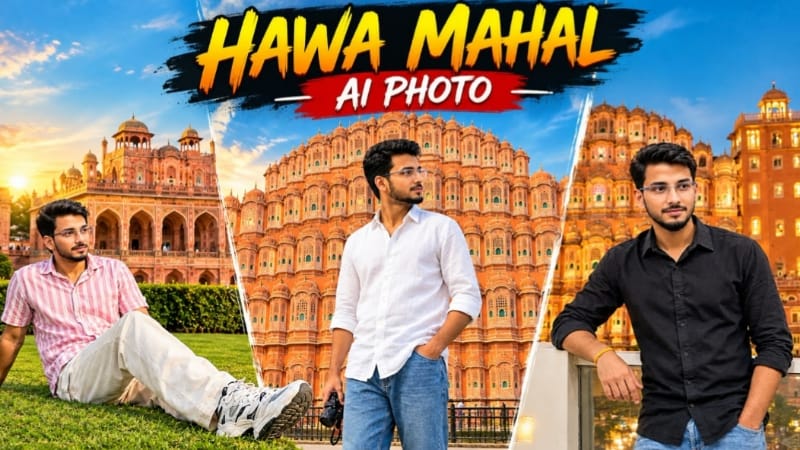
Hawa Mahal Jaipur AI Photo ek realistic travel-photography concept hai, jisme Hawa Mahal ke pink-orange sandstone facade aur traditional jharokha architecture ke saamne portrait create kiya jata hai. White linen-style shirt, blue jeans aur natural daylight is composition ko travel-photo look dete hain.
Step 1: Reference Images Ready Karein
Image 1 ko pose, outfit aur background reference ke liye use karein. Image 2 mein apni clear face photo rakhein.
Subject ko frame ke right side mein side-profile pose mein rakhein, Hawa Mahal ki taraf dekhte hue. Ek hand pocket mein aur doosre mein small camera ho.
Step 5: Outfit Details Rakhein
White loose-fit linen shirt, rolled sleeves aur blue relaxed-fit jeans maintain karein.
Step 6: Background Create Karein
Pink-orange sandstone facade, arched jharokha windows, carved balconies aur clear blue sky ka realistic look preserve karein.
Step 7: Final Image Check Karein
Face, skin tone, hands, camera aur monument architecture inspect karein. Unnatural details ko correct karke final portrait save karein.