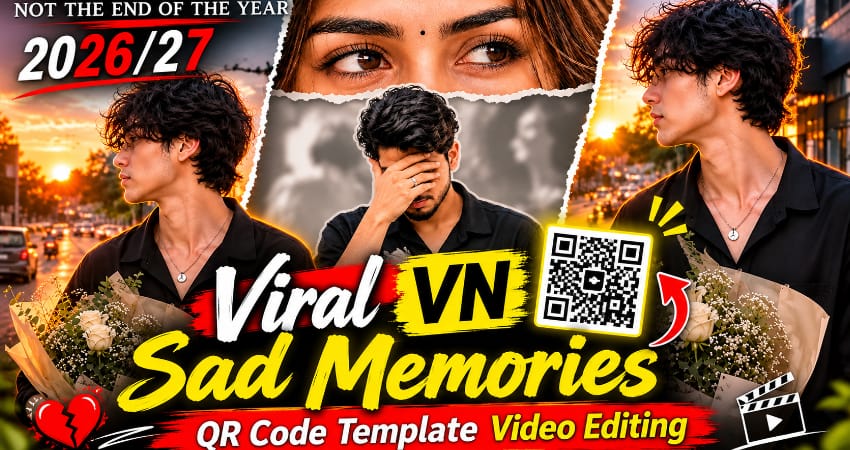
Viral VN Sad Memories QR Code Template | Video Editing
The VN Sad Memories QR Code Template is a convenient option for anyone who wants to create a short emotional video with their own memories. Scan the QR code, select your favourite media, preview the edit, and export your finished video. For more VN QR templates, viral video editing ideas, AI photo prompts, and editing tutorials, search NoorEditing07 on Google and explore the latest articles.

Ab aapka 17-second Sad Memories VN video ready hai. Ise Instagram Reels, YouTube Shorts ya WhatsApp Status par share kar sakte hain.
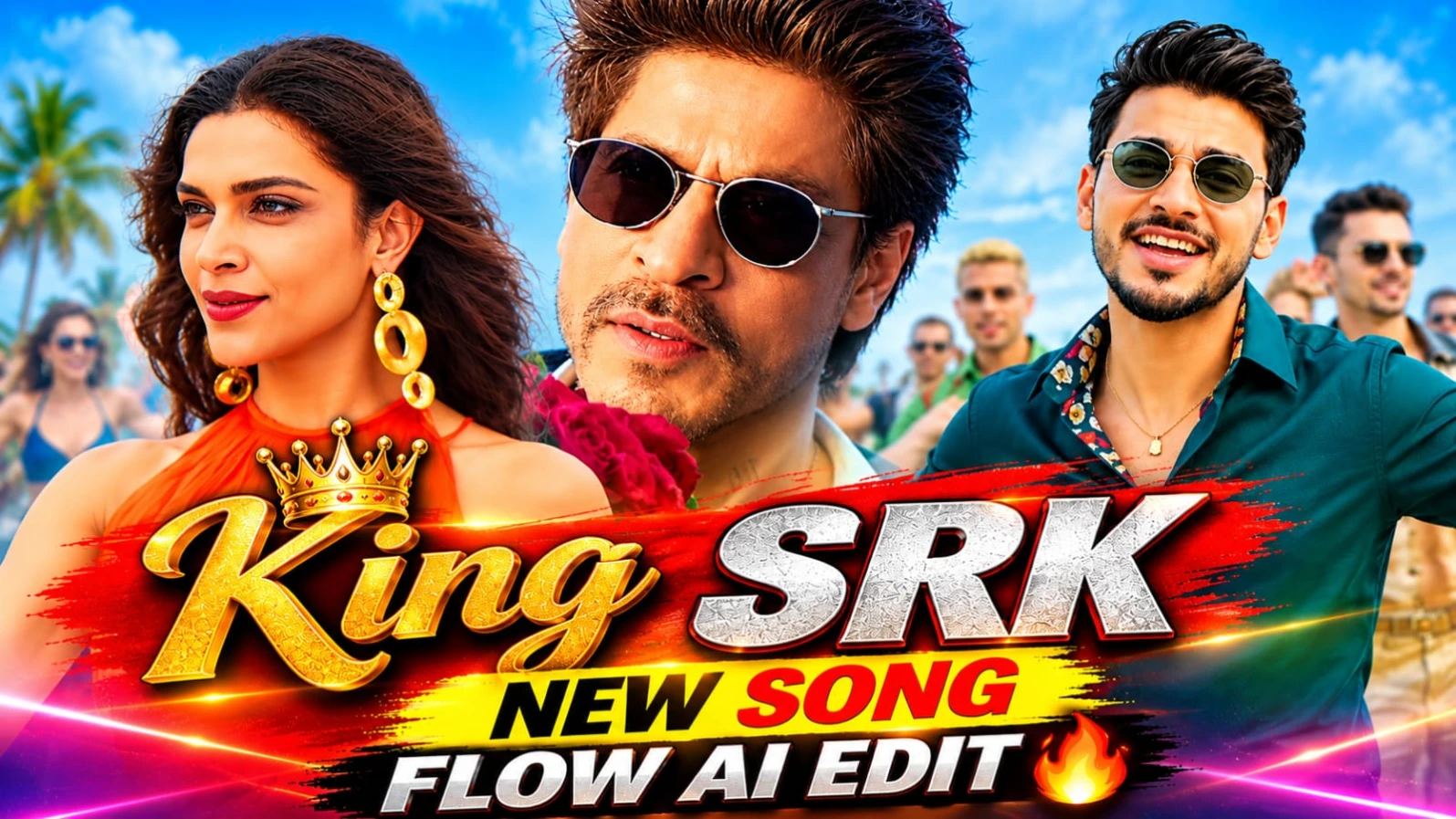
King Movie Cinematic AI Video Editing Prompt – Flow AI Tutorial
Original URL: https://www.noorediting07.com/king-movie-cinematic-ai-video-editing-prompt-flow-ai-tutorial
King Movie Cinematic AI Video Editing Prompt se aap apni photo ko ek dramatic movie-style video mein convert kar sakte hain. Is concept mein rooftop terrace, sea aur mountain backdrop, dancers aur cinematic camera movements ka combination hai. Video mein main character deep teal-green shirt, matching trousers, gold chains, bracelets aur round sunglasses pehenta hai.
King Movie Flow AI Video Kaise Banaye
Step 1: Sabse pehle ChatGPT ki help se apni reference photo ka character sheet banayein. Ismein front, side, back aur close-up views rakhein.
Step 2: Character ka outfit deep teal-green silk-look shirt, matching trousers, floral inner collar, thin gold chains, bracelets aur round metal-frame sunglasses rakhein.
Step 3: Flow AI open karein aur character sheet upload karein. Reference video bhi upload karein, agar selected workflow support karta hai.
Step 4: Original 17-second video prompt copy karein. Ismein lead male character ko apne character sheet wale person se replace karna hai. Reference video ki woman orange fringe halter top mein aur baaki dancers, costumes aur props same rahenge.
Step 5: Rooftop terrace, sea, mountain, Marshall amplifiers aur drum kit ke saath original dance sequence preserve karein. Camera movements aur cuts ko reference ke according rakhein.
Step 6: Video ko 16:9 landscape format mein generate karein. Face, outfit, dance movements aur lip-sync check karein. Zarurat par clips alag generate karke editing app mein join karein.
8K HDR desired quality hai; actual output Flow AI ki settings par depend karega. NoorEditing07 watermark bhi check karein.
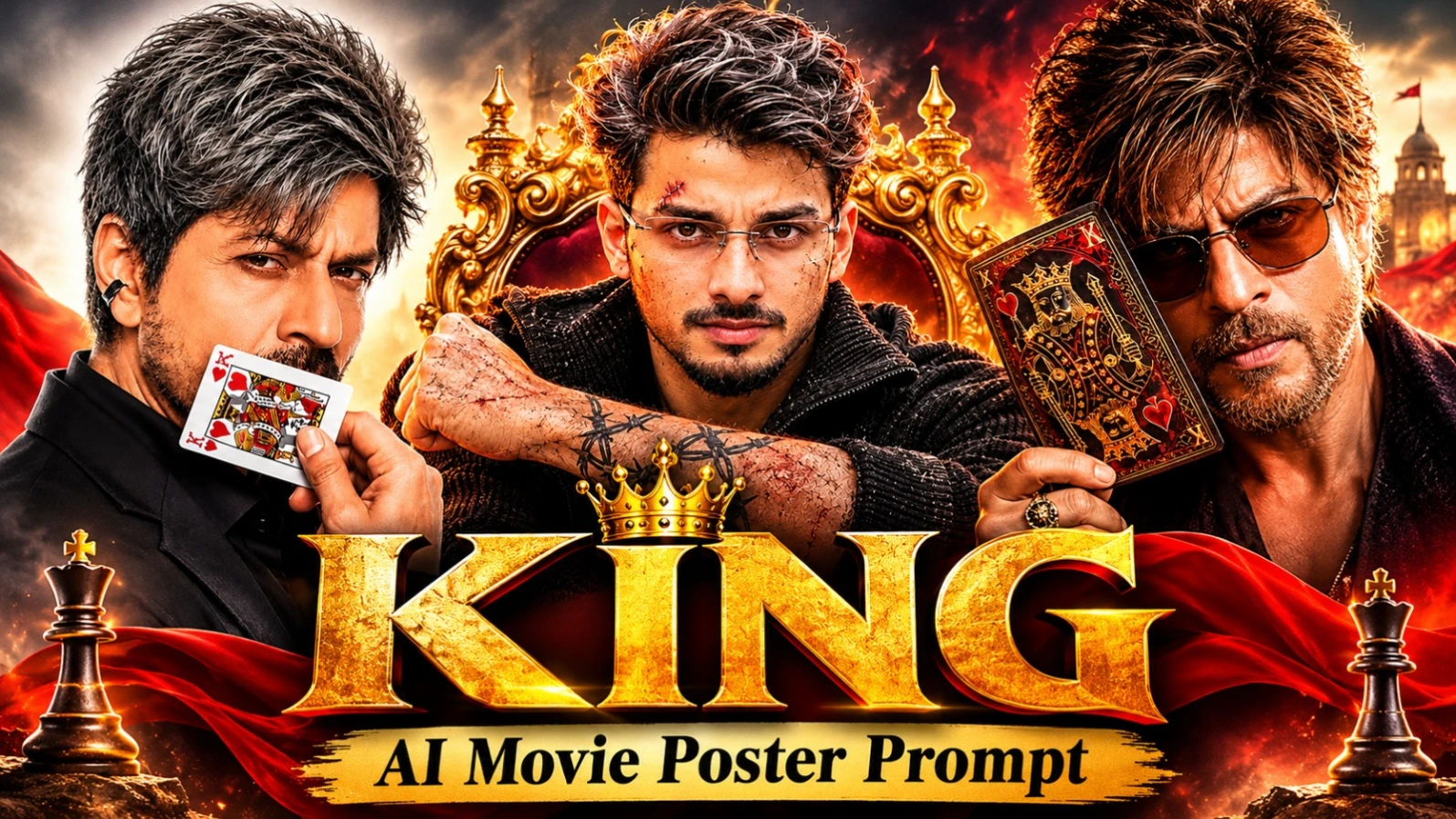
KING AI Movie Poster Prompt – 3 Cinematic Photo Editing Prompts
Original URL: https://www.noorediting07.com/king-ai-movie-poster-prompt-3-cinematic-photo-editing-prompts
KING AI Movie Poster Prompt se aap apni photo ke 3 different cinematic poster designs bana sakte hain. Is collection mein King of Hearts studio poster, dark action-thriller poster aur royal golden sunset poster shamil hain. Har design ka background, outfit, lighting aur KING title style alag hai.
KING AI Poster Kaise Banaye
Step 1: Apni ek clear face reference photo select karein. Face aur facial details clearly visible honi chahiye.
Step 2: Pehla design choose karein: black blazer, King of Hearts playing card, light-grey studio background aur distressed deep-red KING title.
Step 3: Doosre design mein black textured jacket, silver-grey hair, red-orange smoke, glowing embers aur white KING title hai. Ismein foreground mein double-barrel shotgun aur skull-style ring bhi dikhaya gaya hai.
Step 4: Teesra design royal look deta hai. Ismein maroon-black jacket, amber aviator sunglasses, ornate King of Hearts card, golden sunset aur palace background hai. KING title metallic gold, silver aur red-orange style mein hai.
Step 5: Selected prompt copy karke AI image generator mein paste karein. Apni reference photo upload karein aur face consistency ki instruction dein.
Step 6: Poster ke placeholder text jaise YOUR NAME aur DIRECTOR NAME ko apne details se replace karein.
Step 7: Final image mein face blending, hands aur title spelling check karein. Zarurat par text manually editing app mein add karein.
4:5 vertical poster format aur 8K quality desired specifications hain; actual output AI tool par depend karta hai.
Mountain Lake AI Video Prompt – 8 Cinematic Scenes Flow AI Edit
Original URL: https://www.noorediting07.com/mountain-lake-ai-video-prompt-cinematic-scenes-flow-ai-edit
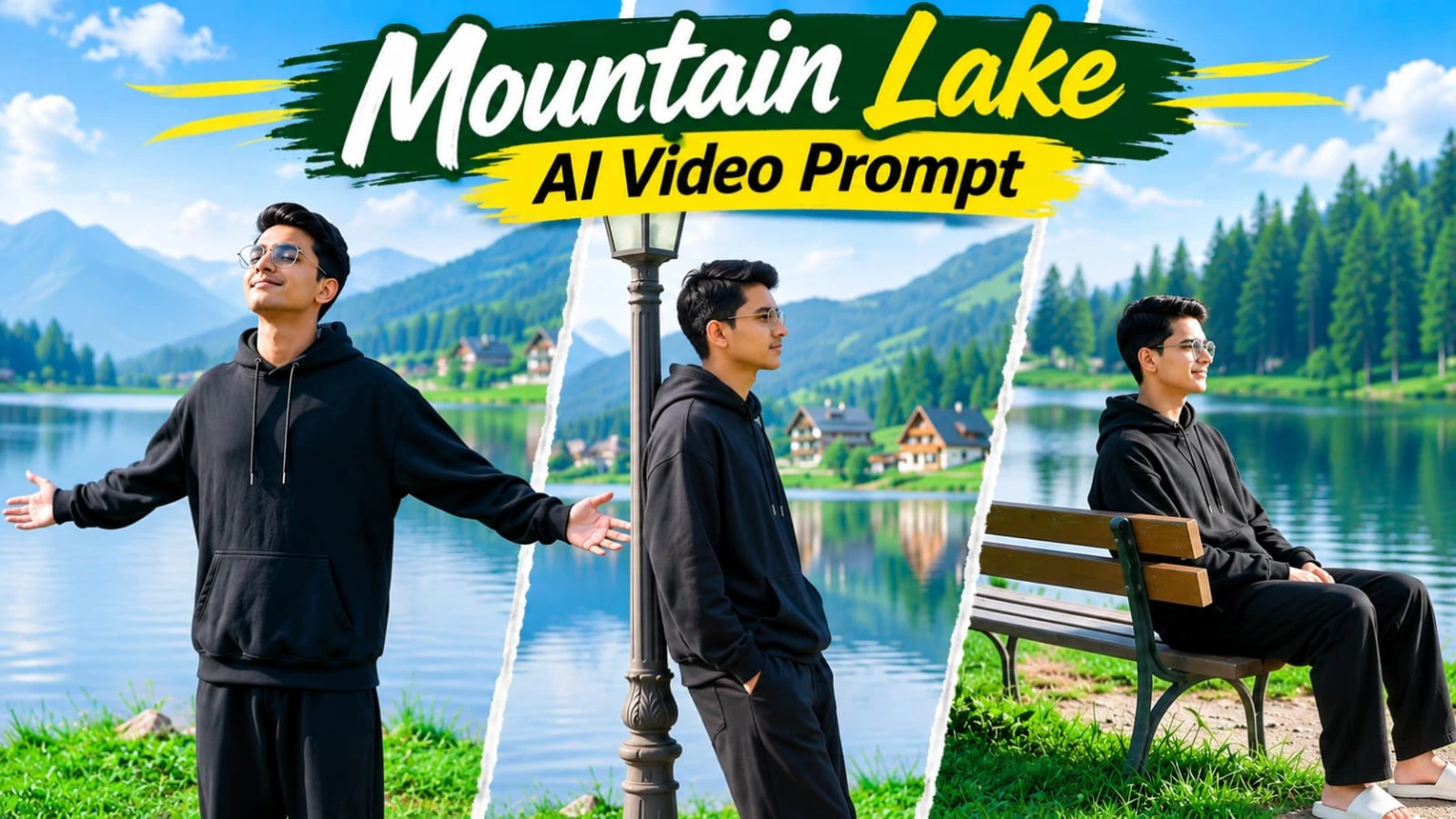
Mountain Lake AI Video Prompt se aap ek peaceful lakeside cinematic video create kar sakte hain. Ismein calm lake, green grassy bank, pine forests, mountain cottages, vintage wooden bench aur old-fashioned street lamp ka environment hai. Character black oversized hoodie, loose black trousers aur white slides pehenta hai.
Mountain Lake Flow AI Video Kaise Banaye
Step 1: Apni clear face photo se character sheet banayein. Front, side, back aur close-up views mein same face aur outfit maintain karein.
Step 2: Flow AI open karein aur available reference-image feature se character sheet upload karein.
Step 3: Original 8-scene video prompt copy karein. Location mein calm lake, pine forest, distant cottages aur grassy lakeside bank rakhein.
Step 4: Scene 1 mein character wooden bench par baithkar lake dekhta hai. Scene 2 mein grassy bank par right side walk karta hai.
Step 5: Scene 3 mein bench par relax karke sky ki taraf dekhta hai. Scene 4 mein back-view ke saath mountain cottages ki taraf walk karta hai.
Step 6: Scene 5 mein vintage street lamp ke paas lean karta hai. Scene 6 mein dono arms spread karke upar dekhta hai.
Step 7: Scene 7 mein bench par wapas baithta hai aur final scene mein low-angle tracking shot ke saath aage walk karta hai.
Step 8: Bright daylight, natural green colors aur soft lake reflections maintain karein. Video ko 16:9 widescreen format mein arrange karein.
Face, outfit aur scene order check karein. 8K aur 120fps target specifications hain; actual output generator par depend karta hai.
Cinematic Forest Motorcycle AI Video Prompt – Flow AI Edit
Original URL: https://www.noorediting07.com/cinematic-forest-motorcycle-ai-video-prompt-flow-ai-edit
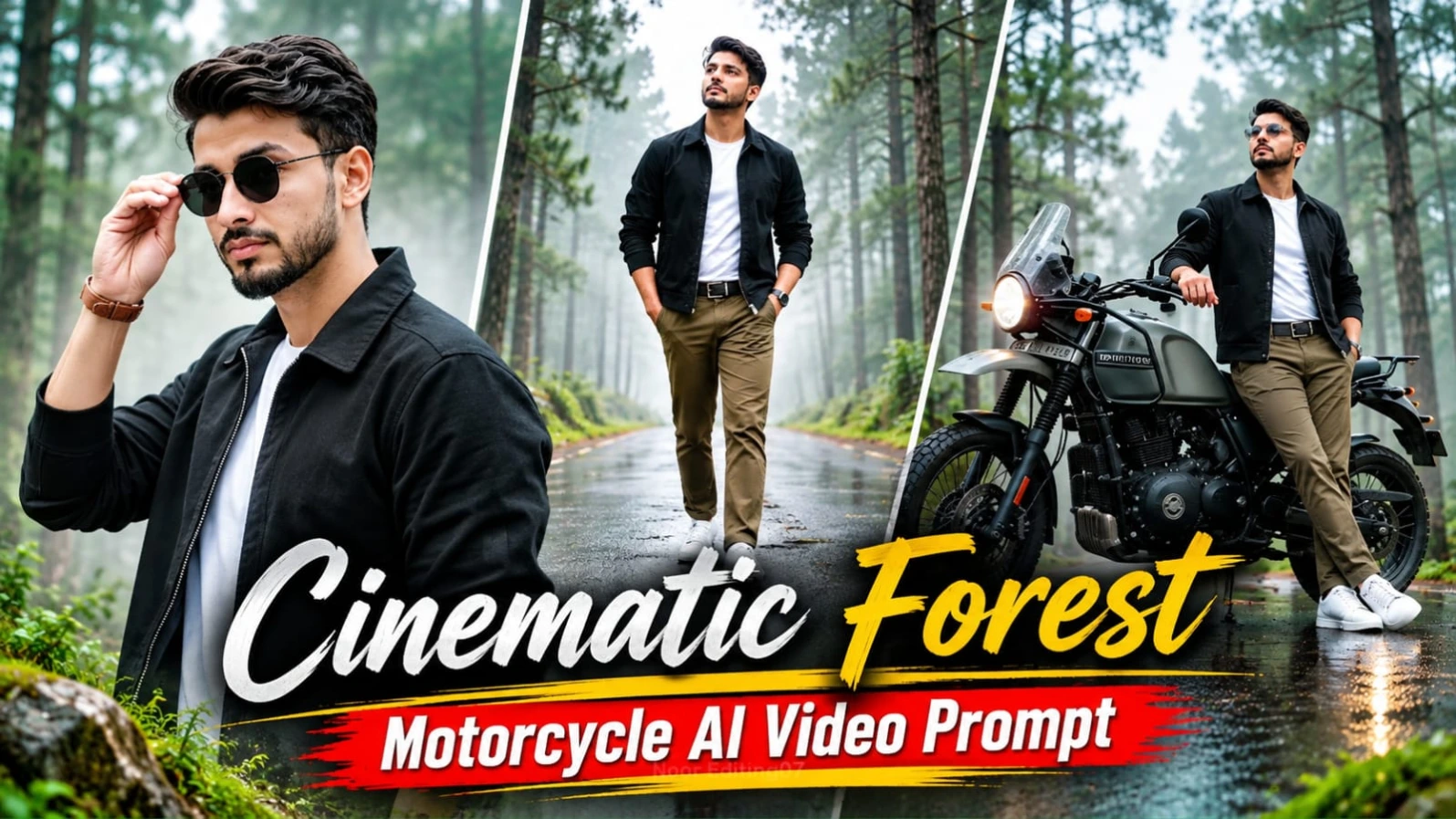
Cinematic Forest Motorcycle AI Video Prompt se aap misty pine forest mein ek premium adventure-style video create kar sakte hain. Is concept mein wet asphalt, drifting fog aur olive-grey adventure motorcycle hai. Character black zip-up work jacket, white T-shirt, olive-brown chinos, white sneakers, brown leather watch aur black round sunglasses pehenta hai.
Forest Motorcycle Flow AI Video Kaise Banaye
Step 1: Apni reference photo se character sheet banayein. Face, hairstyle, beard aur outfit ke front, side aur back views rakhein.
Step 2: Flow AI mein character sheet aur reference video upload karein, agar feature available ho.
Step 3: Original 12-scene, approximately 25-second prompt copy karein. Motorcycle ka olive-grey body, round headlight, mirrors aur black seat same rakhein.
Step 4: Opening mein character parked motorcycle ke paas khada hokar misty trees dekhta hai. Agle scenes mein face close-up, wet road par walking aur shoes ka ground-level tracking shot hai.
Step 5: Phir camera mossy trees se motorcycle ki taraf tilt karta hai. Character tank aur handlebar ke paas pose deta hai.
Step 6: Middle scenes mein winding forest road, sunglasses pehenna aur motorcycle par silhouette pose shamil hain. Motorcycle poore video mein stationary rahegi, ride nahi karegi.
Step 7: Final scenes mein camera upar rise karta hai aur orange-yellow leaves ke foreground se character aur parked bike ka cinematic shot leta hai.
Step 8: 16:9 format, muted olive-grey tones aur warm amber headlight maintain karein. Character har scene mein visible rahe.
NoorEditing07 watermark add karein. 8K HDR desired look hai; actual quality tool par depend karegi.
Pink BMW Cherry Blossom AI Video Prompt – Flow AI Edit
Original URL: https://www.noorediting07.com/pink-bmw-cherry-blossom-ai-video-prompt
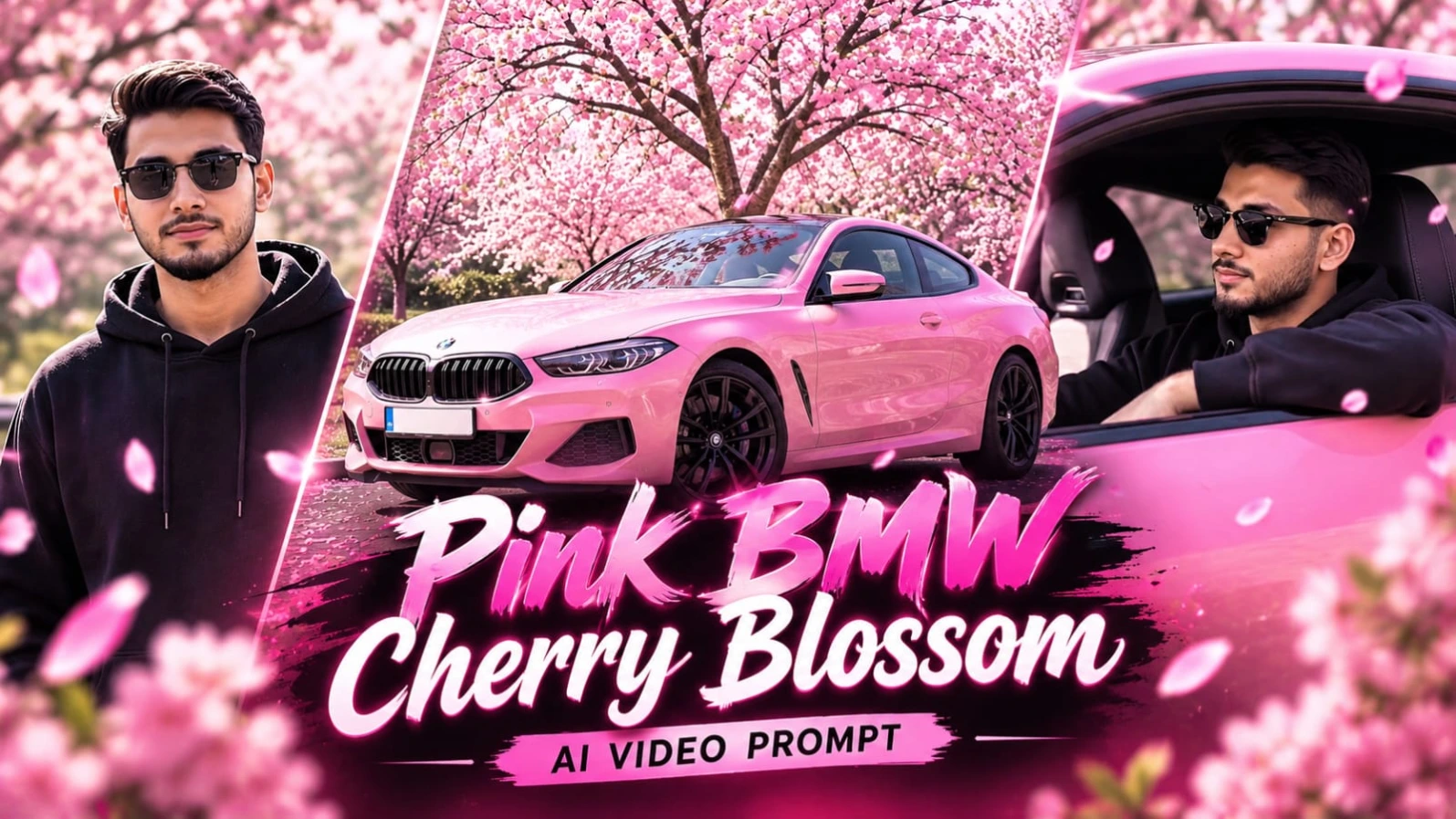
Pink BMW Cherry Blossom AI Video Prompt ek luxury car cinematic concept hai. Ismein glossy pink BMW sports car blooming cherry blossom trees ke neeche parked hai. Bright daylight, falling pink petals aur reflective car body video ko dreamy spring atmosphere dete hain. Character oversized black hoodie aur dark sunglasses pehenta hai.
Pink BMW Flow AI Video Kaise Banaye
Step 1: Apni clear reference photo se character sheet banayein. Front, side, back aur close-up views mein same face, hairstyle aur black hoodie maintain karein.
Step 2: Flow AI open karein aur available reference-image feature se character sheet upload karein.
Step 3: Original 8-scene video prompt copy karein. Pink BMW ka body design, headlights, wheels aur glossy paint har scene mein consistent rakhein.
Step 4: Opening mein front headlight aur wet hood ka macro close-up hai. Second scene mein cherry blossom tree ke neeche parked car ka wide hero shot hai.
Step 5: Third scene driver POV hai, jisme steering wheel aur rearview mirror reflection dikhte hain. Fourth scene mein character window down karke car drive karta hai.
Step 6: Fifth scene mein open window se character arm door par rest karta hai aur petals fall hote hain. Sixth scene mein woh car ke paas khada hokar camera ki taraf dekhta hai.
Step 7: Seventh scene rear three-quarter low-angle car shot hai. Final scene front low-angle tracking shot hai, jisme petals windshield ke saamne drift karte hain.
Step 8: Bright daylight, pastel pink tones aur 16:9 widescreen format use karein. Har scene mein NoorEditing07 watermark aur character consistency check karein.
8K aur 120fps target specifications hain; actual output AI tool ki supported settings par depend karta hai.